# GetAlternativeCount - 圖表函數
GetAlternativeCount() 用來尋找已識別欄位中的替代 (淺灰色) 值的數目。
語法:
GetAlternativeCount (field\_name)
傳回的資料類型: 整數
資訊備註
選項列中使用的顏色以及每個選取狀態的顏色都可以使用自訂佈景主題進行修改。如果您正在處理使用自訂佈景主題的應用程式,您可能會注意到您的選項顯示的顏色不同於此說明主題中描述的顏色。
引數
| 引數 | 描述 |
| --- | --- |
| field\_name | 包含待測量之資料範圍的欄位。 |
下表列出了與此函數相關的其他函數。
相關函數
| 函數 | 互動 |
| --- | --- |
| [GetStateCounts - 圖表函數](https://help.qlik.com/zh-TW/cloud-services/Subsystems/Hub/Content/Sense_Hub/ChartFunctions/FieldFunctions/getstatecounts.htm) | 使用 GetStateCounts(),您可以使用單一函數叫用合併下列計數的計算:
-
所選包含值的計數。
-
可能值的計數。
-
替代值的計數。
-
排除值的計數,不包括替代值和所選的排除值。
-
所選排除值的計數。
|
| [GetSelectedCount - 圖表函數](https://help.qlik.com/zh-TW/cloud-services/Subsystems/Hub/Content/Sense_Hub/ChartFunctions/FieldFunctions/getselectedcount.htm) | 傳回所選包含值的計數。 |
| [GetPossibleCount - 圖表函數](https://help.qlik.com/zh-TW/cloud-services/Subsystems/Hub/Content/Sense_Hub/ChartFunctions/FieldFunctions/getpossiblecount.htm) | 傳回可能值的計數。 |
| [GetAlternativeCount - 圖表函數](https://help.qlik.com/zh-TW/cloud-services/Subsystems/Hub/Content/Sense_Hub/ChartFunctions/FieldFunctions/getalternativecount.htm#) | 傳回排除值的計數,不包括替代值和所選的排除值。 |
範例:圖表運算式
| 範例 | 結果 |
| --- | --- |
| `GetAlternativeCount ([First name])` | 如果在 `First Name` 欄位中未進行選取,則傳回 `0`。如果已經進行選取,則傳回的值是可用相異值的總數減去所選值的數量。 |
## 範例 - GetAlternativeCount 基礎事項
[](https://help.qlik.com/en-US/cloud-services/Subsystems/Hub/Content/Sense_Hub/ChartFunctions/FieldFunctions/getalternativecount.htm)
#### 圖表運算式
概述
開啟資料載入編輯器並將下面的載入指令碼新增至新的區段。
載入指令碼包含:
* 載入到稱為 `Example` 之資料表格的資料集。
* 資料表格中的欄位如下:
* `FirstName`
* `LastName`
* `Initials`
* `HasCellphone`
載入指令碼
```
Example:
LOAD * inline [
FirstName|LastName|Initials|HasCellphone
John|Anderson|JA|Yes
Sue|Brown|SB|Yes
Mark|Carr|MC|No
Peter|Devonshire|PD|No
Jane|Elliot|JE|Yes
Peter|Franc|PF|Yes ] (delimiter is '|');
```
結果
載入資料並開啟工作表。建立新的篩選窗格並將此欄位新增為維度:
* `FirstName`
新增 KPI,然後建立以下量值:
* `=GetAlternativeCount (FirstName)`,用來尋找 `FirstName` 欄位中的替代值的數量。
具有 `GetAlternativeCount` 函數的 KPI 顯示值 `0`。如果從 `FirstName` 篩選窗格中選取 `Jane`,KPI 將傳回值 `4`,因為有四個唯一的排除 (灰色) 值。現在選取 `Mark`,亦即選取了 `Jane` 和 `Mark` 兩者。`GetAlternativeCount` 量值的 KPI 值傳回 `3`,因為有 3 個唯一的排除值 `John`、`Peter`和 `Sue`。
從 FirstName 篩選窗格中選取 Jane 和 Mark 後,KPI 結果顯示 3 個唯一的排除值
從 FirstName 篩選窗格中選取 Jane 和 Mark 後,KPI 結果顯示 3 個唯一的排除值
從 FirstNameFirstName 篩選窗格中選取 JaneJane 和 Mark Mark 後,KPI 結果顯示 3 個唯一的排除值 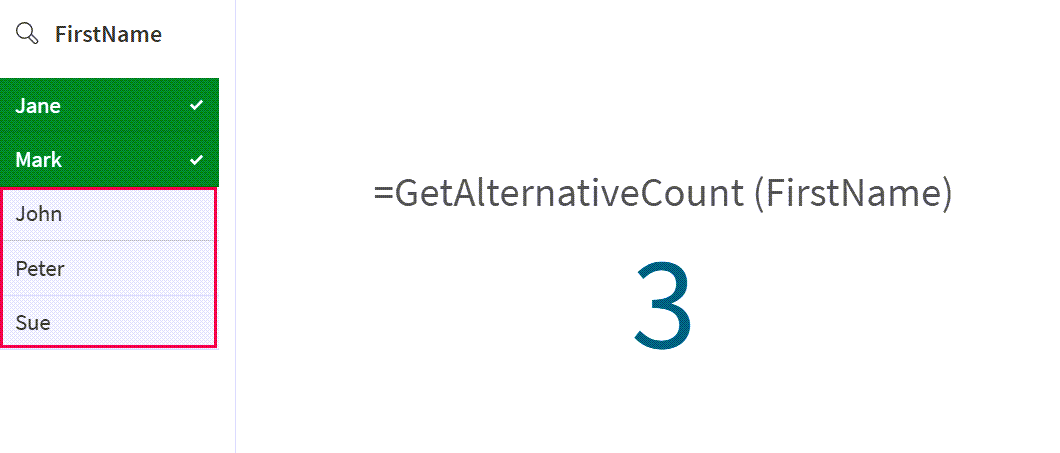
您可以看到 `GetAlternativeCount` 函數傳回的值隨著選取了附加選項而變化。
## 範例 - GetAlternativeCount 使用情境
[](https://help.qlik.com/en-US/cloud-services/Subsystems/Hub/Content/Sense_Hub/ChartFunctions/FieldFunctions/getalternativecount.htm)
#### 圖表運算式
概述
開啟資料載入編輯器並將下面的載入指令碼新增至新的區段。
載入指令碼包含:
* 載入到稱為 `CustomerTypeData` 之資料表格的資料集。
* 資料表格中的欄位如下:
* `CustomerID`
* `CustomerType`
載入指令碼
```
CustomerTypeData:
LOAD * INLINE [
CustomerID, CustomerType
C001, Retail
C002, Wholesale
C003, Distributor
C004, Retail
C005, Wholesale
];
```
結果
載入資料並開啟工作表。建立新的篩選窗格並將此欄位新增為維度:
* `CustomerType`
新增 KPI,然後建立以下量值:
* `=GetAlternativeCount (CustomerType)`,用來尋找 `CustomerType` 欄位中的替代值的數量。
具有 `GetAlternativeCount` 函數的 KPI 顯示值 `0`,因為 `CustomerType` 欄位中未選取任何值。
從 `CustomerType` 篩選窗格中選取 `Retail`。`GetAlternativeCount` 傳回值 `2`,因為 `CustomerType` 欄位中有兩個唯一的排除 (淺灰色) 值。
從 CustomerType 篩選窗格中選取 Retail 後,KPI 結果顯示 2 個唯一的排除值
從 CustomerType 篩選窗格中選取 Retail 後,KPI 結果顯示 2 個唯一的排除值
從 CustomerTypeCustomerType 篩選窗格中選取 RetailRetail 後,KPI 結果顯示 2 個唯一的排除值 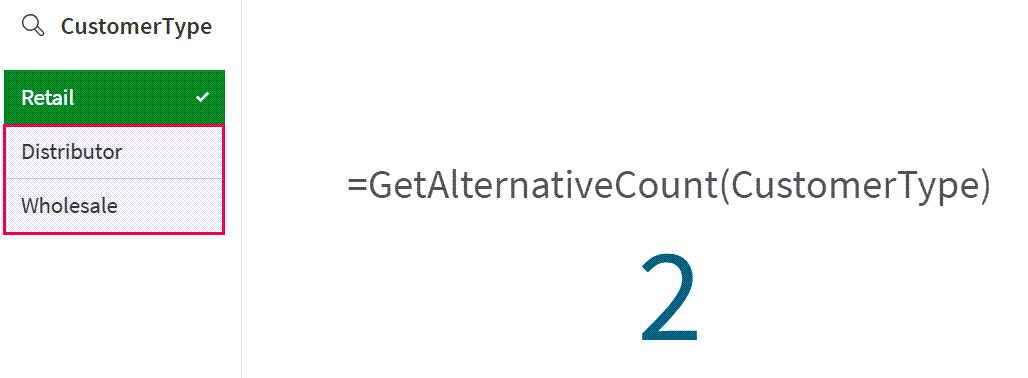
結果顯示,雖然有多個值,但 `GetAlternativeCount` 函數只顯示未選取項目的唯一計數。
## 範例 - GetAlternativeCount 使用情境與可用值
[](https://help.qlik.com/en-US/cloud-services/Subsystems/Hub/Content/Sense_Hub/ChartFunctions/FieldFunctions/getalternativecount.htm)
#### 圖表運算式
概述
此範例建立在上一個使用情境的基礎上。資料集包含第二個資料表格,以示範每個欄位中的選項如何改變 `GetAlternativeCount` 函數傳回的結果。
開啟資料載入編輯器並將下面的載入指令碼新增至新的區段。
載入指令碼包含:
* 載入到以下 2 個內嵌資料表格和對應欄位的資料集:
* `CustomerTypeData`:包括欄位 `CustomerID` 和 `CustomerType`。
* `CustomerSegment`:包括欄位 `CustomerType` 和 `Segment`。
載入指令碼
```
CustomerTypeData:
LOAD * INLINE [
CustomerID, CustomerType
C001, Retail
C002, Wholesale
C003, Distributor
C004, Retail
C005, Wholesale
];
CustomerSegment:
Load * Inline [
CustomerType, Segment
Retail, Fashion
Retail, Home
Wholesale, Fashion
Wholesale, Drinks
Distributor, Food
];
```
結果
1. 載入資料並開啟工作表。建立新的篩選窗格並將這些欄位新增為維度:
* `CustomerType`
* `Segment`
2. 新增 KPI,然後建立以下量值:
* `=GetAlternativeCount (CustomerType)`,用來尋找 `CustomerType` 欄位中的替代值的數量。
具有 `GetAlternativeCount` 函數的 KPI 顯示值 `0`,因為 `CustomerType` 或 `Segment` 欄位中未選取任何值。
3. 從 `Segment` 篩選條件中選取 `Drinks` 和 `Fashion`。KPI 仍會傳回 `0`,因為 `CustomerType` 欄位中未選取任何值。
在 `Segment` 篩選條件中選取後,KPI 結果顯示零個唯一的排除值
在 `Segment` 篩選條件中選取後,KPI 結果顯示零個唯一的排除值
在 `Segment`Segment 篩選條件中選取後,KPI 結果顯示零個唯一的排除值 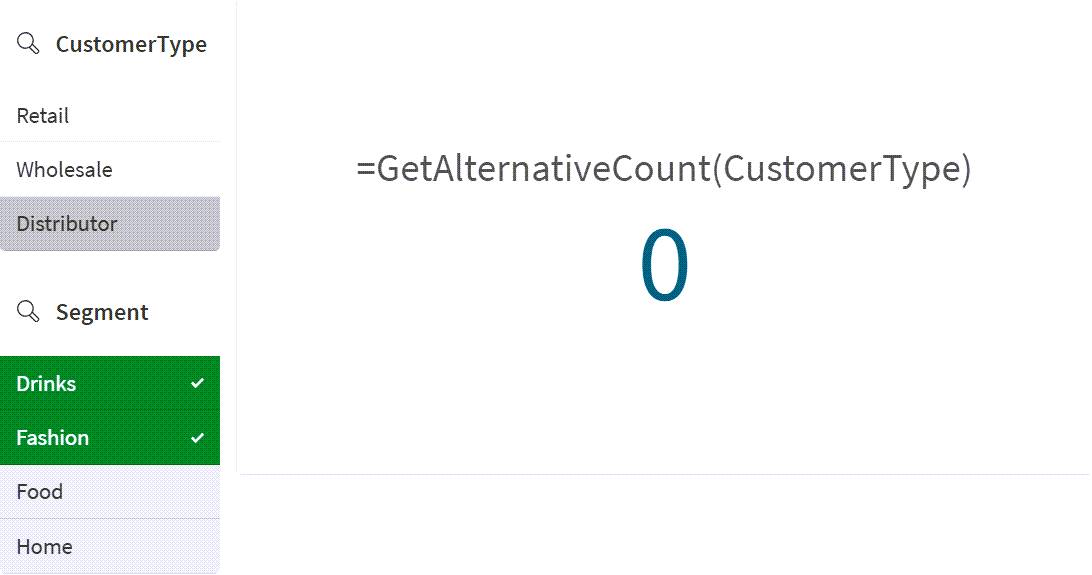
4. 在 `CustomerType` 欄位中選取 `Retail`,並將選項保留在 `Segment` 篩選條件中。
`GetAlternativeCount` 函數現在傳回 `1`,因為 `CustomerType` 欄位 `Wholesale` 中只有一個唯一的排除 (淺灰色) 值。
在 `CustomerType` 和 `Segment` 篩選條件中選取後,KPI 結果顯示 1 個唯一的排除值
在 `CustomerType` 和 `Segment` 篩選條件中選取後,KPI 結果顯示 1 個唯一的排除值
在 `CustomerType`CustomerType 和 `Segment`Segment 篩選條件中選取後,KPI 結果顯示 1 個唯一的排除值 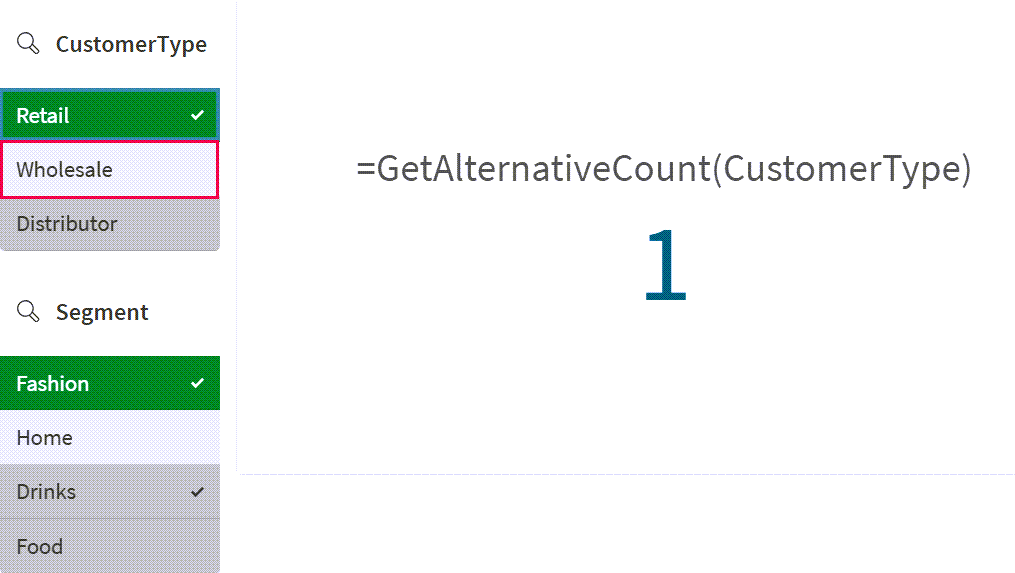
雖然 `CustomerType` 欄位中未選取兩個值 `Wholesale` 和 `Distributor` (這分別以淺灰色和深灰色顯示),但由於 `Segment` 篩選條件中的選項,在 `CustomerType` 中只有一個值 `Wholesale` 可供選取。