# Search
[](https://help.qlik.com/talend/en-US/talend-data-catalog/Content/user-guide/explore/search.htm)
## Immediate Search
You may immediately perform searches from any page in the user interface. There is always a search text box in the top right corner.
**Steps**
1. Click in the **Search** text box in the upper right.
2. Enter any text.
3. Click **SHOW MORE** or press **ENTER** to show a search worksheet of the results.
Information note
You may specify a persona (e.g., **All Objects** or **Data Inventory**) in the pull-down to the left of the search box to set the basis or scope with initial filtering of the search results and explore results.
**Example**
You search for any object containing the word
> purchase
.

Information note
*Relevance* and *Ordering of Results*: The first object in the list of results are those which are certified. The presentation order of the search results is altered by actions like certification. To learn more, go [here](https://help.qlik.com/talend/en-US/talend-data-catalog/8.1/Content/user-guide/data-cataloging/social-curation.htm).
**Semantic Search**: The search uses semantic search rules so that you may specify fairly sophisticated queries within a simple syntax. This syntax is documented here.
## Personas in Search
Personas are a feature that allows users to concentrate on models and objects that are most relevant to them. Administrators can [create and share these personas](https://help.qlik.com/talend/en-US/talend-data-catalog/8.1/Content/user-guide/administration-and-system-management/manage-personas.htm) which are then [assigned to users](https://help.qlik.com/talend/en-US/talend-data-catalog/8.1/Content/user-guide/administration-and-system-management/manage-personas.htm). Users may then choose from a list of available personae or **All Objects** (none). The pick list is available just to the left of the **Search** text box, on the right side of the header.

Once a persona is chosen, that all search results and model browse (in OBJECTS > Explore) results will be filtered to match the criteria in the persona. This functionality gives administrators a powerful tool to personalize and tailor users' search and browsing experience, enhancing focus and relevance.
Information note
The lineage functionality may include objects outside the Search View scope. These objects will be fully accessible in the lineage UI, including their details and the option to open them, but they will not appear in the Object Explorer.
Select **Data Inventory** from the persona pull-down to the left of the search box and click in the search text box again.

Information note
The results have changed, as the **Data Inventory** persona pre-filters the results, where **All Objects** did not. With the **Data Inventory** persona selected, only columns and tables (or their equivalent) are displayed, whereas we saw relationships, etc., with **All Objects**.
Click Enter to open the search worksheet.

The search Filters panel show the persona filter, and the name proposed at the top is the persona name.
## Open the (Object Page for the) Object
Click any object in the results or any of the structures in its **Context** (or model path) to view the object page.
Click **Purchase Order** (from **Accounting**.**Accounts Payable**) which is the second item in the results.

## Recently Found Objects
The search will initially show recent search requests that you may select even before you type anything in the text box.

Information note
**PurchaseOrder** is only found in the **Recently found objects** dialog as we had actually clicked on it in the search results and thus opened its object page.
## Show the Full Results
Only the most relevant few results are listed in the immediate search dropdown. Press **ENTER** or click **SHOW MORE** to present the results as a search worksheet t.
## Search text in
Click **Search Options** to specify what textual properties to search in.

Information note
If you press **ENTER** or click **SHOW MORE**, these options will be carried forward to the filter for the results as a search worksheet.
## Search in Model
Generally, the scope of searching is the current configuration. However, you may perform searches within the scope of a given model rather than the entire configuration.
**Steps**
1. [Navigating to a model’s homepage](https://help.qlik.com/talend/en-US/talend-data-catalog/8.1/Content/user-guide/analyze/object-page.htm).
2. Click on the **More actions** icon and select **Search in Model**.
3. You are presented with a search worksheet.
**Example**
Go to the object page for the **Data Lake** model.

Click **More Actions** and select **Search in Model**, and search for any object containing the word
> ssn
.

Information note
All the same search options as for the immediate search are here.
## Search Text
When searching, once you are on the results page, you may specify what fields to search for in terms of text. By default only the name and physical name are searched. All options are:
* Name
* Physical name
* Description
* Others, which includes other text properties (like comment) and custom attributes.

## Search Syntax
This search is based on the popular Apache Lucene search engine (possibly implemented on a Solr server) where the indexing of words in names and description:
* ignores case sensitivity. Therefore, search for Customer will also return customer, and CUSTOMER.
* ignores any space or special characters such as \_ : . [ ] ( ) which are treated as word breakers by the search tokenizer. Therefore, search for
> Customer ID
will also return: 2023\_CUSTOMER\_ID, Customer:ID, Customer[id].
When using the search in the UI:
* Before you type, a simple click will list the history of your previous searches.
* As you type, search is automatically activated offering you choices that you can select in the suggested list in matching priority order. Hit enter only to go to the advanced search window.
Basic Search
You may search for very precise results by specifying a search using the built-in query language (similar to popular web based search engines) as follows:
| **To search for** | **Example** | **Result** |
| --- | --- | --- |
| Any words | invoice amount | Matching the words
> invoice
or
> amount
. |
| Consecutive Words (Phrase) | “invoice amount” | Matching the consecutive words (phrase) of
> invoice
followed by
> amount
, with possible extra special characters in between, and possible extra words before or after that phrase. |
| Exact Words (Phrase) | .“invoice amount” | Matching the exact words (phrase)
> invoice amount
, without any other special characters in between, and without any other words before or after that phrase (still in any case sensitivity). |
| All Words | +invoice +amount | Matching BOTH the words “invoice” and “amount”. |
| Exclude Words | +invoice –amount | Matching the word “invoice” but cannot contain the word “amount”. |
| Wild Card End | invoice\* | Matching the word
> invoice
only at the beginning. |
| Parent and Child | invoice.invoicenumber | Matching a parent named “invoice” and a child named “invoicenumber”. E.g., the attribute “invoicenumber” contained within the entity “invoice”. |
**Examples**
* invoice amount

* “invoice amount”

* .“invoice amount”

* +invoice +amount

* +invoice –amount

* invoice\*

* invoice.invoicenumber

One can, of course, append these together into a search string. E.g.:
Information note
Sales +order -date property:physicalname type:column
When searching for words with spaces or punctuation characters, such exact words must be quoted (e.g.
> Product SKU
). By default, the search is only based on the name.
Information note
Use the text search options to search in descriptions and more).
Case sensitivity varies by object. The search is case-sensitive search for objects, like Labels, and custom attributes and case-insensitive for text, like name and description, by default.
For system objects, like Labels, in general the UI is defined to allow you to pick the object (not the text of its name). You can define two Labels, web and Web, and search for any or all of them. When you need to search for both web and Web labels you should use the **Equal ANY** option.
The characters
> \_
(underscore),
> :
(colon),
> '
(single quote) and
> .
(dot) as well as white space characters are treated as word breakers by the search tokenizer. Therefore the search text
> \_end
will be tokenized as
> pll
and thus will match both
> example\_end
and
> append
. Furthermore, any search text that is not quoted by the double quote character (") will be surrounded by the wildcard character to match more objects. If you do not want wildcard characters to be added, quote the search text with the double quote character, i.e. make the search text "\_ end ". You will find objects with only "\_ end " not
> append
.
### Search for Any Words
Enter
> customer id
in the search box and press **ENTER**.

Information note
The results include all those objects matching any of the words, in this case
> customer
or
> id
. The search is case insensitive.
**Category Group Number** is included because the search is by default for all text fields, not just name.
Click **Search Options** and only select **Name**

Information note
**Category Group Number** is not included anymore..
**CustomerPoInvoiceItem** is included because
> customer
is one of the words and camel case is recognized as separated by a special character.
### Search for Consecutive Words (Phrase)
Introducing quotation marks (") around the search text limits the results further.
Enter "
> customer id
" in the search box and press **ENTER**.

Information note
The results include all those objects matching the consecutive words (phrase) of
> customer
followed by
> id
, with possible extra special characters in between, and possible extra words before or after that phrase.
**Customer\_ID** is included because underscore (\_) is considered a special character that is treated as a space character.
**Customer ID 1** is included because results will include matches with extra words before or after the phrase.
1972\_Customer\_Number is include because its Definition include
> Customer ID
.

### Search for Exact Words (Phrase)
Introducing a period (.) in front of the quoted the search text limits the results further, ensuring an exact match.
Enter ".
> customer id
" in the search box and press **ENTER**.

Information note
The results include all those objects matching the exact words (phrase)
> customer id
, without any other special characters in between, and without any other words before or after that phrase (still in any case sensitivity).
All the other non-exact matches seen in the Any Word or Consecutive Words (Phrase) search are no longer shown.
### Search Using with Syntax
Search for
> table with mail
.

The results contain all tables that contain a column that has the word
> mail
in the name.
Now press the **Enter** key.

Information note
All the results are displayed as a [worksheet](https://help.qlik.com/talend/en-US/talend-data-catalog/8.1/Content/user-guide/explore/collections.htm) along with the filter panel on the left.
### Other Examples
Category query – Customer in snowflake
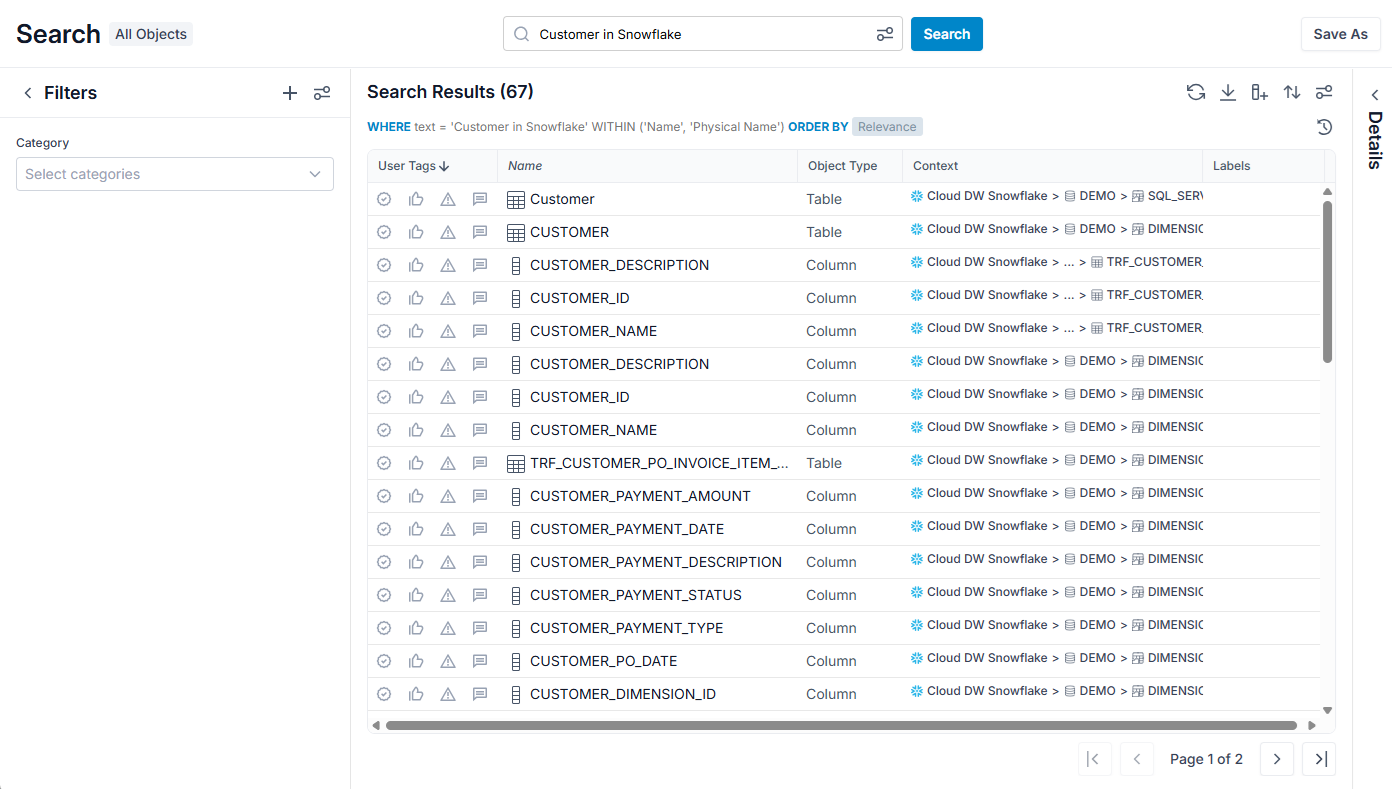
Category query – Customer in snowflake.tables

Category query – Customer in snowflake.tables.view

Children query – File with postal

Label query – term with
> QuarterlyReview
Label

Information note
> QuarterlyReview
is quoted.
## Search Thesaurus
The **Search Thesaurus** feature enhances search functionality by recognizing and matching conceptually similar terms. It allows users to find relevant results even when their search terms differ from the exact words used in the data. For example, searching for
> consumer
will also return results containing
> customer
but with lower priority.
Use Cases:
* Improve information discoverability in the data catalog.
* Help users with varying vocabularies find the same content.
* Align search behavior with organizational terminology and user intent.
This feature supports:
* **Synonym Expansion**: MQL automatically expands search queries to include predefined *synonyms* (represented as abbreviations in the naming standard).
* **Custom Synonym Mapping**: Administrators can define and manage domain-specific synonym sets as Naming Standards and apply them to Personas.
* **Multi-Language Support**: Supports synonym definitions in multiple languages (optional).
### Creating Thesaurus Search Synonyms
Synonyms are based upon the naming standards and supervised learning features. In this way, as one uses naming standards to help document data stores, one may then search using those
> synonyms
(abbreviations) as part of the persona search.
Thus, to take advantage of the thesaurus search:
**Steps**
1. First one should create namings in a naming standard in your configuration and give them abbreviations
2. Create a new or extend an existing persona in **Manage** > **Personas** and include that naming standard in the **Naming Standards** selection of that persona.
**Example**
Sign in as the **Administrator** user.
[Navigate](https://help.qlik.com/talend/en-US/talend-data-catalog/8.1/Content/user-guide/explore/index.htm) to the [object page](https://help.qlik.com/talend/en-US/talend-data-catalog/8.1/Content/user-guide/analyze/object-page.htm) for the existing naming standard named **Naming Standard**. 
Information note
In this case, we have already added two namings, **Consumer** and **Customer** with reciprocal abbreviations. The
> synonym
relationships represented by abbreviation is one-directional. Thus, to search for
> Consumer
and see Customer results, you must have a naming
> Consumer
with an abbreviation
> Customer
.
Go to **Manage** > **Personas** and update the **All Objects** persona to specify the **Naming Standards** selection and pick your naming standard.

Click **Save**.
Now, search for
> consumer
:

Information note
We see that results for
> Customer
are in the search results now as long as we have the **All Objects** persona specified.