# GetObjectField - chart function
GetObjectField() returns the field expression of the dimension. Index is an optional integer denoting the dimension that should be returned.
Information note
You cannot use this function in a chart in the following locations: title, subtitle, footer, reference line expression and min/max expression.
Information note
You cannot reference the name of a dimension or measure in another object using the Object ID.
Syntax:
GetObjectField ([index])
Return data type: string
Example: Chart expressions
| Example | Result |
| --- | --- |
| `GetObjectField ()`
`GetObjectField (0)` | Returns the field expression for the first dimension in the chart. |
| `GetObjectField (1)` | Returns the field expression for the second dimension in the chart. |
If you want to return the name of a measure use the GetObjectMeasure function instead.
## Example - GetObjectField fundamentals
[](https://help.qlik.com/en-US/sense/Subsystems/Hub/Content/Sense_Hub/Scripting/SystemFunctions/GetObjectField.htm)
#### Chart expression
Overview
Open the Data load editor and add the load script below to a new section.
The load script contains:
* A dataset which is loaded into a data table called `Example`.
* The following fields in the data table:
* `TransactionDate`
* `CustomerID`
* `TransactionQuantity`
Load script
```
Example:
LOAD * INLINE [
TransactionDate, CustomerID, TransactionQuantity
2018/08/30, 049681, 13
2018/08/30, 203521, 6
2018/08/30, 203521, 21
];
```
Results
Load the data and open a sheet. Create a new table and add these fields as dimensions:
* `TransactionDate`
* `CustomerID`
* `TransactionQuantity`
Create the following measures:
* `=GetObjectField()`, to find the first dimension in the table.
* `=GetObjectField(0)`, to find the first dimension in the table.
* `=GetObjectField(1)`, to find the second dimension in the table.
Results table
| TransactionDate | CustomerID | TransactionQuantity | GetObjectField () | GetObjectField (0) | GetObjectField (1) |
| --- | --- | --- | --- | --- | --- |
| 2018/08/30 | 049681 | 13 | TransactionDate | TransactionDate | CustomerID |
| 2018/08/30 | 203521 | 6 | TransactionDate | TransactionDate | CustomerID |
| 2018/08/30 | 203521 | 21 | TransactionDate | TransactionDate | CustomerID |
Looking at the results, you can see how the `GetObjectField` function returns the name of the field indicated in the function parameters.
## Example - GetObjectField advanced scenario
[](https://help.qlik.com/en-US/sense/Subsystems/Hub/Content/Sense_Hub/Scripting/SystemFunctions/GetObjectField.htm)
#### Chart expression
Overview
This example uses the `GetObjectField` function in combination with filter selections. The dimension and measure calculation that appears in the chart object changes based on the filter that you select.
Open the Data load editor and add the load script below to a new section.
The load script contains:
* A dataset which is loaded into two inline data tables: `Sales` and `Filter`. The first table, `Sales`, includes sales data. The second table, `Filter`, contains a list of field names that will be used as a dimension toggle. The toggle allows you to switch between dimensions in a chart and customize the measure calculation that appears depending on the dimension selected.
* The following fields in the `Sales` table:
* `Country`
* `Salesperson`
* `SalesValue`
* The following field in the `Filter` table: `FilterField`.
Load script
```
Sales:
LOAD * INLINE [
Country, SalesPerson, SalesValue
USA, John, 500
USA, Alice, 700
Canada, Bob, 300
Canada, Carol, 400
Mexico, Dave, 200
];
Filter:
LOAD * INLINE [
FilterField
Country
SalesPerson
];
```
Results
1. Load the data and open a sheet. Create a new filter pane and add this field as a dimension:
* `FilterField`
2. In the assets panel, under Fields, right-click FilterField and select Field settings. Select the Always one value selected check box, and then click Save.
3. Create a table, and then add a dimension by entering the following expression:
* `=$(= FilterField)`
* Under Label, enter the following expression to define the column name for the dimension: `='$(= FilterField)'`.
4. Create the following measure:
* `=If(GetObjectField() = 'Country', Sum(SalesValue), Avg(SalesValue))`, to sum the sales values if the dimension selected is `Country` otherwise to return the average of the sales value when the dimension selected is `SalesPerson`.
* Under `Label`, enter the following expression to define the column name that will display for the measure according to the filter selection: `=If(GetObjectField() = 'Country', 'Sum(SalesValue)', 'Avg(SalesValue)')`. For example, if `Country` is selected in the filter, the name of the measure will return the value `Sum(SalesValue)`.
In analysis mode, when you switch between `SalesPerson` and `Country` in the `FieldFilter` filter, the table changes to include the selected dimension and the corresponding measure calculation for that dimension. For example, if you select `Country` in the filter, the table shows `Country` as the dimension in the first column. The measure then uses the `GetObjectField` function, equates this to `Country`, and returns the `Sum(SalesValue)`.
Filter pane and table results for Country
Filter pane and table results for Country
Filter pane and table results for CountryCountry 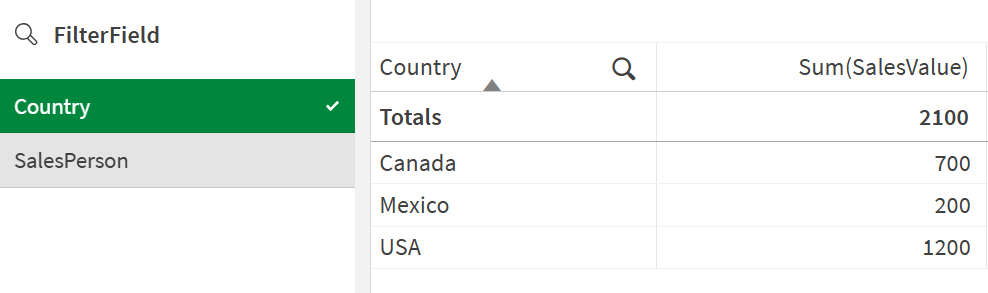
The following table shows the results when you select `Country` in the `FilterField` filter.
Results table for `Country`Country
| Country | Sum(SalesValue) |
| --- | --- |
| Canada | 700 |
| Mexico | 200 |
| USA | 1200 |
The following table shows the results when you select `SalesPerson` in the `FilterField` filter.
Results table for `SalesPerson`SalesPerson
| SalesPerson | Avg(SalesValue) |
| --- | --- |
| Alice | 700 |
| Bob | 300 |
| Carol | 400 |
| Dave | 200 |
| John | 500 |