# Constrain
The Constrain statement can be used in combination with Let or Set statements for defining script variables. The Constrain statement allows you to define constraints on possible values for these variables. If a variable definition violates the constraints, the reload fails. With constraints, you can require variable values to match specific types, fall within specific numeric ranges, and match with acceptable values that you define.
Syntax:
Constrain variablename = json
Where:
* variablename is a script variable.
* json is a valid JSON object specifying the constraints. Individual constraints are added within this object as key-value pairs.
Constraint types
| Constraint type (key) | Meaning | Constraint requirements (value) | Examples |
| --- | --- | --- | --- |
| `"type"` | Constrain variable values to a specific data type. | `"text"` specifies a text type.
`"number"` specifies a numeric type. | ```
CONSTRAIN vExampleText = {"type": "text"}
```
```
CONSTRAIN vExampleNumeric = {"type": "number"}
``` |
| `"maxnum"` | Set a maximum value for a variable. | Numbers only (integer or floating point). Scientific notation is allowed. | ```
CONSTRAIN vExample = {"maxnum": 5000}
``` |
| `"minnum"` | Set a minimum value for a variable. | Numbers only (integer or floating point). Scientific notation is allowed. | ```
CONSTRAIN vExample = {"minnum": 250}
``` |
| `"valuesnum"` | Define a list of acceptable numeric values for the variable. | Comma-separated list of numbers enclosed in square brackets. For example: `[1,2,3]` | ```
CONSTRAIN vExample = {"valuesnum": [1,2,3]}
``` |
| `"valuestext"` | Define a list of acceptable text values for the variable. | Comma-separated list of strings enclosed in square brackets. For example: `["a","b","c"]` | ```
CONSTRAIN vExample = {"valuestext": ["Department A", "Department B", "Department C"]}
``` |
## When to use a Constrain statement
Use the Constrain statement to prevent unwanted variable values from being loaded into analytics applications.
## Considerations
* The Constrain definition for the variable must be a valid JSON object.
* You can specify more than one constraint for a single variable. All constraints for a variable need to be contained within a single constraint object. For examples, see [Examples - Multiple constraints](https://help.qlik.com/en-US/sense/May2026/Subsystems/Hub/Content/Sense_Hub/Scripting/ScriptRegularStatements/Constrain.htm#Examples).
* If you have already loaded a script variable with a certain name into the application, future attempts to define constraints and values for that variable can fail due to conflicts between the original and the redefined variables.
To resolve these conflicts, reset the variable constraints and values by inserting blank definitions. Examples:
```
CONSTRAIN x;
LET x;
```
```
CONSTRAIN x;
SET x;
```
You can then redefine the variable and its constraints in subsequent sections in the load script. For a long-form example, see [Example - Resolving variable definition conflicts](https://help.qlik.com/en-US/sense/May2026/Subsystems/Hub/Content/Sense_Hub/Scripting/ScriptRegularStatements/Constrain.htm#ConflictResolve).
* The order of the variable definition and the constraint definition does not matter. However, in the event of variable-related reload failure, the line at which the break point occurs will be different.
* The Constrain script statement only restricts variable definitions for script variables. You can also apply constraints on script and end-user variables (those created or updated in sheet view or as session variables using the API) by using the public API. For more information, see [Developer alternatives for defining variable constraints](https://help.qlik.com/en-US/sense/May2026/Subsystems/Hub/Content/Sense_Hub/Scripting/ScriptRegularStatements/Constrain.htm#Developer).
* Constraints are validated to avoid scenarios that cannot match any value for the variable. Examples of invalid constraints:
* {"minnum": 5000, "maxnum": 4}
* {"type": "text", "maxnum": 4}
## Developer alternatives for defining variable constraints
You can also use the public API to define variable constraints, rather than using the Constrain statement in the load script. When defining constraints via API, all attempts to update variable values—whether directly in the load script or in sheet view—will be subject to the constraints.
To define variable constraints via the public API, use the GenericVariableConstraints property in the Qlik Engine JSON API: [GenericVariableProperties](https://help.qlik.com/en-US/sense-developer/May2026/Subsystems/EngineJSONAPI/Content/models-genericvariableproperties.htm).
## Example - type
[](https://help.qlik.com/en-US/sense/Subsystems/Hub/Content/Sense_Hub/Scripting/ScriptRegularStatements/Constrain.htm)
#### Failed reload with "type"
Overview
Open the Data load editor and add the load script below to a new section.
The load script contains:
* A Constrain statement to specify that the variable definition for a needs to have the number type.
* A LET statement defining variable a.
Load script
```
CONSTRAIN a = {"type": "text"};
LET a = 1000;
```
Results
Load the data.
The reload fails because the constraint requires a text type for variable a . The variable definition is a number.
By contrast, specifying a type of number in the constraint would cause the reload to succeed.
## Example - maxnum
[](https://help.qlik.com/en-US/sense/Subsystems/Hub/Content/Sense_Hub/Scripting/ScriptRegularStatements/Constrain.htm)
#### Failed reload with "maxnum"
Overview
Open the Data load editor and add the load script below to a new section.
The load script contains:
* A Constrain statement to specify that the variable definition for b can have a maximum value of 3000.
* A LET statement defining variable b.
```
CONSTRAIN b = {"maxnum": "3000"};
LET b = 3001;
```
Results
Load the data.
The reload fails because the constraint requires a maximum value of 3000 for variable b . The variable definition evaluates as 3001.
By contrast, specifying b as 2999 would cause the reload to succeed.
## Example - minnum
[](https://help.qlik.com/en-US/sense/Subsystems/Hub/Content/Sense_Hub/Scripting/ScriptRegularStatements/Constrain.htm)
#### Failed reload with "minnum"
Overview
Open the Data load editor and add the load script below to a new section.
The load script contains:
* A Constrain statement to specify that the variable definition for b can have a minimum value of 3000.
* A LET statement defining variable c.
```
CONSTRAIN c = {"minnum": "3000"};
LET c = 2999;
```
Results
Load the data.
The reload fails because the constraint requires a minimum value of 3000 for variable c . The variable definition evaluates as 2999.
By contrast, specifying c as 3000 would cause the reload to succeed.
## Example - valuesnum
[](https://help.qlik.com/en-US/sense/Subsystems/Hub/Content/Sense_Hub/Scripting/ScriptRegularStatements/Constrain.htm)
#### Failed reload with "valuesnum"
Overview
Open the Data load editor and add the load script below to a new section.
The load script contains:
* A Constrain statement to specify that the variable definition for d must be numeric and must be 2, 3, or 4.
* A LET statement defining variable d.
```
CONSTRAIN d = {"valuesnum": [2,3,4]};
LET d = 1;
```
Results
Load the data.
The reload fails because the variable d is evaluated to be 1, which is not in the list of three possible values.
By contrast, specifying d as 2 would cause the reload to succeed.
## Example - valuestext
[](https://help.qlik.com/en-US/sense/Subsystems/Hub/Content/Sense_Hub/Scripting/ScriptRegularStatements/Constrain.htm)
#### Failed reload with "valuestext"
Overview
Open the Data load editor and add the load script below to a new section.
The load script contains:
* A Constrain statement to specify that the variable definition for e must be one of the following text values:
* Department A
* Department B
* Department C
* A SET statement defining variable e.
```
CONSTRAIN e = {"valuestext": ["Department A", "Department B", "Department C"]};
SET e = Department D;
```
Results
Load the data.
The reload fails because the variable e is Department D, which is not in the list of allowed values defined by the constraint.
By contrast, specifying e as Department C would cause the reload to succeed.
## Examples - SET versus LET
These examples show the differences between how constraints are applied when using SET or LET during variable definition. All examples use constraints applying a type requirement, but these principles apply to all constraint types generally.
[](https://help.qlik.com/en-US/sense/Subsystems/Hub/Content/Sense_Hub/Scripting/ScriptRegularStatements/Constrain.htm)
#### Failed reload with SET
Overview
Open the Data load editor and add the load script below to a new section.
The load script contains:
* A Constrain statement to specify that the variable definition for f needs to have the number type.
* A SET statement defining variable f.
Load script
```
CONSTRAIN f = {"type": "number"};
SET f = 500*2;
```
Results
Load the data.
The reload fails because the constraint requires a numeric type for variable f . The variable definition contains a numeric expression but because a SET statement is used, the definition is evaluated as text.
[](https://help.qlik.com/en-US/sense/Subsystems/Hub/Content/Sense_Hub/Scripting/ScriptRegularStatements/Constrain.htm)
#### Failed reload with LET
Overview
Open the Data load editor and add the load script below to a new section.
The load script contains:
* A Constrain statement to specify that the variable definition for g needs to have the text type.
* A LET statement defining variable g.
Load script
```
CONSTRAIN g = {"type": "text"};
LET g = 500*2;
```
Load the data.
The reload fails because the constraint requires a text type for variable g . The variable definition contains a numeric expression and a LET statement is used, causing the definition to be evaluated as a number.
[](https://help.qlik.com/en-US/sense/Subsystems/Hub/Content/Sense_Hub/Scripting/ScriptRegularStatements/Constrain.htm)
#### Successful reload with SET
Overview
Open the Data load editor and add the load script below to a new section.
The load script contains:
* A Constrain statement to specify that the variable definition for h needs to have the text type.
* A SET statement defining variable h.
Load script
```
CONSTRAIN h = {"type": "text"};
SET h = 500*2;
```
Load the data.
The reload succeeds. The constraint requires a text type for variable h . The variable definition contains a numeric expression but because a SET statement is used, the definition is evaluated as text.
[](https://help.qlik.com/en-US/sense/Subsystems/Hub/Content/Sense_Hub/Scripting/ScriptRegularStatements/Constrain.htm)
#### Successful reload with LET
Overview
Open the Data load editor and add the load script below to a new section.
The load script contains:
* A Constrain statement to specify that the variable definition for i needs to have the number type.
* A LET statement defining variable i.
Load script
```
CONSTRAIN i = {"type": "number"};
LET i = 500*2;
```
Load the data.
The reload succeeds. The constraint requires a numeric type for variable i . The variable definition contains a numeric expression and a LET statement is used, causing the definition to be evaluated as a number.
## Examples - Multiple constraints
[](https://help.qlik.com/en-US/sense/Subsystems/Hub/Content/Sense_Hub/Scripting/ScriptRegularStatements/Constrain.htm)
#### Setting minimum and maximum values
Overview
Open the Data load editor and add the load script below to a new section.
The load script contains:
* A Constrain statement to specify that the variable definition for j needs to be between 1 and 5.
* A LET statement defining variable j.
Load script
```
CONSTRAIN j = {"minnum": 1, "maxnum": 5};
LET j = 2;
```
Load the data.
The reload succeeds. The variable f evaluates to 2, which is within the acceptable range.
[](https://help.qlik.com/en-US/sense/Subsystems/Hub/Content/Sense_Hub/Scripting/ScriptRegularStatements/Constrain.htm)
#### Accepting both text and numbers from lists
Overview
Open the Data load editor and add the load script below to a new section.
The load script contains:
* A Constrain statement allowing the variable to be text or numeric, as long as it is one of the acceptable values.
* A LET statement defining variable k.
Load script
```
CONSTRAIN k = {"valuestext": ["abc","def","ghi"], "valuesnum": [0,1,3,5]};
LET k = 'def';
```
Load the data.
The reload succeeds. The value for variable k is found in the list of acceptable values. Similarly, specifying k as 3 would result in successful reload.
## Example - Resolving variable definition conflicts
[](https://help.qlik.com/en-US/sense/Subsystems/Hub/Content/Sense_Hub/Scripting/ScriptRegularStatements/Constrain.htm)
#### Load script and results
Overview
This example shows how variable definition conflicts can occur when adding constraints for a variable that has already been defined in the application from a previous load.
Load script 1: Setting a script variable
Open the Data load editor. Add the following script:
```
LET vConflictExample = 'Department C';
```
Load the data. The reload is successful. Variable vConflictExample has been created in the application as a script variable.
Load script 2: Attempting constraint definition on previously loaded script variable
Delete load script 1. Add the following script:
```
CONSTRAIN vConflictExample = {"type": "number"};
LET vConflictExample = 123;
```
Load the data.
The reload fails with a constraint error, even though the new constraint and value definition are compatible. This is because load script 1 already loaded the variable into the application, with a text value, and this value is still persisted in the application. To resolve this issue, we need to reset the variable constraint and definition. See load script 3.
Load script 3: Resetting constraint and value definitions
Delete load script 2. Add the following script:
```
CONSTRAIN vConflictExample;
LET vConflictExample;
CONSTRAIN vConflictExample = {"type": "number"};
LET vConflictExample = 123;
MockData:
LOAD
*
Inline [
id, date, amount
1, 05/30/2025, 23.56
];
```
Load the data.
The reload succeeds. The script above can be broken down into three parts, each separated by blank lines:
* The first part resets the constraint and value definition for vConflictExample. This removes the definition that was loaded into the application with load script 1.
* The second part reapplies the new constraint and value definitions that failed in load script 2.
* The third part adds mock data simply so we can open sheet view and inspect the variable value (see below).
Open sheet view in edit mode, and open the Variables dialog. We can see that variable vConflictExample has been successfully created.
Variables dialog in sheet view showing that the variable definition conflict for vConflictExample has been resolved.
Variables dialog in sheet view showing that the variable definition conflict for vConflictExample has been resolved.
Variables dialog in sheet view showing that the variable definition conflict for vConflictExamplevConflictExample has been resolved. 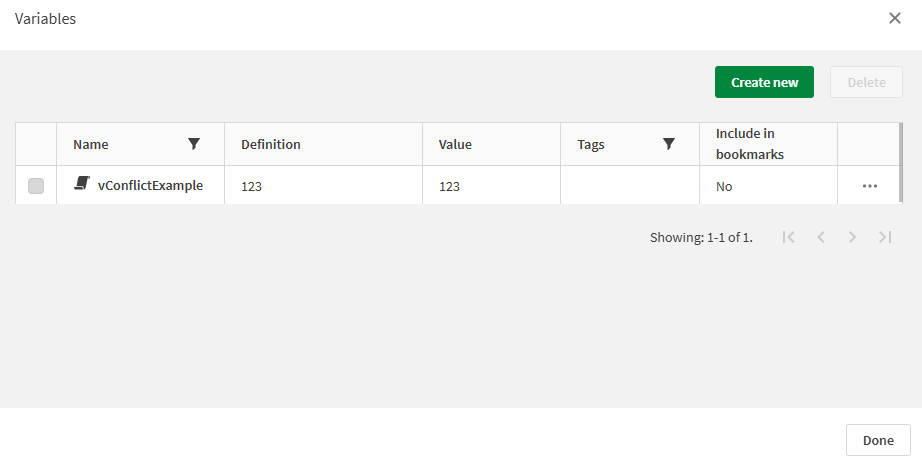
## Learn more
* [Let](https://help.qlik.com/en-US/sense/May2026/Subsystems/Hub/Content/Sense_Hub/Scripting/ScriptRegularStatements/Let.htm)
* [Set](https://help.qlik.com/en-US/sense/May2026/Subsystems/Hub/Content/Sense_Hub/Scripting/ScriptRegularStatements/Set.htm)
* [Working with variables in the data load editor](https://help.qlik.com/en-US/sense/May2026/Subsystems/Hub/Content/Sense_Hub/Scripting/work-with-variables-in-data-load-editor.htm)