-
Count of selected included values.
-
Count of possible values.
-
Count of alternative values.
-
Count of excluded values, not including alternative and selected excluded values.
-
Count of selected excluded values.
|
| [GetSelectedCount - chart function](https://help.qlik.com/en-US/sense/May2026/Subsystems/Hub/Content/Sense_Hub/ChartFunctions/FieldFunctions/getselectedcount.htm) | Returns the count of selected included values. |
| [GetPossibleCount - chart function](https://help.qlik.com/en-US/sense/May2026/Subsystems/Hub/Content/Sense_Hub/ChartFunctions/FieldFunctions/getpossiblecount.htm) | Returns the count of possible values. |
| [GetAlternativeCount - chart function](https://help.qlik.com/en-US/sense/May2026/Subsystems/Hub/Content/Sense_Hub/ChartFunctions/FieldFunctions/getalternativecount.htm#) | Returns the count of excluded values, not including alternative and selected excluded values. |
Example: Chart expressions
| Example | Result |
| --- | --- |
| `GetAlternativeCount ([First name])` | Returns `0` if no selection has been made on the `First Name` field. If selections have been made, then the value returned is the total number of distinct available values less the number of values selected. |
## Example - GetAlternativeCount fundamentals
[](https://help.qlik.com/en-US/sense/Subsystems/Hub/Content/Sense_Hub/ChartFunctions/FieldFunctions/getalternativecount.htm)
#### Chart expression
Overview
Open the Data load editor and add the load script below to a new section.
The load script contains:
* A dataset which is loaded into a data table called `Example`.
* The following fields in the data table:
* `FirstName`
* `LastName`
* `Initials`
* `HasCellphone`
Load script
```
Example:
LOAD * inline [
FirstName|LastName|Initials|HasCellphone
John|Anderson|JA|Yes
Sue|Brown|SB|Yes
Mark|Carr|MC|No
Peter|Devonshire|PD|No
Jane|Elliot|JE|Yes
Peter|Franc|PF|Yes ] (delimiter is '|');
```
Results
Load the data and open a sheet. Create a new filter pane and add this field as a dimension:
* `FirstName`
Add a KPI, and then create the following measure:
* `=GetAlternativeCount (FirstName)`, to find the number of alternative values in the `FirstName` field.
The KPI with the `GetAlternativeCount` function appears with a value of `0`. If you select `Jane` from the `FirstName` filter pane, the KPI returns the value `4` because there are four unique and excluded (gray) values. Now select `Mark`, so both `Jane` and `Mark` are selected. The KPI value for the `GetAlternativeCount` measure returns `3` because there are 3 unique and excluded values, `John`, `Peter`, and `Sue`.
KPI results showing 3 unique and excluded values after selecting Jane and Mark from the FirstName filter pane
KPI results showing 3 unique and excluded values after selecting Jane and Mark from the FirstName filter pane
KPI results showing 3 unique and excluded values after selecting JaneJane and Mark Mark from the FirstNameFirstName filter pane 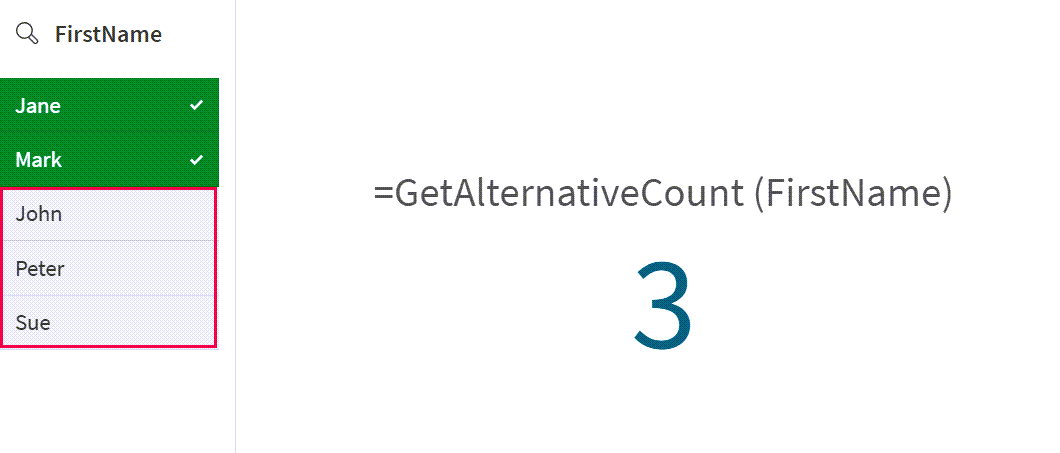
You can see how the values returned by the `GetAlternativeCount` function change as additional selections are made.
## Example - GetAlternativeCount scenario
[](https://help.qlik.com/en-US/sense/Subsystems/Hub/Content/Sense_Hub/ChartFunctions/FieldFunctions/getalternativecount.htm)
#### Chart expression
Overview
Open the Data load editor and add the load script below to a new section.
The load script contains:
* A dataset which is loaded into a data table called `CustomerTypeData`.
* The following fields in the data table:
* `CustomerID`
* `CustomerType`
Load script
```
CustomerTypeData:
LOAD * INLINE [
CustomerID, CustomerType
C001, Retail
C002, Wholesale
C003, Distributor
C004, Retail
C005, Wholesale
];
```
Results
Load the data and open a sheet. Create a new filter pane and add this field as a dimension:
* `CustomerType`
Add a KPI, and then create the following measure:
* `=GetAlternativeCount (CustomerType)`, to find the number of alternative values in the `CustomerType` field.
The KPI with the `GetAlternativeCount` function appears with a value of `0` because no values are selected in the `CustomerType` field.
Select `Retail` from the `CustomerType` filter pane. The `GetAlternativeCount` returns the value `2` because there are two unique and excluded (light gray) values in the `CustomerType` field. .
KPI results showing 2 unique and excluded values after selecting Retail from the CustomerType filter pane
KPI results showing 2 unique and excluded values after selecting Retail from the CustomerType filter pane
KPI results showing 2 unique and excluded values after selecting RetailRetail from the CustomerTypeCustomerType filter pane 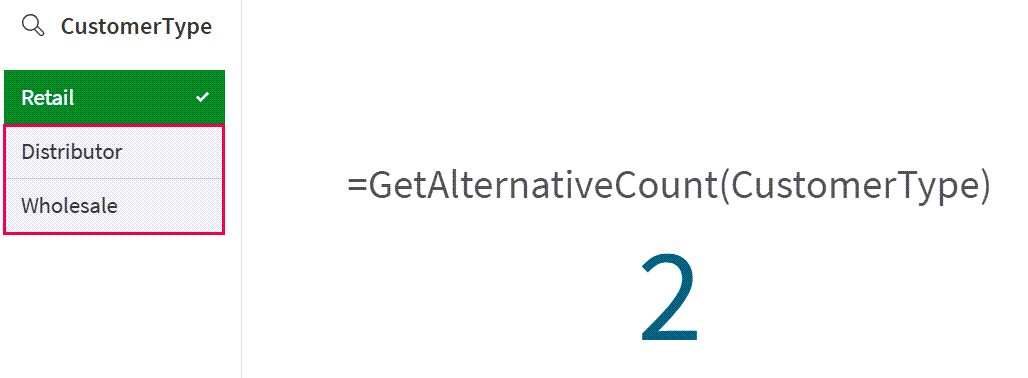
The results show that although there are multiple values, the `GetAlternativeCount` function displays only the unique count of the items not selected.
## Example - GetAlternativeCount scenario with available values
[](https://help.qlik.com/en-US/sense/Subsystems/Hub/Content/Sense_Hub/ChartFunctions/FieldFunctions/getalternativecount.htm)
#### Chart expression
Overview
This example builds on the previous scenario. The dataset includes a second data table to demonstrate how selections in each field change the results returned by the `GetAlternativeCount` function.
Open the Data load editor and add the load script below to a new section.
The load script contains:
* A dataset which is loaded into the following 2 inline data tables and corresponding fields:
* `CustomerTypeData`: Includes the fields `CustomerID` and `CustomerType`.
* `CustomerSegment`: Includes the fields `CustomerType` and `Segment`.
Load script
```
CustomerTypeData:
LOAD * INLINE [
CustomerID, CustomerType
C001, Retail
C002, Wholesale
C003, Distributor
C004, Retail
C005, Wholesale
];
CustomerSegment:
Load * Inline [
CustomerType, Segment
Retail, Fashion
Retail, Home
Wholesale, Fashion
Wholesale, Drinks
Distributor, Food
];
```
Results
1. Load the data and open a sheet. Create a new filter pane and add these fields as dimensions:
* `CustomerType`
* `Segment`
2. Add a KPI, and then create the following measure:
* `=GetAlternativeCount (CustomerType)`, to find the number of alternative values in the `CustomerType` field.
The KPI with the `GetAlternativeCount` function appears with a value of `0` because no values are selected in the `CustomerType` or `Segment` fields.
3. Select `Drinks` and `Fashion` from the `Segment` filter. The KPI still returns `0` because no value is selected in the `CustomerType` field.
KPI results show zero unique and excluded values after selections in the `Segment` filter
KPI results show zero unique and excluded values after selections in the `Segment` filter
KPI results show zero unique and excluded values after selections in the `Segment`Segment filter 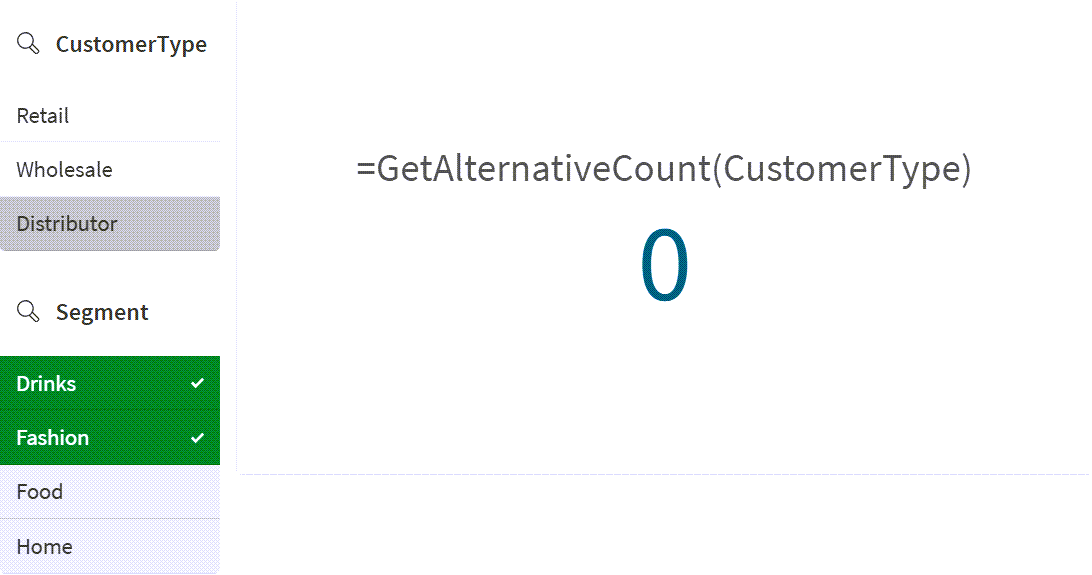
4. Select `Retail` in the `CustomerType` field and keep the selections in the `Segment` filter.
The `GetAlternativeCount` function now returns `1` because there is only one unique and excluded (light gray) value in the `CustomerType` field, `Wholesale`.
KPI results show there is 1 unique and excluded value after selections in the `CustomerType` and `Segment` filters
KPI results show there is 1 unique and excluded value after selections in the `CustomerType` and `Segment` filters
KPI results show there is 1 unique and excluded value after selections in the `CustomerType`CustomerType and `Segment`Segment filters 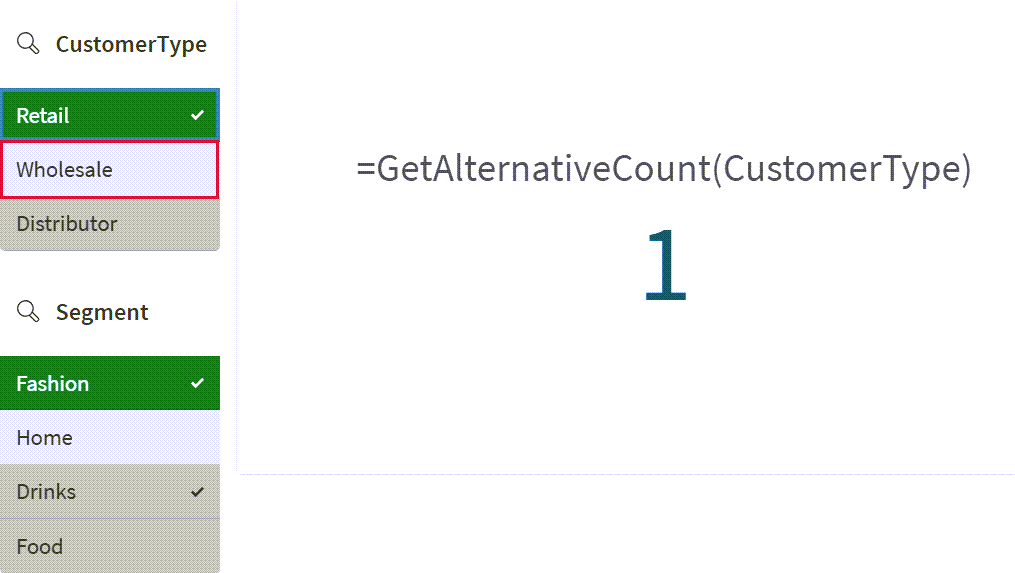
Although two values, `Wholesale` and `Distributor`, are not selected in the `CustomerType` field (these appear light gray and dark gray), only one value, `Wholesale`, is available to select in `CustomerType` due to selections in the `Segment` filter.