# Custom drop down list properties
The drop down list definition property template can be used to add a custom property of drop down list type. When defining a drop down list property, the following fields can be used:
Definition properties
| Field | Description |
| --- | --- |
| type | Used for all custom property type definitions. Can be either string, integer, number, array or boolean.
This field is mandatory and should always be "string" for a drop down list property type definition.
Information noteThe drop down list effect is achieved by defining the component field to "dropdown", see below. |
| component | Used for defining how the property is visualized in the property panel. Used to override the default component that comes with the type setting.
This field is mandatory for a drop down list property and should always be "dropdown". |
| label | Used for defining the label that is displayed in the property panel. |
| ref | Name or ID used to reference a property. |
| defaultValue | Used for defining the default value of your custom property. |
| options | Array of options. Can be value, label and function.
Example:
```
options: [{
value: "v",
label: "Vertical"
}, {
value: "h",
label: "Horizontal"
}],
``` |
## Examples
### Fetching options from an external resource
Information noteThis example is using jQuery. Make sure to have jQuery included as a require-dependency.
```
return {
type: "items",
component: "accordion",
items: {
settings: {
uses: "settings",
items: {
MyDropdownProp: {
type: "string",
component: "dropdown",
label: "Data source",
ref: "myproperties.datasource",
options: function() {
return $.get("datasource.php").then(function(items){
return items.map(function(item){
return {
value:item.toLowerCase(),
label:item
};
});
});
}
```
Information noteOptions will be fetched every time a property is changed. It is up to the developer to cache the result from the web service if you want to avoid repeating reloads.
### Defining a custom drop down list
Defining a custom property of drop down list type can look like below.
Example: Add custom drop down list property to Appearance accordion
Information noteCustomization of properties always start with items:.
```
return {
type: "items",
component: "accordion",
items: {
settings: {
uses: "settings",
items: {
MyDropdownProp: {
type: "string",
component: "dropdown",
label: "Orientation",
ref: "myproperties.orientation",
options: [{
value: "v",
label: "Vertical"
}, {
value: "h",
label: "Horizontal"
}],
defaultValue: "v"
}
}
}
```
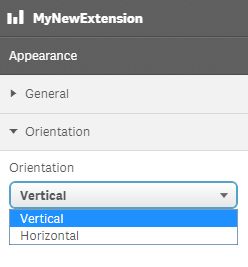
This is what it looks like in the property panel
You can also define a new accordion item as a drop down property.
Example: Add custom drop down property as a new accordion item
```
return {
type: "items",
component: "accordion",
items: {
MyAccordion: {
type: "string",
component: "dropdown",
label: "Orientation",
ref: "myproperties.orientation",
options: [{
value: "v",
label: "Vertical"
}, {
value: "h",
label: "Horizontal"
}],
defaultValue: "v"
}
```
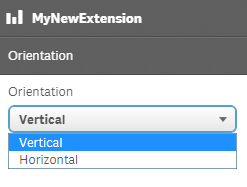
This is what it looks like in the property panel