# Creating pie charts
This section describes how to create pie charts with the Visualization API and qlik-visual.
## Creating a basic pie chart
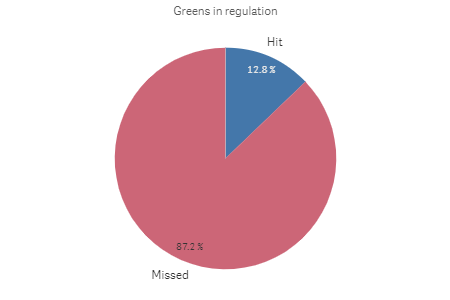
In this example we create a basic pie chart, containing one dimension and one measure, and switch the titles off.
1. Create the chart
Create the container for the chart. The visualization type is piechart.
Visualization API
```
app.visualization.create(
'piechart',
[],
{}
)
```
qlik-visual
```
```
2. Define dimension
Define the dimension as a column.
```
[
{
"qDef": {
"qFieldDefs": [
"GirResult"
],
"qFieldLabels": [
"Greens in regulation"
]
}
}
]
```
3. Define measure
Define the measure as a column.
```
[
{
"qDef": {
"qFieldDefs": [
"GirResult"
],
"qFieldLabels": [
"Greens in regulation"
]
}
},
"=Count(HoID)"
]
```
4. Switch off titles
Since the dimension label by default is visible in the visualization, we select to switch the titles off.
{ "showTitles": false }
### Result
### Code examples
[](https://help.qlik.com/en-US/sense-developer/Subsystems/Mashups/Content/Sense_Mashups/Create/Visualizations/Piechart/create-piechart.htm)
#### Visualization API
```
app.visualization.create(
'piechart',
[
{
"qDef": {
"qFieldDefs": [
"GirResult"
],
"qFieldLabels": [
"Greens in regulation"
]
}
},
"=Count(HoID)"
],
{
"showTitles": false
}
).then(function(vis){
vis.show("QV01");
});
```
[](https://help.qlik.com/en-US/sense-developer/Subsystems/Mashups/Content/Sense_Mashups/Create/Visualizations/Piechart/create-piechart.htm)
#### qlik-visual
```
```
## Creating a basic donut chart
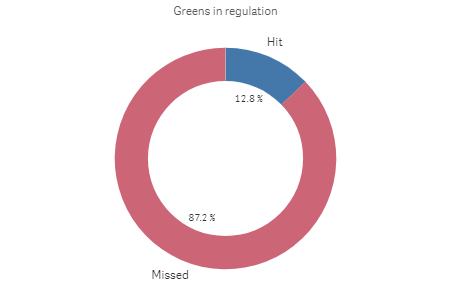
In this example we create exactly the same chart as in [Creating a basic pie chart](https://help.qlik.com/en-US/sense-developer/May2025/Subsystems/Mashups/Content/Sense_Mashups/Create/Visualizations/Piechart/create-piechart.htm#Creating), but we select to display it as a donut. This is done by simply adding the donut definition in the options.
1. Define dimension
Define the dimension as a column.
[ { "qDef": { "qFieldDefs": [ "GirResult" ], "qFieldLabels": [ "Greens in regulation" ] } } ]
2. Define measure
Define the measure as a column.
[ { "qDef": { "qFieldDefs": [ "GirResult" ], "qFieldLabels": [ "Greens in regulation" ] } }, "=Count(HoID)" ]
3. Switch off titles
Since the dimension label by default is visible in the visualization, we select to switch the titles off.
{ "showTitles": false }
4. Display as donut
Since the dimension label by default is visible in the visualization, we select to switch the titles off.
{ "showTitles": false, "donut": { "showAsDonut": true } }
### Result
### Code examples
[](https://help.qlik.com/en-US/sense-developer/Subsystems/Mashups/Content/Sense_Mashups/Create/Visualizations/Piechart/create-piechart.htm)
#### Visualization API
```
app.visualization.create(
'piechart',
[
{
"qDef": {
"qFieldDefs": [
"GirResult"
],
"qFieldLabels": [
"Greens in regulation"
]
}
},
"=Count(HoID)"
],
{
"showTitles": false,
"donut": {
"showAsDonut": true
}
}
).then(function(vis){
vis.show("QV01");
});
```
[](https://help.qlik.com/en-US/sense-developer/Subsystems/Mashups/Content/Sense_Mashups/Create/Visualizations/Piechart/create-piechart.htm)
#### qlik-visual
```
```
## Using custom value labels
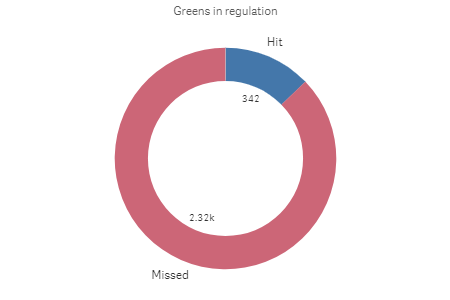
In this example we change so that the value labels are presented by their actual value instead of in percent.
1. Change number formatting of measure
First we change the number formatting of the measure in the columns. Set "qType": "F" to indicate that a fixed number of decimals is used. Then set "qnDec": 0 to indicate that no decimals are used.
{ "qDef": { "qLabel": "Frequency", "qGrouping": "N", "qDef": "Count(HoID)", "qNumFormat": { "qType": "F", "qnDec": 0, "qUseThou": 0, "qFmt": "#,##0", "qDec": ".", "qThou": "," } } }
2. Define value label mode
We want to display the actual values instead of the share so inside the dataPoint object (in the options) we set "labelMode": "value".
{ "showTitles": false, "donut": { "showAsDonut": true }, "dataPoint": { "auto": false, "labelMode": "value" } }
### Result
### Code examples
[](https://help.qlik.com/en-US/sense-developer/Subsystems/Mashups/Content/Sense_Mashups/Create/Visualizations/Piechart/create-piechart.htm)
#### Visualization API
```
app.visualization.create(
'piechart',
[
{
"qDef": {
"qFieldDefs": [
"GirResult"
],
"qFieldLabels": [
"Greens in regulation"
]
}
},
{
"qDef": {
"qLabel": "Frequency",
"qGrouping": "N",
"qDef": "Count(HoID)",
"qNumFormat": {
"qType": "F",
"qnDec": 0,
"qUseThou": 0,
"qFmt": "#,##0",
"qDec": ".",
"qThou": ","
}
}
}
],
{
"showTitles": false,
"donut": {
"showAsDonut": true
},
"dataPoint": {
"auto": false,
"labelMode": "value"
}
}
).then(function(vis){
vis.show("QV01");
});
```
[](https://help.qlik.com/en-US/sense-developer/Subsystems/Mashups/Content/Sense_Mashups/Create/Visualizations/Piechart/create-piechart.htm)
#### qlik-visual
```
```
## Adding a radius measure
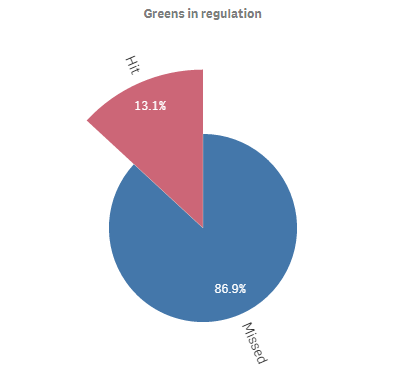
In this example we add a second measure to calculate the radius. The measure added is the average Stableford points.
1. Create the chart
Create the container for the chart. The visualization type is piechart.
Visualization API
```
app.visualization.create(
'piechart',
[],
{}
)
```
qlik-visual
```
```
2. Define dimension
Define the dimension as a column.
[ { "qDef": { "qFieldDefs": [ "GirResult" ], "qFieldLabels": [ "Greens in regulation" ] } } ]
3. Define the first measure
Define the first measure as a column.
[ { "qDef": { "qFieldDefs": [ "GirResult" ], "qFieldLabels": [ "Greens in regulation" ] } }, "=Count(HoID)" ]
4. Define the second measure
Define the second measure as a column.
[ { "qDef": { "qFieldDefs": [ "GirResult" ], "qFieldLabels": [ "Greens in regulation" ] } }, "=Count(HoID)", "=Avg(Stableford)" ]
5. Switch off titles
Since the dimension label by default is visible in the visualization, we select to switch the titles off.
{ "showTitles": false }
### Result
### Code examples
[](https://help.qlik.com/en-US/sense-developer/Subsystems/Mashups/Content/Sense_Mashups/Create/Visualizations/Piechart/create-piechart.htm)
#### Visualization API
```
app.visualization.create(
'piechart',
[
{
"qDef": {
"qFieldDefs": [
"GirResult"
],
"qFieldLabels": [
"Greens in regulation"
]
}
},
"=Count(HoID)",
"=Avg(Stableford)"
],
{
"showTitles": false
}
).then(function(vis){
vis.show("QV01");
});
```
[](https://help.qlik.com/en-US/sense-developer/Subsystems/Mashups/Content/Sense_Mashups/Create/Visualizations/Piechart/create-piechart.htm)
#### qlik-visual
```
```