# Creating list boxes
This section describes how to create list boxes with the Visualization API and qlik-visual.
## Creating a basic list box
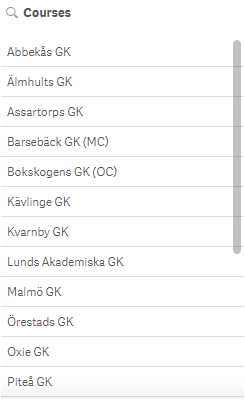
In this example we create a basic list box with a custom title.
1. Create the chart
Create the container for the chart. The visualization type is listbox.
Visualization API
```
app.visualization.create(
'listbox',
[],
{}
)
```
qlik-visual
```
```
2. Define dimension
Define the field as a column.
```
[
"Course"
]
```
3. Define title
Then define the title of the list box in the options.
```
{
"showTitles": true,
"title": "Courses"
}
```
### Result
### Code examples
[](https://help.qlik.com/en-US/sense-developer/Subsystems/Mashups/Content/Sense_Mashups/Create/Visualizations/Listbox/create-listbox.htm)
#### Visualization API
```
app.visualization.create(
'listbox',
[
"Course"
],
{
"showTitles": true,
"title": "Courses"
}
).then(function(vis){
vis.show("QV01");
});
```
[](https://help.qlik.com/en-US/sense-developer/Subsystems/Mashups/Content/Sense_Mashups/Create/Visualizations/Listbox/create-listbox.htm)
#### qlik-visual
```
```
## Sorting the list by frequency
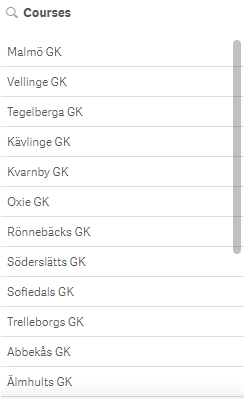
In this example we want to sort the list by frequency. This is set in the qSortCriterias object in the options. qSortCriterias is located inside the inline dimension definition (qDef) which is inside the list object definition (qListObjectDef).
1. Turn off auto-sorting
To sort by frequency we start with switching off auto-sorting: "autoSort": false.
{ "showTitles": true, "title": "Courses", "qListObjectDef": { "qDef": { "autoSort": false } } }
2. Define the sort criteria
We then set "qSortCriterias": [ { "qSortByFrequency": 1 } ], where 1 means descending sort order (-1 means ascending sort order and 0 means no sorting).
{ "showTitles": true, "title": "Courses", "qListObjectDef": { "qDef": { "autoSort": false, "qSortCriterias": [ { "qSortByFrequency": 1 } ] } } }
### Result
### Code examples
[](https://help.qlik.com/en-US/sense-developer/Subsystems/Mashups/Content/Sense_Mashups/Create/Visualizations/Listbox/create-listbox.htm)
#### Visualization API
```
app.visualization.create(
'listbox',
[
"Course"
],
{
"showTitles": true,
"title": "Courses",
"qListObjectDef": {
"qDef": {
"autoSort": false,
"qSortCriterias": [
{
"qSortByFrequency": 1
}
]
}
}
}
).then(function(vis){
vis.show("QV01");
});
```
[](https://help.qlik.com/en-US/sense-developer/Subsystems/Mashups/Content/Sense_Mashups/Create/Visualizations/Listbox/create-listbox.htm)
#### qlik-visual
```
```
## Sorting the list by expression
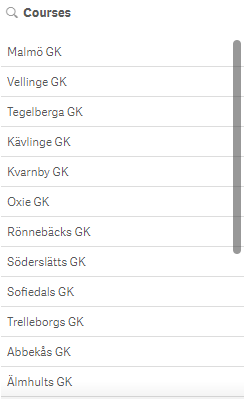
In this example we want to sort the list by an expression.
1. Turn off auto-sorting
To sort by frequency we start with making sure auto-sorting is disabled: "autoSort": false.
{ "showTitles": true, "title": "Courses", "qListObjectDef": { "qDef": { "autoSort": false } } }
2. Define the sort criteria
To sort by an expression, set "qSortCriterias": [ { "qSortByExpression": -1, "qExpression": { "qv": "Count(HoID)" } } ], where -1 means descending sort order (1 means ascending sort order and 0 means no sorting).
{ "showTitles": true, "title": "Courses", "qListObjectDef": { "qDef": { "autoSort": false, "qSortCriterias": [ { "qSortByExpression": -1 } ] } } }
3. Set the expression
The actual expression to sort by is set in qExpression: "qExpression": { "qv": "Count(HoID)" }.
{ "showTitles": true, "title": "Courses", "qListObjectDef": { "qDef": { "autoSort": false, "qSortCriterias": [ { "qSortByExpression": -1, "qExpression": { "qv": "Count(HoID)" } } ] } } }
### Result
### Code examples
[](https://help.qlik.com/en-US/sense-developer/Subsystems/Mashups/Content/Sense_Mashups/Create/Visualizations/Listbox/create-listbox.htm)
#### Visualization API
```
app.visualization.create(
'listbox',
[
"Course"
],
{
"showTitles": true,
"title": "Courses",
"qListObjectDef": {
"qDef": {
"autoSort": false,
"qSortCriterias": [
{
"qSortByExpression": -1,
"qExpression": {
"qv": "Count(HoID)"
}
}
]
}
}
}
).then(function(vis){
vis.show("QV01");
});
```
[](https://help.qlik.com/en-US/sense-developer/Subsystems/Mashups/Content/Sense_Mashups/Create/Visualizations/Listbox/create-listbox.htm)
#### qlik-visual
```
```