# Pivot Table
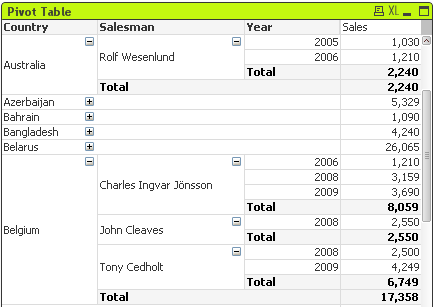
Charts are graphical representations of numerical data. The pivot table and the straight table are special cases as they display the data in table form while retaining all the properties of a chart. It is possible to switch between different representations of an existing chart, by changing the Chart Type in the Chart Properties: General page.
The pivot table is one of the most powerful tools for analyzing data. It offers substantial functionality but is still easy to use. Pivot tables show dimensions and expressions in rows and columns, for example in cross tables. The data in pivot tables may be grouped. Pivot tables can show partial sums.
The quickest way to create a new pivot table is to select Quick Chart wizard from the Tools menu.
By a right-click on the pivot table the Pivot Table: Object Menu will be displayed. It can also be accessed from the Object menu, when the pivot table is the active object.
See also:
[Quick Chart Wizard](https://help.qlik.com/en-US/qlikview/September2026/Subsystems/Client/Content/QV_QlikView/Quick_Chart_Wizard.htm)
[Chart types](https://help.qlik.com/en-US/qlikview/September2026/Subsystems/Client/Content/QV_QlikView/Chart_types.htm)
## Using the Pivot Table
In a pivot table dimensions (fields and expressions) can be shown on one vertical and one horizontal axis. The dimensions may be moved freely between or within the axes. This process is called "pivoting". In QlikView, pivoting is done by dragging and dropping with a mouse. Simply point the mouse somewhere in the field, click and drag it to the desired position. To make this easier, while a field is being moved, its borders are highlighted in blue.
Information note
Pivoting is disabled if the Allow Pivoting check box in the Chart Properties: Presentation (Pivot Table) is unchecked.
In QlikView, multi-dimensional pivot tables will display small + and - icons in its variable fields. A + icon indicates that the table can be further expanded for detail by revealing further variables, while a - icon indicates that it can be collapsed, which sacrifices detail for clarity or space.
From the Pivot Table: Object Menu you also have access to the commands Expand all, Collapse all, Collapse Dimension Rows and Collapse Dimension Columns which effect these setting accordingly.
Information noteIf you use cyclic dimension groups, it is recommended that you always first Expand all and then expand or collapse at individual dimension level to ensure that all levels, even levels not displayed, are properly expanded.
Example:
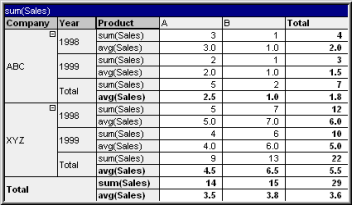
To move the field Product in the pivot table below from the vertical axis to the horizontal axis, point with the mouse in the Product column. Press the left mouse button and keep it depressed while dragging the mouse cursor up above the expression label row. The selected column and its target are highlighted in blue while you are dragging.
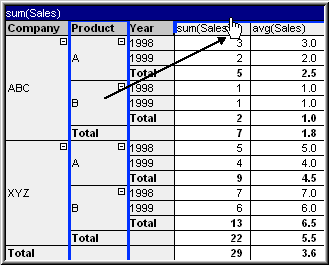
The result:
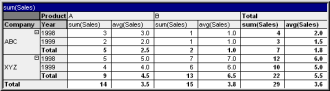
Not only the dimension fields, but also the expression row can be pivoted:
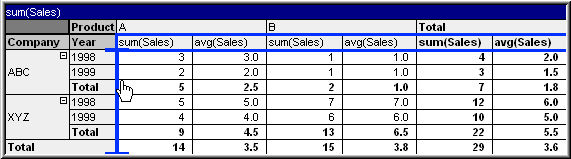
The result:
## Expanding and Collapsing the Dimension Axes
QlikView pivot tables allow you to expand and collapse dimensions on the axes by single field values. This allows you to drill down into details for one or more field values while keeping the totals for others.
Information note
After a reload, any expanded columns in a pivot table will be collapsed.
Information noteIt is possible to disable the expand and collapse options for a pivot table by selecting the check box Always Fully Expanded on the Chart Properties: Presentation page of the pivot table.
Example: Example (Expanding):
In the pivot table below, the + icons to the right of the field values in the Company column indicate that the table can be expanded for further detail.
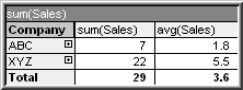
A click on the first + icon displays the Product details for the company ABC:
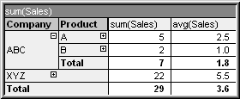
Each field value can be separately expanded to show the next level. In order to expand all field values in a certain column, right-click in that column and select Expand all from the Object menu. If you do so for the Company column in the table above, the result will be as follows:
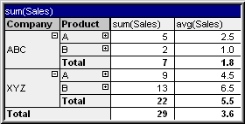
The + icons in the Product column indicate that another level exists. Right-click in the Product column and select Expand all again. The result will be as follows:
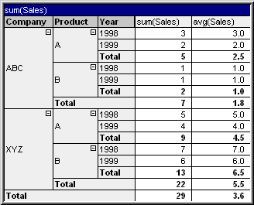
As no + icons are available in the Year column, we can conclude that there are only three dimension fields available in this pivot table.
Example: Example (Collapsing):
Just as you expand with the + icons, you can collapse individual values by clicking on the - icons.
If you click on the - icon to the right of the value A in the table above, the result will be as follows:
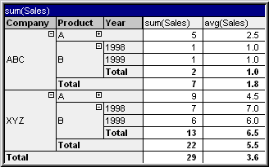
Finally, even the first column can be collapsed, leaving only the grand total of the expression for the vertical axis. This is done by right-clicking in any of the field dimension columns and choosing Collapse Dimension Columns from the Object menu. The result will be as follows:
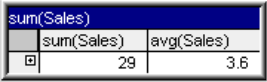
From here you may expand again!
The expand and collapse possibilities apply equally for multiple dimension fields on the horizontal axis as is illustrated in the pivot table below.
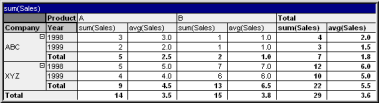
See also:
[Sum of rows in pivot tables](https://help.qlik.com/en-US/qlikview/September2026/Subsystems/Client/Content/QV_QlikView/ChartFunctions/NestedAggregations/sum-of-rows-pivot-tables.htm)
## Object Menu
The pivot table Object menu is opened by right-clicking the object. The menu commands are:
Object menu commands
| Command | Description |
| --- | --- |
| Properties... | Opens the Properties dialog where the parameters defining the chart can be set. This command can also be invoked by the following keyboard shortcut: Alt+Enter. |
| Notes | Allows creating and sharing notes about the current object. |
| Expand all
Collapse all
Collapse Dimension Rows
Collapse Dimension Columns | These commands operate on the expand (+) and
collapse (-) icons that are displayed in multi-dimensional pivot tables. |
| Detach | The chart title is appended with the text
”(Detached)” and the table is no longer updated with selections
made in the document (though selections may actually still be made from
the chart). The command is available only if the table is attached.
By making a copy of a pivot table and detaching
it, you may make direct comparisons between the copy and the original. |
| Attach | Attaches a detached pivot table. The pivot
table becomes dynamically linked to the data. The command is available
only if the pivot table is detached. |
| Clone | Makes an identical copy of the pivot table.
If a detached pivot table is cloned the clone will be attached. |
| Order | This cascade menu is only available when the Design Grid command of the View menu is activated or when the
Always Show Design Menu Items under User Preferences: Design is checked. It contains four commands to set the layout layer
of the sheet objects. Valid layer numbers are -128 to 127.
- Bring to Front: Sets the layout layer of the sheet object to the largest value currently used by any sheet object on the current sheet.
- Send to Back: Sets the layout layer of the sheet object to the smallest value currently used by any sheet object on the current sheet.
- Bring Forward: Increases the layout layer of the sheet object by one. Maximum value is 127.
- Send Backward: Decreases the layout layer of the sheet object by one. Minimum value is -128.
|
| Fit Columns to Data | Adjusts the width of each table column to its longest data string. Headers
are included in the calculations. |
| Equal Column Width | If the mouse pointer is placed over a column in the pivot table this
command becomes available in the float menu (not in the main menu bar
Object menu).
The command sets column width for all columns of the table to that of
the column pointed at.
Column width can be individually adjusted
by moving the pointer to the right edge of the column (pointer changes
appearance) and dragging. |
| Custom Format Cell | Opens the Custom Format Cell dialog which lets you format cells in the column
and stripe which you clicked upon. This cascade menu is only available when the Design Grid command of the View menu is activated.
[Custom Format Cell dialog](https://help.qlik.com/en-US/qlikview/September2026/Subsystems/Client/Content/QV_QlikView/Custom_Format_Cell_dialog.htm) |
| Change Value | Only available for expression columns containing
an inputsum aggregation of an input field. Sets the cell clicked on in
input edit mode. Equivalent to clicking the input icon in the cell. |
| Restore Values | Only available for expression columns containing
an inputsum aggregation of an input field. Opens a cascade menu with three
options.
Restore Single
Value
Restores the field values underlying the cell clicked upon on to their
default values from the script.
Restore Possible
Values
Restores the values of all possible underlying field values to their default
values from the script.
Restore All
Values
Restores the values of all underlying field values to their default values
from the script. |
| Clear All Selections | Clears all selections in the dimensions and
expressions of the table. |
Print menu commands
| Command | Description |
| --- | --- |
| Print... | Opens the Print dialog where print settings
can be specified. |
| Print as PDF... | Opens the Print dialog with the Microsoft Print to PDF printer pre-selected. After pressing the Print button
you will be prompted for a file name for the PDF output file. This command
is only available if a PDF printer is available on the system. |
| Send to Excel | Exports the table to Microsoft Excel, which
is automatically launched if not already running. The table will appear
in a new Excel worksheet. For this functionality to work Microsoft Excel
2007 or later must be installed on the computer. |
| Export... | Opens the Save as dialog where path, file name and (table) file type for the exported data content can be specified.
The file can be saved as any of the following formats: Comma Delimited, Semicolon Delimited, Tab Delimited,
Hypertext (HTML), XML and Excel (xls or xlsx). The default format is
\*.qvo (QlikViewOutput), a tab separated file. |
More object menu commands
| Command | Description |
| --- | --- |
| Copy to Clipboard | This cascade menu contains the various copy options for the sheet object.
Full Table
Copies the table to the clipboard, complete with header and selection status.
Table Data Area
Copies only the values of the table to the clipboard.
Cell Value
Copies the text value of the cell right-clicked upon (when invoking the
Object menu) to the clipboard.
Image
Copies an image of the sheet object to the clipboard. The image will include
or exclude the sheet object caption and border depending on the settings
in the User Preferences dialog,
Export page.
Object
Copies the entire sheet object to the clipboard for pasting elsewhere in
the layout or in another document opened within the current instance of
QlikView. |
| Linked Objects | Opens a menu with the following commands for linked objects.
- Adjust Position of Linked Objects: All linked objects on all sheets are adjusted to the same position and size as the one/ones highlighted.
- Unlink This Object/Unlink Objects: This destroys the link between the objects, making them different objects with different object IDs.
|
| Minimize | Iconizes the object. Clicking on the Minimize icon in the object caption (if shown) produces
the same result. This
command is available only if minimizing is allowed in the object's Properties dialog on the Caption page. |
| Maximize | Enlarges the object to fill the sheet. Clicking on the Maximize icon in the object caption (if shown) produces the same result. This command is available
only if maximizing is allowed in the object's Properties
dialog on the Caption page. |
| Restore | Restores a minimized or maximized object to its previous size and
location. Double-clicking the icon of a minimized object or clicking the Restore icon in the object caption (if shown) of a maximized object produces
the same result. This command is available only for minimized or
maximized objects. |
| Help | Opens QlikView help. |
| Remove | Removes the sheet object from the sheet. |
## Chart Properties: General
On the General page you can set such properties as titles and chart type. It is the first page in the Quick Chart Wizard and in the Chart Properties dialog.
General chart properties
| Property | Description |
| --- | --- |
| Window Title | The title to be displayed in the window header. The title can
also be defined as a calculated formula for dynamic
update of the label text. Click the ...
button to open the Edit Expression
dialog for easier editing of long formulas.
[Expression syntax for calculated formulas](https://help.qlik.com/en-US/qlikview/September2026/Subsystems/Client/Content/QV_QlikView/Expression_syntax_for_calculated_formulas.htm) |
| Show Title in Chart | By default, the label of the first expression defined is set as chart title. Clear the check box if no chart title should be displayed. To display the original title, simply mark the check box. The title can
also be defined as a calculated formula for dynamic
update of the label text. Click the ...
button to open the Edit Expression
dialog for easier editing of long formulas. The chart title is not displayed in pivot tables or straight tables.
[Expression syntax for calculated formulas](https://help.qlik.com/en-US/qlikview/September2026/Subsystems/Client/Content/QV_QlikView/Expression_syntax_for_calculated_formulas.htm) |
| Title Settings | Define advanced settings for the chart title by clicking the
Title Settings button. |
| Print Settings | Clicking the Print
Settings button takes you to the Print
Settings dialog where it is possible to define margins and header/footer
format. The Print Settings dialog
holds two pages, Print
Layout and Print
Header/Footer.
[Print: Layout](https://help.qlik.com/en-US/qlikview/September2026/Subsystems/Client/Content/QV_QlikView/Print_Layout.htm) and [Print: Header/Footer](https://help.qlik.com/en-US/qlikview/September2026/Subsystems/Client/Content/QV_QlikView/Print_Header_Footer.htm) |
| Alternate State | Choose one of the available states in the list. The following Alternate States are always available.
- Inherited: The sheets and sheet objects are always in the inherited state unless overridden by the QlikView developer. This setting is inherited from the object on the level above, a chart in a sheet gets the same settings as the sheet if inherited is chosen.
- Default state: This is the state where most QlikView usage occurs and is represented by $. The QlikView document is always in the default state.
|
| Object ID | This is used for macro purposes. Every sheet object
is assigned a unique ID. We recommend that you use alphanumeric characters only in the ID. Linked objects share the same object ID. You may
edit this ID number later on.
For charts, the ID starts with CH01.
[Internal Macro Interpreter](https://help.qlik.com/en-US/qlikview/September2026/Subsystems/Client/Content/QV_QlikView/Internal_Macro_Interpreter.htm) |
| Detached | If enabled, the chart will be detached, that is, it will no longer be dynamically updated when selections are made. |
| Read Only | If enabled, the chart will be read only, that is, selections cannot be made by clicking or painting with the mouse in the chart. |
| Calculation Condition | Typing an expression in this text box sets a condition that needs to be fulfilled for the chart to be displayed. If the condition is not fulfilled, the text "Calculation condition unfulfilled" will be displayed in the chart. The value may be entered as a calculated formula. Click on the ... button to open the Edit Expression dialog. |
| Chart Type | The Chart Type group is where
you select the basic layout of the chart. For more information on each
chart type, see [Chart types](https://help.qlik.com/en-US/qlikview/September2026/Subsystems/Client/Content/QV_QlikView/Chart_types.htm). |
| Fast Type Change | In this group you can enable an icon in the chart from which the user can change chart type without going through the chart properties dialog.
- Allowed Types: In this list you select which chart types that should appear in the drop-down. Two or more types have to be chosen for fast type change to be enabled.
- Preferred Icon Position: In graphical charts, the fast type change icon can be positioned either inside the chart or in the sheet object caption. In table charts, the caption is the only alternative.
|
| Reset User Sizing | By pressing this button, all user sizing of legend, title etc. in graphical charts will be reset. Docking of individual items will not be affected. |
| Reset User Docking | By pressing this button, all user docking of legend, title etc. in graphical charts will be reset. |
| Error Messages | Opens the Custom Error Messages dialog.
[Custom Error Messages](https://help.qlik.com/en-US/qlikview/September2026/Subsystems/Client/Content/QV_QlikView/Custom_Error_Messages.htm) |
| Reference Mode | Settings for how the reference background should be plotted when using the Set Reference option from the chart's context menu. This setting is only meaningful for some charts. |
See also:
[Sizing and moving chart components](https://help.qlik.com/en-US/qlikview/September2026/Subsystems/Client/Content/QV_QlikView/Sizing_and_moving_chart_components.htm)
[Selections in charts and tables](https://help.qlik.com/en-US/qlikview/September2026/Subsystems/Client/Content/QV_QlikView/Selections_in_charts_and_tables.htm)
## Chart Properties: Dimensions
The Chart Properties: Dimensions page is reached by right-clicking a chart and selecting Properties or by selecting Properties from the Object menu when the chart is active.
When you create a chart, you should first ask yourself two questions:
* What do you want to look at? What should the sizes of the bars in the bar chart correspond to? The answer might be the "sum of sales", or something similar. This is set on the Expressions tab.
* What do you want to group it by? Which field values do you want to use as labels for the bars in the bar chart? The answer might be "per country", or something similar. This is set on the Dimensions tab.
A chart can display one or more dimensions. The upper limit depends on the actual chart type, the complexity of the data and the available memory. Pie, line and scatter charts can display a maximum of two dimensions, bar, block and grid charts three. Radar and funnel charts can only display a single dimension, and gauge charts use no dimensions at all. Further dimensions are ignored.
A chart dimension gets its values from a field which is specified on the Chart Properties: Dimensions page. Instead of being a single field a dimension can also consist of a group of fields (see Edit Groups below).
A dimension can be a single field, a group or an expression (calculated dimension). It can also be a synthetically created dimension
Move fields back and forth by selecting (click, Ctrl-click) and using the Add> or <Remove buttons, or by double-clicking your selections directly.
Chart dimensions may also be calculated from an expression.
Dimension properties
| Property | Description |
| --- | --- |
| Available
Fields/Groups | Lists all fields/field groups that are available for use as dimensions
(i.e. along the x-axis in a typical bar chart). Field groups will be preceded
by a vertical arrow for drill-down groups or a curved arrow for cyclic groups.
Groups are defined in the
Document Properties: Groups
page. Select the items to be used/removed by clicking them. Use the Add > or the < Remove button to move them to the desired column.
The number of dimensions that can be displayed varies with different
chart types.
All fields
which appear in more than one internal table will be preceded with a key
symbol. Pie charts, line charts and scatter charts cannot display more
than two dimensions. In bar charts, up to three dimensions can be shown.
[Document Properties: Groups](https://help.qlik.com/en-US/qlikview/September2026/Subsystems/Client/Content/QV_QlikView/Document_Properties_Groups.htm) |
| Show System
Fields | Checking this option will display the system fields in the Available Fields/Groups
column. |
| Show
Fields from Table | From here, you control what fields/groups appear in the Available
Fields/Groups list. The drop-down list displays the alternative
All Tables by default.
The alternative
All Tables (Qualified)
shows the fields qualified by the name of the table(s) they occur in.
This means that key (connecting) fields will be listed more than once.
(This alternative is only used for viewing purposes and has nothing to
do with [Qualify](https://help.qlik.com/en-US/qlikview/September2026/Subsystems/Client/Content/QV_QlikView/Scripting/ScriptRegularStatements/Qualify.htm)
fields in the load script.)
It is also possible to view the fields of
one table at a time. Note that available groups are always listed. |
| Edit
Groups... | This button takes you directly
to the Document Properties: Groups page, where field groups
to be used as dimensions can be defined. |
| Animate... | Opens the Animation dialog, by which you can make use of the chart's first dimension
for animation. Animation is only available for bitmap charts excluding
pie charts. Some functional limitations apply when using animations. |
| Trellis... | Opens the Trellis Settings dialog where you can create an array of charts based on the
first dimension. Any type
of bitmap chart can be made into a trellis display. |
| Used
Dimensions | This list contains the dimensions
currently selected to be used as dimensions in the chart. The number of
dimensions that can be used varies with the type of chart. Superfluous
dimensions for any given type will be disregarded.
When used in tables, the dimension data cells can be dynamically formatted by means of attribute expressions. Whenever an attribute expression is entered for a dimension, its icon will turn from gray scale to color, or as in the case of Text Format, from gray to black. These settings will have precedence over chart settings. Click on the "+" expansion icon in front of any dimension to display the placeholders or the dimension's attribute expression.
- Background Color: Double-click on Background Color in order to enter an attribute expression for calculating the cell background color of the dimension cell. The expression used should return a valid color representation (a number representing the Red, Green and Blue components as defined in Visual Basic). This is done by using one of the special chart color functions. If the result of the expression is not a valid color representation, the program will default to black.
- Text Color: Double-click on Text Color in order to enter an attribute expression for calculating the cell text color of the dimension cell. The expression used should return a valid color representation (a number representing the Red, Green and Blue components as defined in Visual Basic). This is done by using one of the special chart color functions. If the result of the expression is not a valid color representation, the program will default to black.
Color functions
- Text Format: Double-click on Text Format in order to enter an attribute expression for calculating the font style of text in the table cell for each dimension cell. The expression used as text format expression should return a string containing a '<B>' for bold text, '<I>' for italic text and/or '<U>' for underlined text.
With the Promote
and Demote buttons, dimensions
in the Used dimensions list can
be sorted. |
| [](https://help.qlik.com/en-US/qlikview/Subsystems/Client/Content/QV_QlikView/Pivot_Table.htm)[](https://help.qlik.com/en-US/qlikview/Subsystems/Client/Content/QV_QlikView/Pivot_Table.htm)Add
calculated dimension... | Adds a new dimension and opens it for editing
in the Edit
Expression dialog. A chart dimension is often in a single field,
but can also be dynamically calculated. A calculated dimension consists
of an expression involving one or more fields. All standard functions
may be used. Aggregation functions may not be used, but the Aggr function can be
included for achieving nested aggregation.
[Expression syntax for calculated formulas](https://help.qlik.com/en-US/qlikview/September2026/Subsystems/Client/Content/QV_QlikView/Expression_syntax_for_calculated_formulas.htm) |
| Edit... | Opens the dimension for editing in the Edit
Expression dialog. See Add
calculated dimension... above for details on calculated dimensions. |
| Settings for Selected Dimension | In this group you find settings for individual
dimensions.
Enable Conditional: Marking this check box hides or shows the dimension dynamically, depending on the value of a condition expression entered, by clicking the ... button in the edit box below.
Suppress When Value Is
NULL: If this check box is enabled, the selected
dimension in the Used Dimensions above will not be displayed in the chart if its value is NULL.
Show All
Values: Enable this check box to show all the dimension values regardless of the selection. As the expression value is zero for excluded dimension values, the option Suppress Zero-Values in the Presentation page must be deselected for Show All Values to work. Show All Values does not apply if you use an expression as dimension.
Show Legend: When Show
Legend is checked, the "names" of field values are shown
along the x-axis.
Label: With the Label
option checked, the name of the field is shown. Labels can be edited in
the text box below. A label can also be defined as a calculated label expression for
dynamic update of the label text. Click on the ... button to open the Edit
Expression dialog for easier editing of long formulas. For more information, see [Expression syntax for calculated formulas](https://help.qlik.com/en-US/qlikview/September2026/Subsystems/Client/Content/QV_QlikView/Expression_syntax_for_calculated_formulas.htm)
Advanced...: This button opens the Advanced Field Settings dialog which
offers settings for image representation of field values and special text
search options. For more information, see [Advanced Field Settings](https://help.qlik.com/en-US/qlikview/September2026/Subsystems/Client/Content/QV_QlikView/Advanced_Field_Settings.htm)
Comment: A commentary field where the selected dimension can be described. The comment may be entered as a calculated formula. Click on the ... button to open the Edit
Expression dialog.
Page Breaks: This setting only applies
to the employment of page breaks in the printout from a pivot table or straight table. Three
modes are available, with the following effects:
- No Breaks: Will only insert page breaks at the end of each page, as required.
- Conditional Breaks: Inserts a page break, unless all rows with the following dimension value can be fitted on the current page.
- Forced Breaks: Inserts a page break whenever the dimension value changes
|
## Chart Properties: Dimension Limits
Dimension limits can be set for chart types, except for gauge charts and pivot tables.
The Dimension Limits tab controls the number of dimension values you can see in a given chart.
Before getting to that, it is important to describe the effect that the three options in the dropdown produce. The dropdown contains three values: First, Largest and Smallest. These values control the way the calculation engines sorts the values it returns to the charting engine. It is mandatory to have one of these options selected, if the dimension is to be restricted. The sorting only occurs for the first expression, except in pivot tables when the primary sort may override the first dimension sort.
This property page is used for defining dimension limits. Each dimension in the chart is configured separately.
### Limits
#### Restrict which values are displayed using the first expression
These properties are used to determine how many dimension values are displayed in the chart, according to settings made below.
#### Show only
Select this option if you want to show the First, Largest or Smallest x number of values. If this option is set to 5, there will be five values displayed. If the dimension has Show Others enabled, the Others segment will take up one of the five display slots. The First option will return the rows based on the options selected on the Sort tab of the property dialog. If the chart is a Straight Table, the rows will be returned based on the primary sort at the time. In other words, a user can change the values display by double-clicking on any column header and making that column the primary sort.The Largest option returns the rows in descending order based on the first expression in the chart. When used in a Straight Table, the dimension values shown will remain consistent while interactively sorting the expressions. The dimensions values will (may) change when the order of the expressions is changed.The Smallest option returns the rows in ascending order based on the first expression in the chart. When used in a Straight Table, the dimension values shown will remain consistent while interactively sorting the expressions. The dimensions values will (may) change when the order of the expressions is changed.Enter the number of values to display. The value may be entered as a calculated formula. Click on the ... button to open the Edit Expression dialog.
#### Show only values that are:
Select this option to display all dimensions values that meet the specified condition for this option. Select to display values based on a percentage of the total, or on an exact amount. The relative to the total option enables a relative mode which is similar to the Relative option on the Expressions tab of the property dialog. The value may be entered as a calculated formula. Click on the ... button to open the Edit Expression dialog.
#### Show only values that accumulate to:
When this option is selected,all rows up to the current row are accumulated, and the result is compared to the value set in the option. The relative to the total option enables a relative mode which is similar to the Relative option on the Expressions tab of the property dialog, and compares the accumulated values (based on first, largest or smallest values) to the overall total. The value may be entered as a calculated formula. Click on the ... button to open the Edit Expression dialog. Select Include Boundary Values to include the dimension value that contains the comparison value.
[Expression syntax for calculated formulas](https://help.qlik.com/en-US/qlikview/September2026/Subsystems/Client/Content/QV_QlikView/Expression_syntax_for_calculated_formulas.htm)
Information noteNegative values will not be included when calculating the accumulated restriction sum. We recommend that you don't use relative restrictions for fields that can contain negative values.
Information noteIf you add a limit to a calculated dimension and the data is sorted on the same calculated dimension, the dimension limit will be applied before the sort order is applied.
### Options
#### Show Others
Enabling this option will produce an Others segment in the chart. All dimension values that do not meet the comparison criteria for the display restrictions will be grouped into the Others segment. If there are dimensions after the selected dimension, Collapse Inner Dimensions will control whether individual values for the subsequent / inner dimensions display on the chart. In the Label field, enter the name you wish to display in the chart. If no text is entered, the label will be automatically set to the expression text.
The value may be entered as a calculated formula. Click on the ... button to open the Edit Expression dialog.
#### Show Total
The chart will display a total for the selected dimension when this option is enabled. This total behaves differently than the expression total, which is still configured on the **Expressions** tab of the property dialog. **Label**: Enter the name you wish to display in the chart. If no text is entered, the label will be automatically set to the expression text. The value may be entered as a calculated formula. Click on the ... button to open the Edit Expression dialog.
#### Global Grouping Mode
The option only applies to inner dimensions. When this option is enabled the restrictions will be calculated on the selected dimension only. All previous dimensions will be ignored. If this is disabled, the restrictions are calculated based on all preceding dimensions.
## Expression Totals Compared to Dimension Totals
Dimension Totals are generated by the calculation engine, and are then returned to the charting engine as separate rows (or dimension values). This will have an impact on the Others rows. The difference between using Expression Totals and Dimension Totals can be seen below.

Expression Totals and Dimension Totals
When Dimension Totals is used, it is possible to have sub-totals within a straight table.
## Chart Properties: Expressions
To reach the Chart Properties: Expressions tab, right-click on a chart or table and select Properties from the Object menu.
When creating a chart, two questions should be asked:
* What should the size of the bars etc. illustrate? These are the Expression(s) ( e.g. sum of NetSales).
* How should the data be grouped? These are the Dimension(s) ( e.g. per Country).
Information noteThe Expressions tab looks different for different chart and table types. If an option is grayed out, it is not available for that particular chart or table type.
### Expression List
The expression list in the top-left pane is a complete tree control with numerous control options.
In front of each expression (or expression group) an expansion icon (a box with a ' + ' ) is shown. Clicking the icon opens up underlying sub-expressions or attribute expressions. The icon is simultaneously replaced by a collapse icon ( ' - ' ). Certain plot options utilize sub-expressions, i.e. a set of two or more expressions that together define the plot symbol (e.g. Stock or Box Plot described below).
Expression data can also be dynamically formatted by means of attribute expressions. Click on the expansion icon in front of any expression to display the placeholders for the dimension’s attribute expressions. These are:
#### Background Color
Edit the default Background Color expression to create the attribute expression for calculating the plot color of the data point. The calculated color will have precedence over the default QlikView color selection and must be a valid color representation, which is achieved by using the color functions. If the result of the expression is not a valid color representation, the program will default to black. An auxiliary expression for Text Color can be created using the same method.
[Color functions](https://help.qlik.com/en-US/qlikview/September2026/Subsystems/Client/Content/QV_QlikView/ChartFunctions/ColorFunctions/color-functions-charts.htm)
#### Text Color
An auxiliary expression for Text Color can be created using the same method as for the background color (see above).
#### Text Format
Edit the Text Format expression to enter an attribute expression for calculating the font style of text associated with the data point (For tables: text in the table cell for each dimension cell. The calculated text format will have precedence over table style defined in the Chart Properties: Style.
The expression used as text format expression should return a string containing a '<B>' for bold text, '<I>' for italic text and/or '<U>' for underlined text. Note that = is necessary before the string.
#### Pie Popout
Click on the Pie Popout in order to enter an attribute expression for calculating whether the pie slice associated with the data point should be drawn in an extracted "popout" position. This type of attribute expression only has effect on pie charts.
#### Bar Offset
Click on Bar Offset in order to enter an attribute expression for calculating an offset for the bar or bar segment associated with the data point. The offset can be positive or negative and will move the bar or segment accordingly. This is useful e.g. when making so called waterfall charts. This type of attribute expression only has effect on bar charts.
#### Line Style
Click on Line Style in order to enter an attribute expression for calculating the line style for the line or line segment associated with the data point. This type of attribute expression only has effect on line, combo and radar charts. The relative width of the line can be controlled by including a tag <Wn> where n is a multiplying factor to be applied on the default line width of the chart. The number n must be a real number between 0.5 and 8.
Example: <W2.5>
The style of the line can be controlled by including a tag <Sn> where n is an integer between 1 and 4 indicating the style to be used (1=continuous, 2= dashed, 3=dotted, 4=dashed/dotted). Example: <S3>. The <Wn> and <Sn> tags can be freely combined, but only the first occurrence of each counts. The tags must be enclosed by single quotations.
#### Show Value
Click on Show Value in order to enter an attribute expression for calculating whether the data point plot should be complemented with a "value on data point" value, even if Values on Data Points has not been selected for the main expression. If Values on Data Points is selected for the main expression the attribute expression will be disregarded. This type of attribute expression only has effect on bar, line, pie, funnel and combo charts.
### Add
New expressions and sub-expressions, are created by means of the Add button. The option is also available in the context menu that appears when right-clicking in the list of expressions.
### Delete
The Delete button lets you remove previously created expressions from the list. The option is also available in the context menu that appears when right-clicking on an expression in the list of expressions.
### Copy
The Copy option is only available in the context menu that appears when right-clicking on an expression or a sub/attribute expression in the list of expressions. When using this command on a main expression, all data and settings associated with the expression (including label) will be copied to the clipboard as a piece of xml.
The expression may then be pasted back into the same chart or into any other QlikView chart in the same or another document. If you use the command on an attribute expression, only the attribute expression definition will be copied. An attribute expression may then be pasted onto any main expression in the same or another chart.
### Export...
The Export... option is only available in the context menu that appears when right-clicking on an expression in the list of expressions. When using this command on a main expression, all data and settings associated with the expression (including label) may be exported to an xml file.
The expression may then be imported back into the same chart or into any other QlikView chart in the same or another document. The command opens the Export Expression as dialog from which you can choose the destination of the export file. The file will receive the extension Ex.xml.
### Paste
The Paste option is only available in the context menu that appears when right-clicking on an expression or sub/attribute expressions in the list of expressions. If a main expression has previously been copied to the clipboard, you may paste it into the blank area in the list of expressions, creating a new expression identical to the copied one. If an attribute expression has been copied, you may paste it onto a main expression.
### Import
The Import option is only available in the context menu that appears when right-clicking in the blank area in the list of expressions. The command opens a dialog where you can browse to previously exported expression. The imported expression will appear as a new expression in the chart.
### Promote/Demote
If several expressions are displayed, they can be sorted by means of the Promote and Demote buttons. This affects the order in which columns etc. are displayed in the chart.
### Group
The Group button can be used for merging expressions into one or more cyclic groups, provided that two or more expressions are available. In the QlikView layout, you can cycle through the expressions belonging to one group by clicking the cycle icon that is displayed in the chart (= Cycle Group). Right-click the same cycle icon to get a pop-up list of the expressions belonging to the group that are currently unused, for direct selection.
Information note
Do not confuse Cycle Group with cyclic groups!
[Non-hierarchic groups (cyclic)](https://help.qlik.com/en-US/qlikview/September2026/Subsystems/Client/Content/QV_QlikView/Nonhierarchic_groups_cyclic.htm)
### Ungroup
Selecting an expression belonging to a group and clicking Ungroup, extracts the expression from the group. If only one expression remains in the cycle group after extraction, that last expression is also extracted and the group is removed.
### Enable
Disabling this check box will set the expression to be omitted from the chart.
### Relative
Enabling this check box will set the chart to show the result in percent instead of absolute numbers. This option is not available for pivot tables.
### Invisible
Enabling this check box prevents the plotting of this expression while retaining the space allocated for it.
### Conditional
Enabling this checkbox allows you to define a condition, based on the current selection, that determines if the expression should be displayed or not. If the condition evaluates to TRUE or NULL the expression is displayed, if the condition evaluates to FALSE the expression is not displayed.
### Label
In front of the expression label one or several icons are used for indicating the chart type used and/or the Display Options selected for the expression (see below).
### Definition
Shows the composition of the selected expression. It is possible to edit the expression directly in this box. By clicking the ... button the full Edit Expression dialog is opened.
### Comment
This is a commentary field where the creator of the expression can describe the purpose and function of the expression.
### Display Options
This group is used for modifying the way that data points are plotted or what will be entered in the expression cells of chart tables. Note that some options are only available for certain chart types, some options cannot be combined and some options will utilize one or more additional expressions in order to create complex plots.
#### Bar
Shows the values of the selected expression as bars. This option is only available for bar and combo charts.
#### Symbol
Shows the values of the selected expression as symbols. This option is only available for line and combo charts. Choose between several different symbols in the drop-down menu.
#### Line
Shows the values of the selected expression as a line. This option is only available for line and combo charts. Choose between Normal, Smooth and three different Plateau lines in the drop-down menu.
#### Stock
Mark this check box to plot the expression as a stock marker. The expression will be preceded by its own icon in the Expressions list and appear as an empty placeholder with four sub expressions.
The first sub expression will be used for plotting a high point of the stock marker. The second sub expression will be used for a low point. These two sub expressions must contain valid definitions in order for the stock marker to be drawn.
The third sub expression is optional but is otherwise used for a close point of the stock marker. The forth sub expression is also optional but is otherwise used for an open point of the stock marker.
New empty sub expressions will be created automatically when Stock check box is marked for the expression. When Stock check box has been selected for an expression you cannot select Bar, Line, Symbol, Box Plot or Has Error Bars check boxes for the same expression. Stock check box cannot be selected for an expression if any of those options are already selected for the expression. This option is only available for combo charts.
#### Box Plot
Mark this check box to plot the expression as a box plot, often used for the display of statistical data. The expression will be preceded by its own icon in the Expressions list and appear as an empty placeholder with five sub expressions.
The first sub expression will be used for plotting a box top point of the box plot. The second sub expression will be used for a box bottom point. These two expressions must contain valid definitions in order for the box plot to be drawn.
The third to fifth sub expressions are optional. If used, those sub expression define a median, an upper whisker, and a lower whisker.
A common extension to a Box Plot is so called outliners for extreme values. These can be achieved by plotting separate expressions as symbol. New empty sub expressions will be created automatically when Box Plot is marked for the main expression. When Box Plot has been selected for an expression you cannot select Bar, Line, Symbol, Stock or Has Error Bars check boxes for the same expression. Box Plot cannot be selected for an expression if any of those options are already selected for the expression. This option is only available for combo charts.
#### Has Error Bars
Mark this check box to utilize one or two expressions following the selected expression as auxiliary expressions for error bars plotted on top of the main expression’s data points. If Symmetric is selected only one auxiliary expression will be used and plotted symmetrically around the data point. If Asymmetric is selected two auxiliary expressions will be used and plotted above and below the data point respectively.
The error bar expressions should return positive numbers. The auxiliary expressions utilized for error bars are preceded by their own icons (symmetric), (asymmetric high) or (asymmetric low) in the Expressions list and cannot be utilized for anything else in the chart. If there are no expressions already defined after the selected expression, new dummy auxiliary expressions will be created automatically. This option is only available for bar, line and combo charts.
#### Values on Data Point
Mark this check box to have the result of an expression plotted as text on top of the data points. This option is only available for bar, line, combo and pie charts. When used for pie charts, the value will be shown next to the pie slices.
#### Text on Axis
Mark this check box to have the result of an expression plotted as text at each x-axis value, the axis and the axis labels. This option is only available for bar, line and combo charts.
#### Text as Pop-up
Mark this check box to have the result of an expression shown in the pop-up balloon messages appearing when hovering over a data point in a chart in the layout. This option can be used with or without any of the other display options. It is thus possible to have an expression that does not appear in the chart itself but only in hover pop-ups.
#### Representation
This option is only available for straight tables and pivot tables.
#### Text
The expression values are always interpreted and displayed as text.
#### Image
With this option QlikView will attempt to interpret each expression value as a reference to an image. The reference may be a path to an image file on disk (e.g. C:\Mypic.jpg) or inside the QlikView document itself (e.g. qmem://<Name>/<Peter>). If QlikView cannot interpret an expression value as a valid image reference, the value itself will be displayed, unless the Hide Text When Image Missing box is checked.
#### Circular Gauge, Linear Gauge, Traffic Light Gauge, LED Gauge
With either gauge option, the gauge chart will be inscribed in the available table cell as an image. The layout of the gauge can be modified in the Chart Properties: Presentation dialog that is reached from the Gauge Settings button.
#### Mini Chart
With this option QlikView will display the expression values in a bar or line chart. The chart will be inscribed in the available table cell. The visual settings for the chart can be modified via the Mini Chart Settings button. This option is only available for straight tables.
[Mini chart settings](https://help.qlik.com/en-US/qlikview/September2026/Subsystems/Client/Content/QV_QlikView/Sparkline_Settings.htm)
Information noteThe mini chart will not be displayed when exporting to Excel!
#### Link
Select this option to enter an expression in the Definition field that will create a clickable link in the table cell. The expression should return a text that can be interpreted as DisplayText<url>LinkText. The DisplayText will be displayed in the table cell and LinkText will be the link that is opened in a new browser window.
If a link is defined, the value in the table cell will be underlined. If no link is defined the value will not be underlined. Note that it is not possible to make selections in a cell with Link as display mode. By clicking the ... button the full Edit Expression dialog is opened.
Information noteURL links only works in the Ajax client due to security restrictions.
Examples:
=Name & '<url>' & Link
=Name & '<url>www.qlikview.com'
where Name and Link are table fields loaded in the script.
#### Image Formatting
Only available when the Image option has been selected above. This option is only available for straight tables and pivot tables. This setting describes how QlikView formats the image to fit in the cell. There are four alternatives:
* No Stretch: If this option is selected, the image will be shown as is, without any stretching. This may cause parts of the picture to be invisible or only part of the cell to be filled.
* Fill: If this option is selected, the image will be stretched to fit the cell without keeping the aspect ratio of the image.
* Keep Aspect: If this option is selected, the image will be stretched as far as possible to fill the cell while keeping the aspect ratio.
* Fill with Aspect: If this option is selected, the image will be stretched to fill the cell in both directions while keeping the aspect ratio. This typically results in cropping of the image in one direction.
### Accumulation
By choosing between the settings in this group, you decide whether the values in the chart should be accumulated or not. In an accumulated chart, each y-value is added to the y-value of the following x-value. In an accumulated bar chart showing the sum of sales per year, e.g. the value of the year 1996 is added to that of the year 1997.
If your chart contains several expressions, select the expression which values to be accumulated in the Expressions list. Accumulation is not available for pivot tables.
#### No Accumulation
If this option is selected, the y-values of the selected chart expression will not be accumulated.
#### Full Accumulation
If this option is selected, each y-value will accumulate all previous y-values of the expression. See above under Accumulation. Full accumulation does not work for multiple dimensions containing Null or 0 values.
Information noteFull accumulation does not work if the chart trellis is enabled.
#### Accumulate n Steps Back
By entering a number in the box, you set the number of y-values in the expression to be accumulated. See above under Accumulation.
### Total Mode
This group is enabled for the selected expression for Straight Table chart objects only. There are three possible settings:
* No Totals: Totals are not calculated for the selected expression.
* Expression Total: The total of the expression evaluated on the next level. For example, if an expression generates the average monthly salary for a number of employees, the Expression Total will generate the total average of all the salaries.
* F(x) of Rows: If this option is selected, the individual values of each data point (each bar in a bar chart, each row in a straight table etc.) for the selected expression will be aggregated using the aggregation function selected from the drop-down list (typically summed up).
Information noteThe value of First string or Last string is the highest or lowest value, in alphanumerical order, found in the table. The alphanumeric sequence order starts with 0 to 9 followed by A to Z.
### Bar Border Width
Specifies the width of the border line around bars plotted by this expression in bar and combo charts. The value can be specified in mm, cm, inches (", inch), pixels (px, pxl, pixel), points (pt, pts, point) or docunits (du, docunit).
### Expressions as Legend
When several expressions are used, this option displays a legend showing the expressions and their corresponding colors next to the chart.
### Trendlines
In selected QlikView charts expression plots can be complemented or replaced by statistical trend lines.
Trend lines can only be displayed in scatter charts, line charts and in bar/combo charts with maximally one dimension and one expression shown as bars. For other types of charts, the settings in the Trendlines group are unavailable and have no effect. In scatter charts the data points are treated as if y=f(x). For bar, line and combo charts it is allowed to deselect all options under Display Options and still add trend lines, which will then be plotted without the underlying data points. Trend lines in bar, line and combo charts may be extrapolated by specifying a forecast and/or backcast interval (Axes page). The extrapolated lines will be dotted. Trend lines in charts with a discrete x-axis will be shown as lines with symbols. On a continuous axis only the line will be shown.
* Average: The average is plotted as a straight line.
* Linear: A linear regression line is plotted.
* Polynomial of 2nd degree: A polynomial trend line of the second degree is plotted.
* Polynomial of 3rd degree: A polynomial trend line of the third degree is plotted.
* Polynomial of 4th degree: A polynomial trend line of the fourth degree is plotted.
* Exponential: An exponential trend line is plotted.
* Show Equation: If this check box is marked for a specific expression, the expression’s trend lines will be complemented by the trendline equation expressed as text in the chart.
* Show R2:If this check box is marked for a specific expression, the expression’s trend lines will be complemented by the coefficient of determination expressed as text in the chart.
[Linear regression in table charts](https://help.qlik.com/en-US/qlikview/September2026/Subsystems/Client/Content/QV_QlikView/ChartFunctions/NestedAggregations/linear-regression-table-charts.htm)
## Chart Properties: Sort
The Chart Properties: Sort page is reached by a right-click on a chart and selecting Properties from the Object menu.
This is where you decide the sort order of the chart dimension(s) from a number of available sort orders.
The Chart Properties: Sort page for straight tables holds slightly different options.
[Chart Properties: Sort (Straight Table)](https://help.qlik.com/en-US/qlikview/September2026/Subsystems/Client/Content/QV_QlikView/Straight_Table.htm#Chart)
The Dimensions list contains the chart's dimensions. To assign a sort order, mark a dimension and choose one or more sort orders on the right side.
Dimension sort options
| Option | Description | |
| --- | --- | --- |
| Y-value | Dimension values will be sorted by the numeric
value of the y-axis. This option is not available for calculated dimensions. | |
| State | Dimension values will be sorted according
to their logical state, i.e. selected values before optional values, before excluded values. | |
| Expression | Dimension values will be sorted according
to the expression that is entered into the text edit box below
this sort option. | |
| Frequency | Dimension values will be sorted according
to the number of occurrences in the table. | |
| Numeric Value | Dimension values will be sorted according
to their numeric value. | |
| Text | Dimension values will be sorted according
to their alphabetical order. | |
| Load Order | Dimension values will be sorted according
to their initial load order. | |
There is a hierarchy in the group from top to bottom so that when conflicting sort orders are selected, the first one encountered will take precedence. The selected sort order can be reversed by switching between Ascending and Descending or A -> Z and Z -> A.
By clicking the Default button, dimension values will be set to the default defined in the Document Properties: Sort dialog.
The check box Override Group Sort Order is only available when a group dimension is selected in the Dimensions list. Normally the sort order of a group dimension is determined for each field in a group via the group properties. By enabling this option you can override any such settings on group level and apply a single sort order for the dimension, regardless of which field is active in the group.
## Chart Properties: Presentation (Pivot Table)
In the Dimensions and Expressions group all the field-dimensions and expressions of the pivot table are listed. Select one from the list in order to make individual adjustments to it.
Presentation options
| Option | Description |
| --- | --- |
| Dropdown Select | If enabled for a field column, a drop-down icon will appear to the right in the column header. By clicking the icon, a list box displaying all field values of the field will be opened over the table. Selections and searches may then be made in the same manner as if the field had been a row in a multi box. |
| Label for Column/Row | The text entered here will be shown as title label for the selected dimension or expression, if applicable. |
| Label for Totals | Here you can specify the text to be shown in the label cells for totals. If no explicit label is specified, the string "Total" will be used. |
| Show Partial Sums | Displays partial sums in the pivot table. |
| Alignment | In this group, the alignment of the expression values and their labels within the pivot table can be set. Label, Data (Numeric) and Data (Text) can be individually set to Left, Center or Right. When multi line cells and labels are used, Label (Vertical) and Data (Vertical) can be set to Top, Center or Bottom. |
More presentation options
| Option | Description |
| --- | --- |
| Allow Pivoting | If this option is de-selected, the usual pivoting
function of the pivot table will be disabled. |
| Vertical
Text on Column Labels | Text for the column headers will be rotated
to vertical. |
| Selection
Indicators | With this option checked, a colored Indicator
is displayed in the header of any field dimension where a selection has
been made. |
| Always Fully
Expanded | This alternative means that you will not be
able to collapse dimensions by clicking on the - icons. |
| Suppress Expansion Icons
in Print | Select this check box if you don't want the + and - icons for partial expand and collapse to be visible when printing
the pivot table. |
| Suppress Zero-Values | This check box eliminates columns or rows
that contain only zeros from the table. |
| Suppress Missing | This check box eliminates columns or rows
that are empty from the table. |
| Populate Missing Cells | When this check box is marked, cells in cross
tables representing missing combinations of dimensions will be mapped
to a regular null value. Thereby it becomes possible to apply expressions
testing for null and for attribute expressions and style formats to be
applied. This setting is activated by default for all pivot tables created
in QlikView 7.5 and later. |
| Null Symbol | The symbol entered here will be used for displaying
NULL values in the table. |
| Missing Symbol | The symbol entered here will be used for displaying
missing values in the table. |
The Subtotals group is used for setting the display of totals and subtotals in the pivot table.
Subtotal options
| Option | Description |
| --- | --- |
| Subtotals on Top | If this option is checked, totals will be displayed
top/left in the pivot table. |
| Subtotals at Bottom | If this option is checked, totals will be
displayed bottom/right. |
In the Multiline Settings (Expression Data Cells) group you can specify for values to be displayed in multiple rows, in order to handle longer text strings.
Multiline settings
| Setting | Description |
| --- | --- |
| Wrap Header Text | If this option is checked, the contents of
a label cell will be displayed in two or more rows. The Header
Height \_ Lines determines the number of cell lines. |
| Wrap Cell Text | Same as above, but the setting applies to
data cells. The value is set as Cell
Height \_ Lines. |
## Chart Properties: Visual Cues
The Chart Properties: Visual Cues page is only available for pivot tables and straight tables. It is opened by a right-click on a chart window and choosing the Properties command from the float menu.
Visual cues are used for highlighting expression values and are displayed by applying a different font style, font color and/or cell color. Values belonging to different intervals are typically given different cues.
Values can be specified for three different intervals with the Upper >=, Normal and Lower <= options, each with different settings. The upper interval specifies values above the numeric value entered in the edit box, the lower interval specifies values below the value entered. The normal values are the values between these two limits. Text values are values lacking a valid numerical interpretation.
## Chart Properties: Style
This style page applies to all QlikView tables; table boxes, pivot tables and straight tables. Here you make settings for the table formatting style.
Style settings
| Setting | Description |
| --- | --- |
| Current Style | Choose an appropriate table style
from the drop-down list. If the value [Custom]
appears in the drop-down control a custom style has been applied to the
table. If you change the setting back to one of the pre-defined styles,
the custom formatting will be lost. |
| Stripes every \_ Rows | Here you can specify if and at how long intervals
shaded stripes should appear. |
| Indent Mode | This setting is only valid for pivot tables.
With this alternative checked, you can achieve a slightly different table
style that is especially useful when you need to accommodate a number
of dimension labels within a limited table width.
Use Only First Dimension
Label
This setting is only available for pivot tables already in Indent
Mode and modifies the style of the
pivot table further. |
| Vertical Dimension Cell
Borders | This setting determines whether vertical cell borders are displayed
for dimension columns. |
| Vertical Expression Cell
Borders | As above, but for expression columns. |
| Border Above Spacing | Provided that a Spacing has
been determined in the Advanced Field Settings dialog, the table style can be slightly modified by
checking this alternative.
[Advanced Field Settings](https://help.qlik.com/en-US/qlikview/September2026/Subsystems/Client/Content/QV_QlikView/Advanced_Field_Settings.htm) |
| Background... | Opens the Background Settings dialog. |
| Cell Background Color Transparency | If a color or an image has been applied in Background Settings, you can adjust the transparency of that color or image in the cell background here. |
| Cell Borders Transparency | Sets how pronounced the cell borders should be. |
## Chart Properties: Number
This property page applies to the active chart and contains the following controls for formatting values:
Number formats
| Format | Description |
| --- | --- |
| Expression
Default | Shows numeric values using the number format
provided by the expression. |
| Number | Shows numeric values with the number of digits
set in the Precision spinner box. |
| Integer | Shows numeric values as integers. |
| Fixed to | Shows numeric values as decimal values with
the number of decimal digits set in the Decimals
spinner box. |
| Money | Shows numeric values in the format shown in
the Preview text box. The default
format is the Windows Currency setting. |
| Date | Shows values that can be interpreted as dates
in the format set in the Format Pattern
edit box. An example of this format is shown in the Preview
text box. |
| Time | Shows values that can be interpreted as time
in the format set in the Format Pattern
edit box. An example of this format is shown in the Preview
text box. |
| Timestamp | Shows values that can be interpreted as date
+ time in the format set in the Format Pattern
edit box. An example of this format is shown in the Preview
text box. |
| Interval | Shows time as sequential time increment (e.g.
format = mm shows the value as
the number of minutes since calendar start ( 1899:12:30:24:00). |
The Show in Percent (%) button operates on the following formats: Number, Integer and Fixed to.
Decimal and Thousand separators can be set in the edit boxes of the Separators group.
In the Symbol edit boxes symbols for unit, 1000, 1000 000 and 1000 000 000 can be entered.
The ISO button sets the time, date and timestamp formatting to ISO standard.
The System button sets the formatting to system settings.
## Font
Here the Font, Font style and Size of the font to be used can be set.
The font can be set for any single object (Object Properties: Font), or all objects in a document (Apply to Objects on Document Properties: Font).
Further, the default document fonts for new objects can be set on Document Properties: Font. There are two default fonts:
1. The first default font (List Boxes, Charts, etc) is used for most objects, including list boxes and charts.
2. The second default font (Text Objects and Buttons) is used for buttons and text boxes, which are objects that usually need a larger font.
Finally, the default fonts for new documents can be set on User Preferences: Font.
For charts, buttons and text objects (except search objects) a font Color can also be specified. The color may Fixed or it can be dynamically Calculated from an expression. The expression must be a valid color representation, which is created using the color functions. If the result of the expression is not a valid color representation, the font color will default to black.
[Color functions](https://help.qlik.com/en-US/qlikview/September2026/Subsystems/Client/Content/QV_QlikView/ChartFunctions/ColorFunctions/color-functions-charts.htm)
Additional settings are:
* Drop Shadow: If this option is checked a drop shadow will be added to the text.
* Underline: If this option is checked the text will be underlined.
A sample of the selected font is shown in the preview pane.
## Layout
A Layout setting will apply to the current object only, if it is made from the Object Properties page.
A Layout setting will apply to all objects of the specified type(s) in the document, if it is made from the Document Properties page.
### Use Borders
Enable this setting in order to use a border around the sheet object. Specify the type of border by selecting it in the drop-down menu.
* Shadow Intensity: The Shadow Intensity drop-down menu makes it possible to set the intensity of the shadow that surrounds the sheet objects. There is also the choice of No Shadow.
* Border Style: The following predefined border types are available:
* Solid: A solid unicolored border.
* Depressed: Border giving the impression of depressing the sheet object from the background.
* Raised: Border giving the impression of raising the sheet object from the background.
* Walled: Border giving the impression of a wall around the sheet object.
* Border Width: This option is available for all border types. The width can be specified in mm, cm, inches (", inch), pixels (px, pxl, pixel), points (pt, pts, point) or docunits (du, docunit).
* Color: Click this button to open a dialog in which an appropriate base color can be chosen from the color palette for all border types.
* Rainbow: Creates a rainbow colored border for all border types. The rainbow will start with the selected base color on top of the sheet object.
When Simplified is the chosen Styling Mode in Document Properties: General, there is no choice of border type, there is only the Shadow Intensity drop-down menu and the Border Width setting.
### Rounded Corners
In the Rounded Corners group the general shape of the sheet object is defined. These settings allow for drawing of sheet objects ranging from perfectly circular/elliptical via super elliptical to rectangular. Rounded Corners is only available if you have selected Advanced Styling Mode in Document Properties: General.
* Rounded Corners: Checking this option makes the alternatives for rounded corner shapes possible.
* Corners: Corners for which the check box remains unmarked will be drawn rectangular instead.
* Squareness: A variable number between 2 and 100 where 100 defines a rectangle with perfectly square corners and 2 corresponds to a perfect ellipse (a circle for a 1:1 aspect ratio). A squareness between 2 and 5 is usually optimal for achieving rounded corners.
* Corner Radius: This setting determines the radius of the corners in fixed distance (Fixed) or in percent of the total quadrant (Relative (%)). This setting lets you control the extent to which the corners will be affected by the underlying general shape set under Squareness. The distance can be specified in mm, cm, inches (", inch), pixels (px, pxl, pixel), points (pt, pts, point) or docunits (du, docunit).
### Layer
In the Layer group an object can be defined as residing in one of three layers:
* Bottom: A sheet object with the Bottom layer property can never obscure sheet objects in the Normal and Top layers. It can only be placed on top of other sheet objects in the Bottom layer.
* Normal: When created, sheet objects reside in the Normal (middle) layer. A sheet object in the Normal layer can never be obscured by sheet objects in the Bottom layer and can never obscure sheet objects in the Top layer.
* Top: A sheet object in the Top layer can never be obscured by sheet objects in the Normal and Bottom layers. Only other sheet objects in the Top layer can be placed on top of it.
* Custom: The Top, Normal and Bottom layers correspond to internally numbered layers 1, 0 and -1 respectively. In fact all values between -128 and 127 are accepted. Choose this option to enter a value of your choice.
### Theme Maker...
Opens the Theme Maker wizard where you can create a layout theme.
### Apply Theme ...
You can apply a layout theme to the object, sheet or document.
[Layout Themes](https://help.qlik.com/en-US/qlikview/September2026/Subsystems/Client/Content/QV_QlikView/Layout_Themes.htm)
### Show
In the Show group it is possible to specify a condition under which the sheet object is displayed:
* Always: The sheet object will always be displayed.
* Conditional: The sheet object will be shown or hidden depending on a conditional function which will be evaluated continuously depending on e.g. selections etc. The sheet object will only be hidden when the condition returns FALSE.
[Conditional functions](https://help.qlik.com/en-US/qlikview/September2026/Subsystems/Client/Content/QV_QlikView/Scripting/ConditionalFunctions/conditional-functions.htm)
Information note
Users with Admin privileges for the document can override all show conditions by selecting Show All Sheets and Sheet Objects in Document Properties: Security. This functionality can be toggled by pressing Ctrl+Shift+S.
[Document Properties: Security](https://help.qlik.com/en-US/qlikview/September2026/Subsystems/Client/Content/QV_QlikView/Document_Properties_Security.htm)
### Options
In the Options group, it is possible to disallow moving and resizing of the sheet object. The settings in this group are only relevant if the corresponding check boxes are enabled in Document Properties: Layout and Sheet Properties: Security.
* Allow Move/Size: If this option has been deselected it will be impossible to move or resize the sheet object.
* Allow Copy/Clone: If this option has been deselected it will be impossible to make a copy of the sheet object.
* Allow Info: When the info function is in use an info icon will be displayed in the window caption whenever a field value has information associated to it. If you don't want the info icon to be displayed in the caption, you can uncheck this option.
[Info](https://help.qlik.com/en-US/qlikview/September2026/Subsystems/Client/Content/QV_QlikView/Scripting/ScriptPrefixes/Info.htm)
* Size to Data: Normally the borders around all table sheet objects in QlikView will shrink when selections cause the size of the table to be less than allocated size for the sheet object. By deselecting this check box this automatic adjustment of size will be turned off leaving any surplus space blank.
### Scrollbars
Various controls for changing the scrollbar layout are located in the Scrollbars group:
* Preserve Scroll Position: With this setting enabled, QlikView will try to preserve the scroll position of tables and charts with a scroll bar when a selection is made in another object. The setting must be enabled in User Preferences: Objects as well. The scroll position is not preserved when you close the document.
* Scroll Buttons: Sets the scroll button color. Select a color by clicking the button. Note that medium gray tones often render the best results for scroll bars. Either color can be defined as a solid color or a gradient via the Color Area dialog that opens when you click the appropriate button.
* Scroll Background: Sets the scrollbar background color. Select a color by clicking the button.
* Scrollbar Width: This control affects both the width and the relative size of the scrollbar symbols.
* Scroll Style: Sets the scroll bar style. Select a style in the drop-down control. The Classic scroll bar style corresponds to QlikView 4/5 scroll bars. The Standard scroll bar style gives a more modern look. The third style is Light, which is a thinner, lighter bar.
The Styling Mode must be set to Advanced for the scroll bar style to be visible. This setting can be found on the General tab by opening the Settings drop-down menu and selecting Document Properties.
* Apply To...: Opens the Caption and Border Properties dialog where you can set where to apply the properties that have been set on the Layout page.
## Caption
A Caption setting will apply to the current object only, if it is made from the Object Properties page.
A Caption setting will apply to all objects of the specified type(s) in the document, if it is made from the Document Properties page.
On the Caption page, specify layout options that are completely different from the general layout of the object.
* Show Caption: When this option has been checked a caption will be drawn at the top of the sheet object. List boxes and other "box objects" will have the option switched on by default whereas buttons, text objects and line/arrow objects will not.
* Title Text: In the text box you can enter a title to be shown in the caption of the sheet object. Use the Font... button to change the caption font.
Set the colors of the caption in its different states. The settings for Active Colors and Inactive Colors can be made separately from each other.
Click the Background Color or Text Color button to open the Color Area dialog. The Background Color can be defined as a solid or a gradient color on the Color Area dialog. Text Color can be defined a Fixed or a Calculated color using color functions.
[Color functions](https://help.qlik.com/en-US/qlikview/September2026/Subsystems/Client/Content/QV_QlikView/ChartFunctions/ColorFunctions/color-functions-charts.htm)
* Wrap Text: If this option is checked, the caption will be displayed in two or more rows.
* Caption Height (Lines): Set the number of caption lines in this edit box.
The precise size and position of the QlikView object can be determined and adjusted by the size/position settings for the Normal or Minimized QlikView sheet object. These settings are measured in pixels:
* X-pos: Sets the horizontal position of the left side of sheet object in relation to the sheet's left edge.
* Y-pos: Sets the vertical position of the top side of sheet object in relation to the sheet's upper edge.
* Width: Sets the width of the QlikView sheet object.
* Height: Sets the height of the QlikView sheet object.
The orientation of the caption label can be altered with the Caption Alignment options:
* Horizontal: The label can be horizontally aligned: Left, Centered or Right within the caption area.
* Vertical: The label can be vertically aligned: Top, Centered or Bottom within the caption area.
Special Icons
Many of the object menu commands of the sheet objects can be configured as caption icons. Select commands to be shown as caption icons by marking the check box to the left of each command in the list.
Information noteUse the special caption icons with care. Too many icons will only confuse the user.
* Allow Minimize: When this option has been checked a minimize icon will be displayed in the window caption of the sheet object, providing that the object is minimizable. Furthermore, this will make it possible to minimize the object by double-clicking the caption.
* Auto Minimize: This option becomes available when Allow Minimize is checked. When Auto Minimize is checked for several sheet objects on the same sheet, all but one will be automatically minimized at any time. This is useful e.g. for alternately displaying several graphs in the same sheet area.
* Allow Maximize: When this option has been checked a maximize icon will be displayed in the window caption of the sheet object, providing that the object is maximizable. Furthermore, this will make it possible to maximizing the object by double-clicking the caption. If both Allow Minimize and Allow Maximize are checked, double-clicking will effect minimizing of the object.
* Help Text: Here you may enter a help text to be displayed in a pop-up window. The help text may be specified as a calculated formula. This option is not available at document level. Click the ... button to open the Edit Expression dialog for easier editing of long formulas.
[Expression syntax for calculated formulas](https://help.qlik.com/en-US/qlikview/September2026/Subsystems/Client/Content/QV_QlikView/Expression_syntax_for_calculated_formulas.htm)
Enter e.g. a description of the sheet object. A help icon will be added to the window caption of the object. When the mouse pointer is over the icon, the text will be displayed in a pop-up window.