# Storytelling view
Tell stories to share your data insights with an audience.
Click Storytelling in the application navigation menu to create or open a story.
Storytelling view
Storytelling view
Storytelling view 
## Taking snapshots
Right-click on a visualization in a sheet to take a snapshot. The snapshot is saved to your snapshot library, which you can access from the sheet view or the storytelling view. You have to be in view mode to take a snapshot.
Take snapshot dialog
Take snapshot dialog
Take snapshot dialog 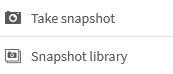
For information on adding a snapshot to a slide, see [Adding a snapshot to a slide](https://help.qlik.com/en-US/cloud-services/Subsystems/Hub/Content/Sense_Hub/StoryTelling/Slide/creating-a-slide.htm#Adding2).
## Creating new stories
In Assets, click the Stories icon and then click Create new story.
Create new story button
Create new story button
Create new story button 
See:
* [Sharing insights with data storytelling](https://help.qlik.com/en-US/cloud-services/Subsystems/Hub/Content/Sense_Hub/StoryTelling/use-data-storytelling.htm)
* [Making stories compelling](https://help.qlik.com/en-US/cloud-services/Subsystems/Hub/Content/Sense_Hub/StoryTelling/Story/make-story-compelling.htm)
* [Building stories](https://help.qlik.com/en-US/cloud-services/Subsystems/Hub/Content/Sense_Hub/StoryTelling/Story/build-story.htm)
## Using storytelling tools
Click a tool in the storytelling toolbar to add snapshot and effects to the slides in your story.
Storytelling toolbar Storytelling toolbar 
Story tools
| UI item | Description |
| --- | --- |
| the Snapshot icon | Snapshot library with all your taken snapshots. |
| the Text icon | Text objects with different text styles. |
| the Shapes icon | Shapes library with a variety of shapes. |
| the Effects icon | Effects library with a set of visual effects to apply to your snapshots. |
| the Image icon | Media objects with different types of media (such as images). |
| the Sheets icon | Sheet library with sheets in the application which can be inserted as live data sheets in your story. |
Snapshot tools
| UI item | Description |
| --- | --- |
| the Unlocked icon | Lock the snapshot. |
| the Edit icon | Edit the snapshot.
For more information, see [Editing slides](https://help.qlik.com/en-US/cloud-services/Subsystems/Hub/Content/Sense_Hub/StoryTelling/Slide/editing-slides.htm) and [Changing a snapshot's appearance](https://help.qlik.com/en-US/cloud-services/Subsystems/Hub/Content/Sense_Hub/StoryTelling/Snapshots/change-snapshot-appearance.htm). |
| the Snapshot icon | Replace the snapshot.
For more information, see
[Replacing a snapshot on a slide](https://help.qlik.com/en-US/cloud-services/Subsystems/Hub/Content/Sense_Hub/StoryTelling/Slide/editing-slides.htm#Replacin). |
Snapshot tools
| UI item | Description |
| --- | --- |
| the Unlocked icon | Lock the snapshot. |
| the Edit icon | Edit the snapshot.
For more information, see [Editing slides](https://help.qlik.com/en-US/cloud-services/Subsystems/Hub/Content/Sense_Hub/StoryTelling/Slide/editing-slides.htm) and [Changing a snapshot's appearance](https://help.qlik.com/en-US/cloud-services/Subsystems/Hub/Content/Sense_Hub/StoryTelling/Snapshots/change-snapshot-appearance.htm). |
| the Snapshot icon | Replace the snapshot.
For more information, see
[Replacing a snapshot on a slide](https://help.qlik.com/en-US/cloud-services/Subsystems/Hub/Content/Sense_Hub/StoryTelling/Slide/editing-slides.htm#Replacin). |
## Playing stories
Click the Play story icon to present your story as a slide show.
Play story button
Play story button
Play story button 
See: [Presenting stories](https://help.qlik.com/en-US/cloud-services/Subsystems/Hub/Content/Sense_Hub/StoryTelling/Story/present-story.htm)
## Touch gestures in storytelling view
The table describes the touch gestures that are used for navigating in storytelling view.
Touch gestures for navigating in storytelling view
| Touch gesture | Description |
| --- | --- |
| Tap | Highlight a data point in a snapshot by applying an effect. |
| Double-tap | Edit a text object or an image. |
| Long-touch and release | Open the shortcut menu. |
| Long-touch and drag | Move a slide to a new location in the timeline.
Move an item on a slide. |
| Swipe | Scroll the list in the snapshot library.
Go to the next or previous slide when playing a story. |
Related learning:
* [Take Snapshots of Visualizations](https://help.qlik.com/lnk/Take_snapshots_visualizations_QS)
## Learn more
* [Take Snapshots of Visualizations](https://help.qlik.com/lnk/Take_snapshots_visualizations_QS)