# Adding tabular data to your HTML template
You can add the source table from a chart in your application as tabular data in your HTML report template. Tabular data can be added either as an entire table or as one or more individual columns. Whether you add a chart as a single table tag or as a set of individual columns, the underlying object you create is a table. The table is added as an object in the objects panel, which you can return to at any time for editing and reuse.
Charts with straight type hypercubes can be added as tabular data. When you add a chart as a table, the underlying fields representing the chart's data are added as columns to the report.
You add tabular data in the Tables menu of the objects panel.
When selecting a table, refresh the list of available tables from the application by clicking the Reload icon.
## Adding an entire chart
You can add an entire chart in tabular form with a single tag. The chart data is inserted in the report as a straight table.
Do the following:
1. In the HTML designer, place your cursor at the location in the code at which you want to insert the table.
2. Click the Tables icon in the objects panel.
Tables menu in the objects panel within the HTML designer
Tables menu in the objects panel within the HTML designer
TablesTables menu in the objects panel within the HTMLHTML designer 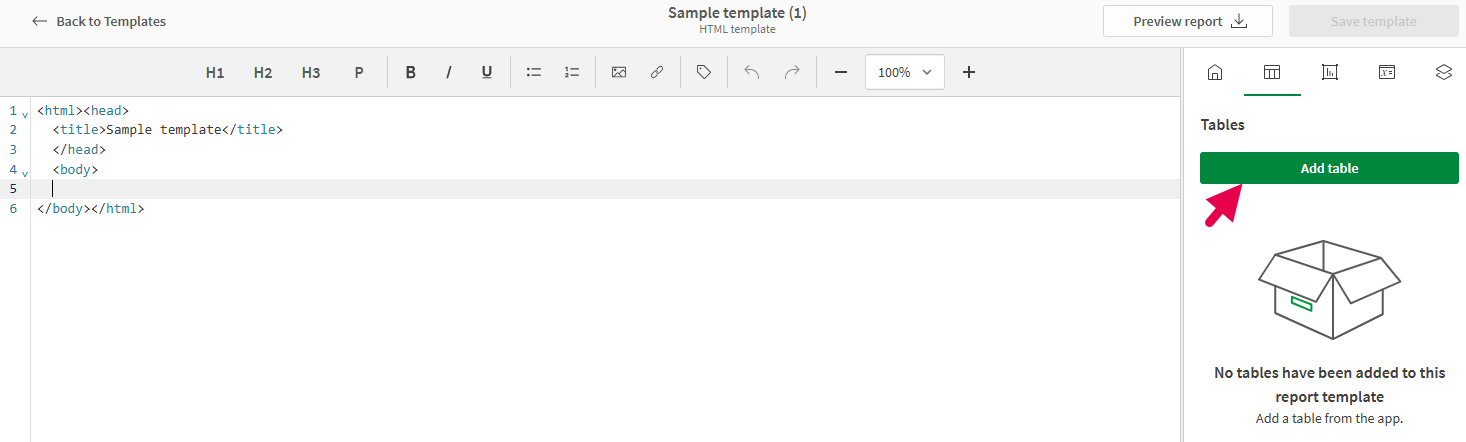
3. Click Add table. A list of available sheets appears.
4. Expand the sheet containing the chart you want to add as a table. You can search the chart's name to refine the list of sheets if needed.
You can preview the chart before adding it by clicking the chart's name.
5. Click the Plus symbol icon next to the chart.
6. In the drop down menu, select Table. This inserts the chart as a single item in the template.
Selecting a chart to add as a table
Selecting a chart to add as a table
Selecting a chart to add as a table 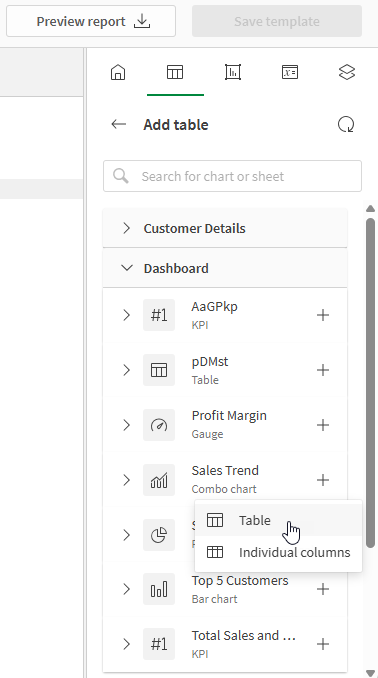
7. In the objects panel, you can adjust:
* Name: Provide a unique name to the table so you can identify it later.
* Description (optional): Add a description to the object if desired.
* Filter: Add up to one filter to the object individually. This allows you to customize the data used in the table without affecting the data used in other template objects. Click Manage filters to configure the report filter you want to use. For more information about object-level filters, see [Using object-level filters in report templates](https://help.qlik.com/en-US/cloud-services/Subsystems/Hub/Content/Sense_Hub/Reporting/Generate/cloud-in-app-reports-filters.htm#ObjectLevel).
Template design surface with table added as a single tag
Template design surface with table added as a single tag
Template design surface with table added as a single tag 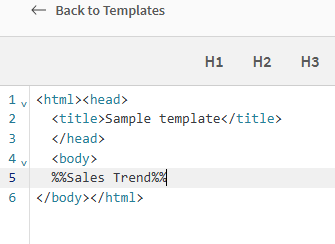
8. You can adjust the properties of the table in the objects panel. For information about formatting properties for tabular data, see [Formatting properties for tabular HTML data](https://help.qlik.com/en-US/cloud-services/Subsystems/Hub/Content/Sense_Hub/Reporting/Design/HTML/html-report-tabular-properties.htm).
9. You can re-use the table object at any time. Open the Tables icon in the options panel, and click the Right-directional arrow icon to open the object. Click Add table tag to add the table again.
## Adding a chart by column
A chart can also be added in tabular form as a set of single columns. This allows increased control over formatting within the report template.
The chart data is inserted in the report as a straight table.
Do the following:
1. In the HTML designer, place your cursor at the location in the code at which you want to insert the table columns.
2. Click the Tables icon in the objects panel.
Tables menu in the objects panel within the HTML designer
Tables menu in the objects panel within the HTML designer
TablesTables menu in the objects panel within the HTMLHTML designer 
3. Click Add table. A list of available sheets appears.
4. Expand the sheet containing the chart you want to add as a table. You can search the chart's name to refine the list of sheets if needed.
You can preview the chart before adding it by clicking the chart's name.
5. Click the Plus symbol icon next to the chart.
6. In the drop down menu, select Individual columns.
Selecting a chart to add as a table by column
Selecting a chart to add as a table by column
Selecting a chart to add as a table by column 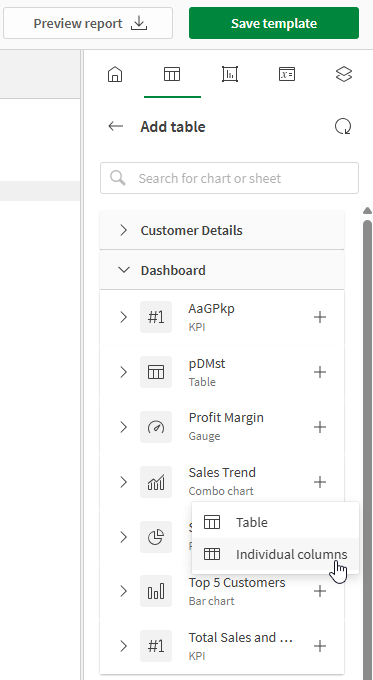
7. Select the columns you want to add, or click All to insert all columns from the chart.
8. The chart is added to the template as an `table` element, with each column denoted in the `td` element within it. If you add a single column, the column is instead added as a single item, [in the same way an entire table is added](https://help.qlik.com/en-US/cloud-services/Subsystems/Hub/Content/Sense_Hub/Reporting/html-report-tabular-data.htm#FullChartTable).
In the objects panel, you can adjust:
* Name: Provide a unique name to the table so you can identify it later.
* Description (optional): Add a description to the object if desired.
* Filter: Add up to one filter to the object individually. This allows you to customize the data used in the table without affecting the data used in other template objects. The filter is applied to all columns from the same source table.
Click Manage filters to configure the report filter you want to use. For more information about object-level filters, see [Using object-level filters in report templates](https://help.qlik.com/en-US/cloud-services/Subsystems/Hub/Content/Sense_Hub/Reporting/Generate/cloud-in-app-reports-filters.htm#ObjectLevel).
Template design surface with table added as a series of individual columns
Template design surface with table added as a series of individual columns
Template design surface with table added as a series of individual columns 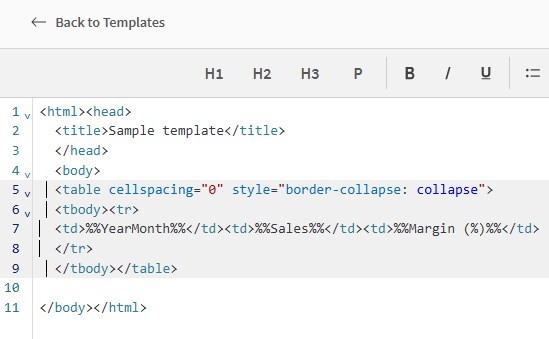
9. You can adjust other properties of the table in the objects panel. For information about formatting properties for tabular data, see [Formatting properties for tabular HTML data](https://help.qlik.com/en-US/cloud-services/Subsystems/Hub/Content/Sense_Hub/Reporting/Design/HTML/html-report-tabular-properties.htm).
10. You can re-use the table object at any time. Open the Tables icon in the options panel, and click the Right-directional arrow icon to open the object. Click Add table tag to add a new instance of the table as a single item, or create a blank table structure and add each column reference individually into the `td` elements.
The set of columns is considered a single table object.
## Adding more columns from a chart
### Into a chart added by column
After adding some columns of a table individually, you can add more at any time. The required procedure depends on whether the original table consists of one column, or two or more columns.
#### Table with one existing column
If you have a table with just one column added individually, the process for adding new columns is more involved. In some cases, it might be easier to recreate the object by configuring multiple columns from the beginning. However, you can still add additional columns to a single-column table.
Do the following:
1. On the design surface, paste the following blank table element into an empty area:
```
```
2. Cut and paste the existing item for the individual column into one the `td` elements you just added. For example:
```
```
3. Place your cursor on the existing individual column item.
In the objects panel, the Tables menu opens with the column expanded.
4. Find the column you want to add under Columns. Expand it, configure its properties, and then click Add column tag.
5. Repeat steps 3 to 4 for each new column you want to add from the source table. You will need to add new ` | ` items as needed, and remove all unused (empty) ` | ` items before finishing.
When this procedure is performed, the table remains the same table object that is available from the objects panel.
#### Table with two or more existing columns
Do the following:
1. In the HTML code, select the `td` element for the column directly to the left of where you want to insert a column.
In the objects panel, the Tables menu opens with the column expanded.
2. Create a new `td` element by pasting the following into your template:
```
|
```
Then, place your cursor between its opening and closing tags.
3. In the objects panel, configure the formatting properties for your column, and then click Add column tag.
The reference to the column is inserted into the blank `td` element.
### From a chart added as entire table
You can add new instances of a chart that has already been added as a single table item. You can also add instances of individual columns that you originally added as a single table item.
Do the following:
1. In the HTML designer, place your cursor at the location in the code at which you want to insert the content.
2. Click the Tables icon in the objects panel.
The Tables menu opens.
3. Click the Right-directional arrow icon next to the existing object.
4. Do one of the following:
1. To add a new instance of the table as a single item, click Add table tag.
2. To add single columns, click Expand columns. Configure the column properties and click Add column tag. If adding more than one column into a structure, you will need to create a blank table element first. See [Table with one existing column](https://help.qlik.com/en-US/cloud-services/Subsystems/Hub/Content/Sense_Hub/Reporting/Design/HTML/html-report-tabular-data.htm#OneExisting).