# Looping and cycling HTML report elements with levels
Automatically generate filtered sections in your HTML report using levels. You add levels as reusable objects within the objects panel. When you place application content within a level, a new filtered section is generated for each unique value in a field (or row-level combination in a chart) in the application.
Levels provide an additional layer of data filtering to reports, in addition to mechanisms such as report filters and cycles. In some cases, you can use a combination of levels, report filters, and cycles to generate highly customized and individualized report output. For information on report filters, see [Working with report filters](https://help.qlik.com/en-US/cloud-services/Subsystems/Hub/Content/Sense_Hub/Reporting/Generate/cloud-in-app-reports-filters.htm). For information on cycles, see [Cycling reports](https://help.qlik.com/en-US/cloud-services/Subsystems/Hub/Content/Sense_Hub/Reporting/Generate/reports-cycles.htm).
## Step 1: Creating a level object
Do the following:
1. In the HTML designer, place your cursor at the location in the code at which you want to insert the level.
2. Click the Levels and pages icon in the objects panel.
Levels menu in the objects panel within the HTML designer
Levels menu in the objects panel within the HTML designer
LevelsLevels menu in the objects panel within the HTMLHTML designer 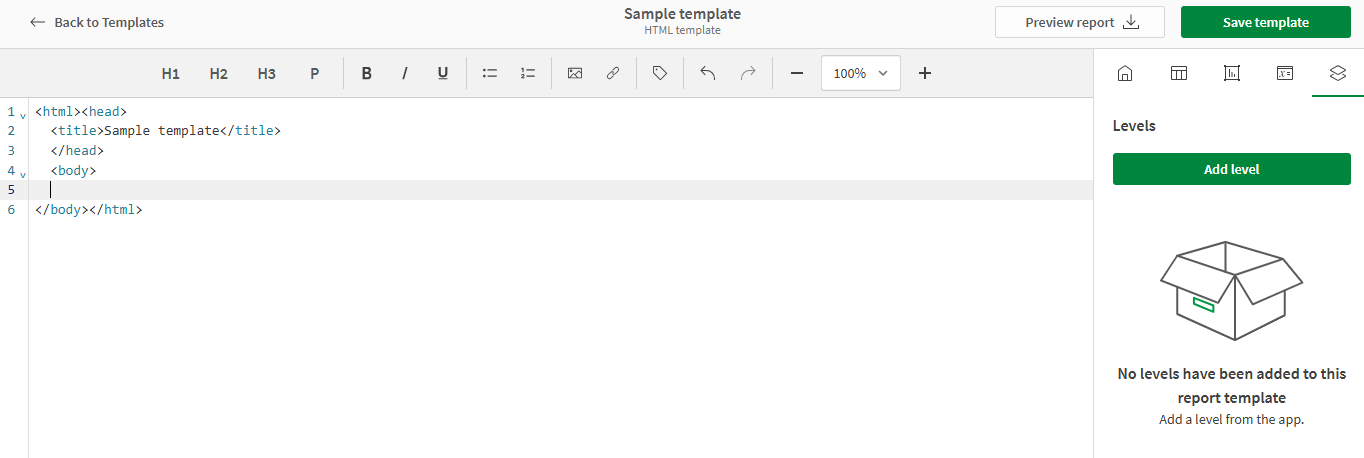
3. Click Add level. A list of available Fields appears, in addition to the available sheets containing charts that can be added as levels.
After you complete the steps above, you can choose to create level from a field or a chart. See below for more information.
## Step 2: Configuring the level object
After you have completed the steps above, you have two options:
* Add a field as the level. This adds a group of objects in the final report for each distinct value of the field.
* Add a chart as the level. This adds a group of objects for each row in the chart's source table.
### Option 1: Adding a field as a level
Do the following:
1. In the objects panel, expand Fields.
2. Click the Plus symbol icon to the right of a field to add it.
Select a field you want to add as a level
Select a field you want to add as a level
Select a field you want to add as a level 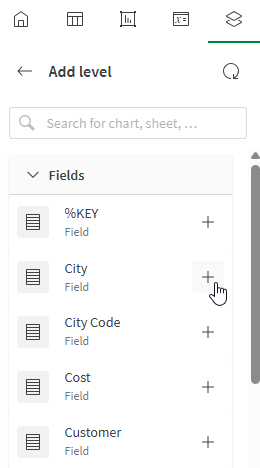
3. Under Select fields to add (optional), you can select whether to include field tags at the top of each level iteration. For example, if your level is on a Country field and you include field labels, each region iteration will have a section header for each country in your data.
4. The level tags are inserted at your current location in the template code.
5. In the objects panel, provide a unique Name to the level so you can identify it later.
6. You can re-use the level object at any time. Click the Levels and pages icon in the objects panel, and select the Right-directional arrow icon to open the object. Click Add level tag to add the level again.
7. To create content that iterates on this level, you need to add application content within the level tags. The code below shows an example.
```
%%Region_Level%%
%%Region_1%%
%%/Region_Level%%
```
In this code, we have the following:
* A level `Region_Level` containing all content.
* A field tag `Region_1` to display as a header at the top of each iterated instance of the content.
* A table containing two individual fields `Customer` and `Sales`.
### Option 2: Adding a chart as a level
Adding a chart as a level is very similar to adding a field as a level, but the output might look different and require different handling.
When you add a chart as a level, the data is separated into a section for each row-level combination of values. For example, if your level is a chart with one dimension and one calculated measure, a section will be created for each dimension value, with the measure value treated as the single possible unique value for that particular dimension. The formatting of the chart is also different if you add a field tag for a single chart field than if you add multiple field tags. For more information, see the instructions below.
Do the following:
1. In the objects panel, expand the sheet containing the chart you want to use as a level. You can search the chart's name to refine the list of sheets if needed.
2. Click the Plus symbol icon to the right of a chart to add it.
Select a chart you want to add as a level
Select a chart you want to add as a level
Select a chart you want to add as a level 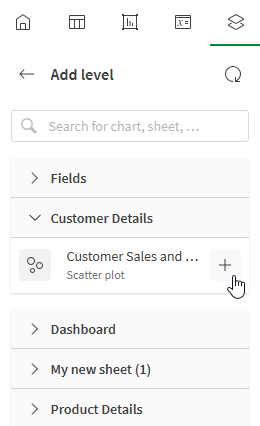
3. Under Select fields to add (optional), you can select whether to include field tags at the top of each level iteration. The output is different depending on whether there are one or multiple field tags added with the level:
* One field tag: The field tag is added within the level as a single item.
* Multiple field tags: A table is added to the template. Field tags are added within each `td` element in the table.
4. The level tags are inserted at your current location in the template code.
5. In the objects panel, provide a unique Name to the level so you can identify it later.
6. You can re-use the level object at any time. Click the Levels and pages icon in the objects panel, and select the Right-directional arrow icon to open the object. Click Add level tag to add the level again.
7. To create content that iterates on this level in a meaningful way, you need to add application content within the level tags.