# Navigating the HTML designer
The HTML designer is where you construct HTML report templates. The designer is embedded within Qlik Sense applications.
The HTML designer allows you to work with HTML code and integrate application content into your template.
The HTML designer
The HTML designer
The HTMLHTML designer 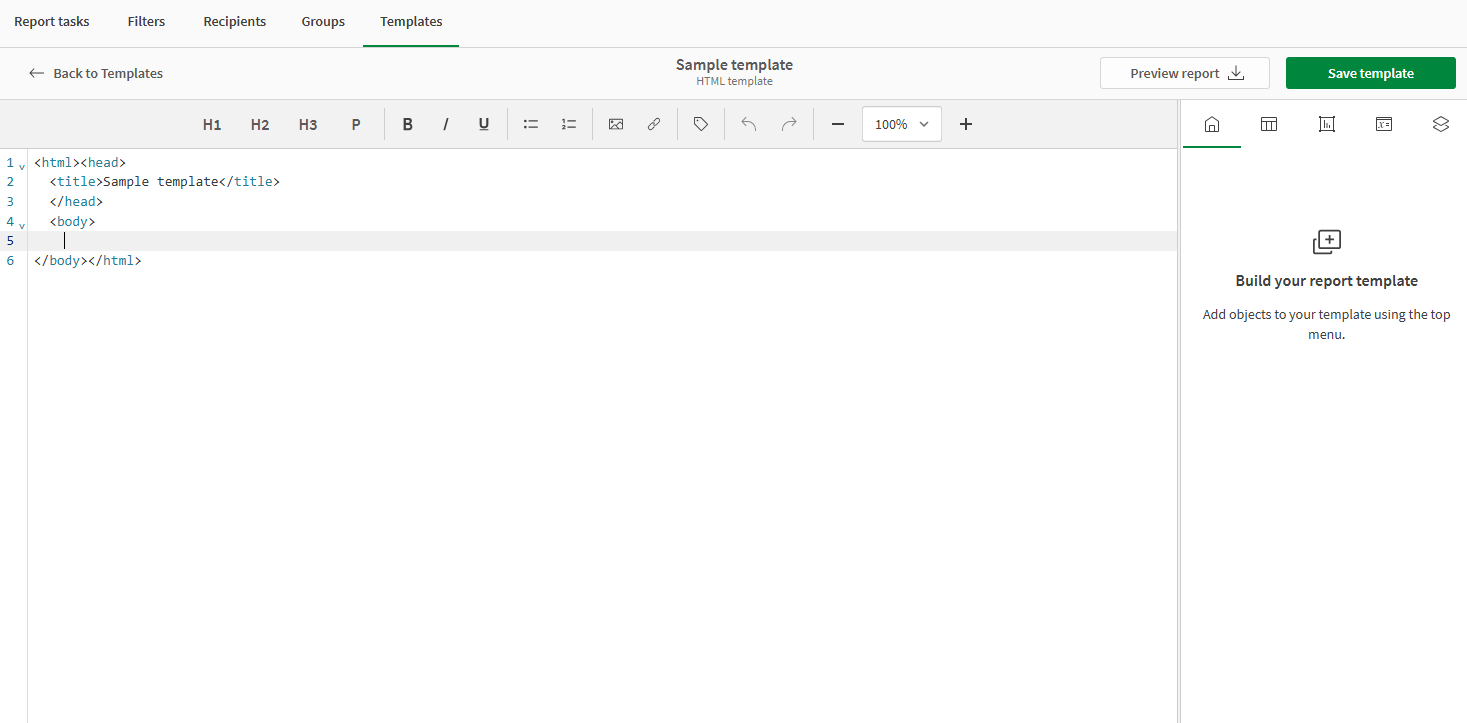
## Opening the HTML designer
You open the HTML designer by creating a new HTML template, or editing an existing one.
Do the following:
1. In your application, use the drop down menu in the navigation bar and select Reporting.
2. Switch to the Templates tab.
3. In the top right, click Create new > HTML template.
4. Enter a Name for the template.
The HTML designer opens.
## Designer toolbar
The designer toolbar is located at the top of the HTML designer. In the toolbar, you can:
* Easily add common HTML elements to your template, such as headers, paragraphs, and lists.
* Add external images to your template. For example, you can add your company logo.
* Add recipient tags. For more information, see [Adding recipient placeholder tags](https://help.qlik.com/en-US/cloud-services/Subsystems/Hub/Content/Sense_Hub/Reporting/Design/HTML/html-report-recipient-tags.htm).
* Undo and redo actions, and adjust the zoom level.
For more information, see [Adding standard HTML code to your template](https://help.qlik.com/en-US/cloud-services/Subsystems/Hub/Content/Sense_Hub/Reporting/Design/HTML/html-report-toolbar-actions.htm).
## Design surface
The design surface is shown in the center of the designer. This is where your template content is shown. It is a canvas where you add template content in the form of HTML code and references to application objects you have added in the objects panel.
## Objects panel
The objects panel is located on the right side of the designer. You use the objects panel to create and manage objects from the analysis application, and add them as content to the template. Resize the panel as needed.
You can access the following menus from the top of the objects panel:
* the Home icon: The home menu. This is where you start when you create your template.
* the Tables icon: The menu. This is where you add tabular data to the template.
[Adding tabular data to your HTML template](https://help.qlik.com/en-US/cloud-services/Subsystems/Hub/Content/Sense_Hub/Reporting/Design/HTML/html-report-tabular-data.htm)
* the Charts icon: The menu. This is where you add chart images to the template.
[Adding charts as images in your HTML template](https://help.qlik.com/en-US/cloud-services/Subsystems/Hub/Content/Sense_Hub/Reporting/Design/HTML/html-report-chart-images.htm)
* the Variables and expressions icon: The menu. This where you add variables and expressions to the template.
[Adding variables and expressions to HTML report templates](https://help.qlik.com/en-US/cloud-services/Subsystems/Hub/Content/Sense_Hub/Reporting/Design/HTML/html-report-variables-expressions.htm)
* the Levels icon: The menu. This is where you add levels to the template, for iterations of filtered content.
[Looping and cycling HTML report elements with levels](https://help.qlik.com/en-US/cloud-services/Subsystems/Hub/Content/Sense_Hub/Reporting/Design/HTML/html-report-levels.htm)