# Adding charts as images in your HTML template
You can add a chart as an image to the HTML report template. The chart will use the data from the application's most recent reload.
A chart image is added as an `img` element in the HTML template code. The image is also added as an object in the objects panel, which you can return to at any time for editing and reuse.
When selecting a chart, refresh the list of available charts from the Qlik Sense application by clicking the Reload icon.
Do the following:
1. In the HTML designer, place your cursor at the location in the code at which you want to insert the image.
2. In the HTML designer, click the Chart object icon in the objects panel.
Charts menu in the objects panel within the HTML designer
Charts menu in the objects panel within the HTML designer
ChartsCharts menu in the objects panel within the HTMLHTML designer 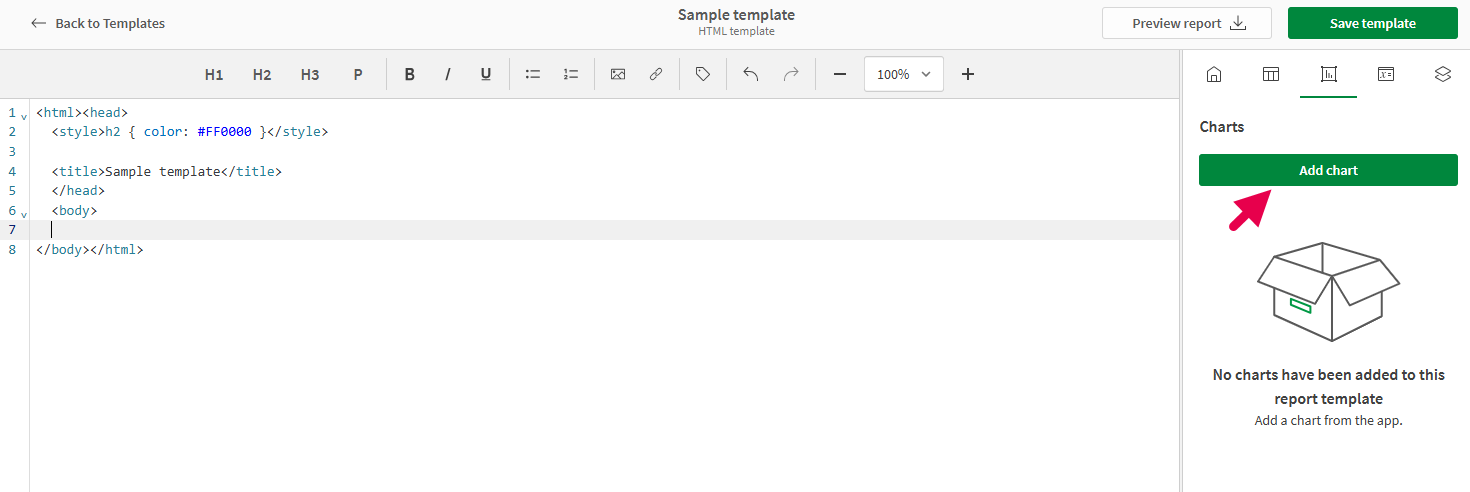
3. Click Add chart. A list of available sheets appears.
4. Expand the sheet containing the chart you want to add. You can search the chart's name to refine the list of sheets if needed.
5. Click the Plus symbol icon to add the chart.
To make sure you are adding the correct chart, you can preview it before adding. To preview a chart, click the Right arrow icon next to it, or click the chart name.
Selecting a chart to add as an image
Selecting a chart to add as an image
Selecting a chart to add as an image 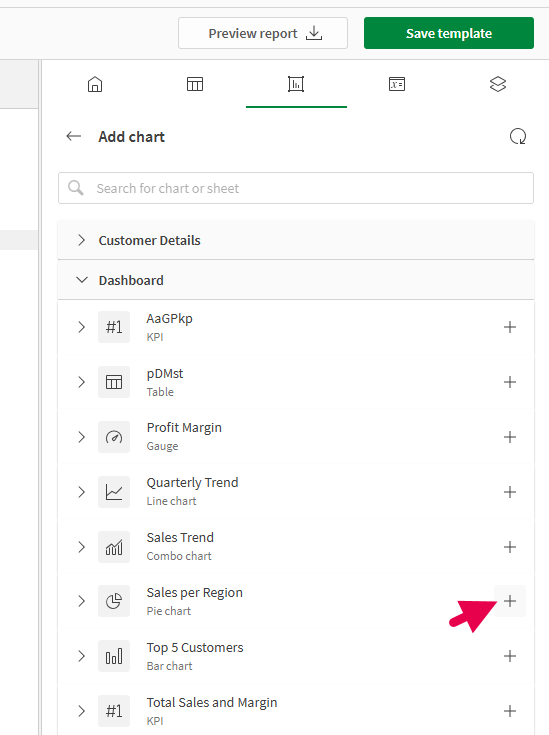
6. The chart is added to the template as an `img` element. In the objects panel, provide a unique Name to the image so you can identify it later.
Template design surface with newly added `img` element highlighted
Template design surface with newly added `img` element highlighted
Template design surface with newly added `img`img element highlighted 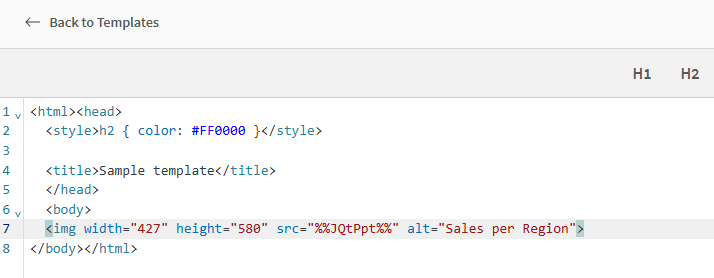
7. After adding the image, you can adjust the following:
* Adjust the Zoom in the objects menu. This can help with readability of chart text, and to highlight certain aspects of the chart.
* Add up to one Filter to the object individually. This is done in the objects menu and allows you to customize the data used in the chart without affecting the data used in other template objects. Click Manage filters to configure the report filter you want to use. For more information about object-level filters, see [Using object-level filters in report templates](https://help.qlik.com/en-US/cloud-services/Subsystems/Hub/Content/Sense_Hub/Reporting/Generate/cloud-in-app-reports-filters.htm#ObjectLevel).
* Change the dimensions of the image with the `width` and `height` attributes in the `img` elements. This is done in the design surface.
8. You can re-use the image object at any time. Open the Chart object icon in the objects panel, and click the Right-directional arrow icon to open the object. Click Add image to add the image again.