# Guidelines for visualizations, fields, and naming
There are certain conventions and limitations you need to be aware of when working with Qlik Sense. For example: the maximum number of characters to use in names, descriptions, and expressions, as well as characters reserved for use by Qlik Sense only.
## Max number of visualizations
The maximum number of visualizations there can be on a sheet is limited to the number of cells on a sheet: 288 (24x12). The maximum practical number will be less than this because of the limited use for visualizations that are made up of only 1 cell.
## Upper limits on name lengths
The following limits apply to the number of characters that can be used in various situations in Qlik Sense:
Upper limits on name lengths
| Situation | Upper limit |
| --- | --- |
| Names (title, dimension, footnote...) | Max 255 characters. |
| Descriptions | Max 512 characters. |
| Expressions | Max 64,000 characters. |
| Tags | Max 31 characters per tag and max 30 tags per master item. |
| Text & image chart: | Max 12,000 characters. |
## Naming conventions
You can refer to a number of entities by their names in Qlik Sense, such as:
* Fields
* Dimensions
* Measures
* Variables
* Bookmarks
Some characters are reserved for system purposes in Qlik Sense. To avoid potential errors, avoid using the following characters in names:
* :
* =
* [
* ]
* {
* }
* (
* )
* $
* ´
* `
* '
If you use long names for your dimensions and measures they will be displayed truncated. “...” will be shown to denote that part of the name is hidden.
## Max number of characters in expressions
The maximum number of characters that can be written in a vizualization expression is 64,000. If you attempt to build an expression with more than this number, the expression will be truncated.
## Conventions for number and time formats
In many interpretation and formatting functions it is possible to set the format for numbers and dates by using a format code. This topic describes the formats for the number, date, time, and timestamp functions. These formats apply both to script and chart functions.
## Number formats
To denote a specific number of digits, use the symbol "0" for each digit.
To denote a possible digit to the left of the decimal point, use the symbol "#".
To mark the position of the thousands separator or the decimal separator, use the applicable thousands separator and the decimal separator.
The format code is used for defining the positions of the separators. It is not possible to set the separator in the format code. Use the DecimalSep and ThousandSep variables for this in the script.
It is possible to use the thousand separator to group digits by any number of positions, for example, a format string of "0000-0000-0000" (thousand separator="-") could be used to display a twelve-digit part number as "0012-4567-8912".
For more information, see [DecimalSep](https://help.qlik.com/en-US/cloud-services/Subsystems/Hub/Content/Sense_Hub/Scripting/NumberInterpretationVariables/DecimalSep.htm) and [ThousandSep](https://help.qlik.com/en-US/cloud-services/Subsystems/Hub/Content/Sense_Hub/Scripting/NumberInterpretationVariables/ThousandSep.htm).
Examples:
Example of number formats
| Number format | Description |
| --- | --- |
| # ##0 | describes the number
as an integer with a thousands separator. In this example " " is used as a thousands separator. |
| ###0 | describes the number
as an integer without a thousands separator. |
| 0000 | describes the number
as an integer with at least four digits. For example, the number
123 will be shown as 0123. |
| 0.000 | describes the number
with three decimals. In this example "." is used as a decimal separator. |
## Special number formats
Qlik Sense can interpret and format numbers in any radix between 2 and 36 including binary, octal and hexadecimal. It can also handle roman formats.
Special number formats
| Format | Description |
| --- | --- |
| Binary format | To indicate binary format
the format code should start with (bin) or (BIN). |
| Octal format | To indicate octal format
the format code should start with (oct) or (OCT). |
| Hexadecimal format | To indicate hexadecimal format
the format code should start with (hex) or (HEX). If the capitalized version
is used A-F will be used for formatting (for example 14FA). The non-capitalized
version will result in formatting with a-f (for example 14fa). Interpretation
will work for both variants regardless of the capitalization of the format
code. |
| Decimal format | The use of (dec) or (DEC)
to indicate decimal format is permitted but unnecessary. |
| Custom radix format | To indicate a format in
any radix between 2 and 36 the format code should start with (rxx) or
(Rxx) where xx is the two-digit number denoting the radix to be used.
If the capitalized R is used letters in radices above 10 will be capitalized
when Qlik Sense is formatting (for example 14FA). The non-capitalized r will result
in formatting with non-capital letters (for example 14fa). Interpretation will
work for both variants regardless of the capitalization of the format
code. Note that (r02) is the equivalent of (bin), (R16) is the equivalent
of (HEX), and so on. |
| Roman format | To indicate roman numbers
the format code should start with (rom) or (ROM). If the capitalized version
is used capital letters will be used for formatting (for example MMXVI). The
non-capitalized version will result in formatting with lower cap letters
(mmxvi). Interpretation will work for both variants regardless of the
capitalization of the format code. Roman numbers are generalized with
minus sign for negative numbers and 0 for zero. Decimals are ignored with
roman formatting. |
Examples:
Examples of special number formats
| Example | Result |
| --- | --- |
| num(199, '(bin)') | returns 11000111 |
| num(199, '(oct)') | returns 307 |
| num(199, '(hex)') | returns c7 |
| num(199, '(HEX)' ) | returns C7 |
| num(199, '(r02)' ) | returns 11000111 |
| num(199, '(r16)') | returns c7 |
| num(199, '(R16)' ) | returns C7 |
| num(199, '(R36)') | returns 5J |
| num(199, '(rom)') | returns cxcix |
| num(199, '(ROM)' ) | returns CXCIX |
## Dates
You can use the following symbols to format a date. Arbitrary separators can be used.
Symbols to format a date
| Symbols | Description |
| --- | --- |
| D | To describe
the day, use the symbol "D" for each digit. |
| M | To describe
the month number, use the symbol "M".
Use "M" or "MM" for one
or two digits.
"MMM" denotes short month name in letters as
defined by the operating system or by the override system variable MonthNames
in the script.
"MMMM" denotes long month name in letters as
defined by the operating system or by the override system variable LongMonthNames
in the script.
For more information, see [MonthNames](https://help.qlik.com/en-US/cloud-services/Subsystems/Hub/Content/Sense_Hub/Scripting/NumberInterpretationVariables/MonthNames.htm) and [LongMonthNames](https://help.qlik.com/en-US/cloud-services/Subsystems/Hub/Content/Sense_Hub/Scripting/NumberInterpretationVariables/LongMonthNames.htm). |
| Y | To describe
the year, use the symbol "Y" for each digit. |
| W | To describe
the weekday, use the symbol "W".
"W" will return the number
of the day (for example 0 for Monday) as a single digit.
"WW" will
return the number with two digits (e.g. 02 for Wednesday).
"WWW"
will show the short version of the weekday name (for example Mon) as defined
by the operating system or by the override system variable DayNames in
the script.
"WWWW" will show the long version of the weekday
name (for example Monday) as defined by the operating system or by the override
system variable LongDayNames in the script.
For more information, see [DayNames](https://help.qlik.com/en-US/cloud-services/Subsystems/Hub/Content/Sense_Hub/Scripting/NumberInterpretationVariables/DayNames.htm) and [LongDayNames](https://help.qlik.com/en-US/cloud-services/Subsystems/Hub/Content/Sense_Hub/Scripting/NumberInterpretationVariables/LongDayNames.htm). |
Examples: (with 31st March 2013 as example date)
Examples of date formats
| Example | Result |
| --- | --- |
| YY-MM-DD | describes the
date as 13-03-31. |
| YYYY-MM-DD | describes the
date as 2013-03-31. |
| YYYY-MMM-DD | describes the
date as 2013-Mar-31. |
| DD MMMM YYYY | describes
the date as 31 March 2013. |
| M/D/YY | describes the date as 3/31/13. |
| W YY-MM-DD | describes the
date as 6 13-03-31. |
| WWW YY-MM-DD | describes
the date as Sat 13-03-31. |
| WWWW YY-MM-DD | describes
the date as Saturday 13-03-31. |
## Times
You can use the following symbols to format a time. Arbitrary separators can be used.
Symbols to format a time
| Symbols | Description |
| --- | --- |
| h | To describe
the hours, use the symbol "h" for each digit. |
| m | To describe
the minutes, use the symbol "m" for each digit. |
| s | To describe
the seconds, use the symbol "s" for each digit. |
| f | To describe
the fractions of a second, use the symbol "f" for each digit. |
| tt | To describe
the time in AM/PM format, use the symbol "tt" after the time. |
Examples: (with 18.30 as example time):
Examples of time formats
| Example | Result |
| --- | --- |
| hh:mm | describes the time
as 18:30 |
| hh.mm.ss.ff | describes the
time as 18.30.00.00 |
| hh:mm:tt | describes the
time as 06:30:pm |
## Time stamps
The same notation as that of dates and times above is used in time stamps.
Examples: (with 31th March 2013 18.30 as example time stamp):
Examples of time stamp formats
| Example | Result |
| --- | --- |
| YY-MM-DD hh:mm | describes
the time stamp as 13-03-31 18:30. |
| M/D/Y hh.mm.ss.ffff | describes
the time stamp as 3/31/13 18.30.00.0000. |
## Using system fields in a visualization
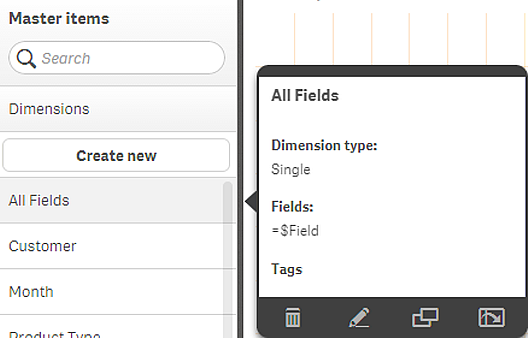
You can use system fields in a visualization. System fields are created by Qlik Sense when the data load script is generated, and include information about the fields and tables in the loaded data. A system field begins with "$", and you need to reference it by typing the field name including the "$" manually. You can use a system field to create a dimension either as a master item or from the properties panel.
Preview of a dimension based on a system field .
A system field added as dimension in the properties panel.
s s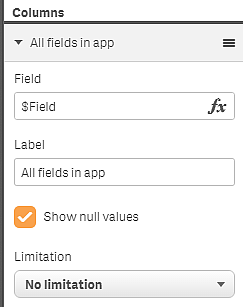
## Learn more
* [Reusing dimensions with master dimensions](https://help.qlik.com/en-US/cloud-services/Subsystems/Hub/Content/Sense_Hub/Dimensions/create-master-dimension.htm)
* [Fields](https://help.qlik.com/en-US/cloud-services/Subsystems/Hub/Content/Sense_Hub/DataSource/fields.htm)
* [System fields](https://help.qlik.com/en-US/cloud-services/Subsystems/Hub/Content/Sense_Hub/Scripting/system-fields.htm)