# Below - chart function
Below() evaluates an expression at a row below the current row within a column segment in a table. The row for which it is calculated depends on the value of offset, if present, the default being the row directly below. For charts other than tables, Below() evaluates for the row below the current column in the chart's straight table equivalent.
Syntax:
Below([TOTAL] expr [ , offset [,count ]])
Return data type: dual
Arguments
| Argument | Description |
| --- | --- |
| expr | The expression or field containing the data to be measured. |
| offset | Specifying an offset n, greater
than 1 moves the evaluation of the expression n rows further down from the current row.
Specifying an offset of 0 will evaluate the expression on the current row.
Specifying a negative offset
number makes the Below function work like the Above
function with the corresponding positive offset
number. |
| count | By specifying a third parameter count
greater than 1, the function will return a range of count values, one for each of count
table rows counting downwards from the original cell. In this form, the
function can be used as an argument to any of the special range
functions. [Range functions](https://help.qlik.com/en-US/cloud-services/Subsystems/Hub/Content/Sense_Hub/ChartFunctions/RangeFunctions/RangeFunctionsInCharts.htm) |
| TOTAL | If the table is one-dimensional or if the qualifier TOTAL is used as argument, the current column segment is always equal to the
entire column.
[Defining the aggregation scope](https://help.qlik.com/en-US/cloud-services/Subsystems/Hub/Content/Sense_Hub/ChartFunctions/define-aggregation-scope.htm) |
On the last row of a column segment, a NULL value is returned, as there is no row below it.
Information noteA column segment is defined as a consecutive subset of cells having the same values for the dimensions in the current sort order. Inter-record chart functions are computed in the column segment excluding the right-most dimension in the equivalent straight table chart. If there is only one dimension in the chart, or if the TOTAL qualifier is specified, the expression evaluates across full table.
Information noteIf the table or table equivalent has multiple vertical dimensions, the current column segment will include only rows with the same values as the current row in all dimension columns, except for the column showing the last dimension in the inter-field sort order.
Limitations:
* Recursive calls will return NULL.
* Sorting on y-values in charts or sorting by expression columns in tables is not allowed when this chart function is used in any of the chart's expressions. These sort alternatives are therefore automatically disabled. When you use this chart function in a visualization or table, the sorting of the visualization will revert back to the sorted input to this function.
Example: Chart expressions
| Example | Result |
| --- | --- |
| `Below( Sum(Sales) )` | Returns the value of `Sales` for the row below the current row. |
## Example - Below fundamentals
[](https://help.qlik.com/en-US/cloud-services/Subsystems/Hub/Content/Sense_Hub/ChartFunctions/InterRecordFunctions/below.htm)
#### Chart expression
Overview
Open the Data load editor and add the load script below to a new section.
The load script contains:
* A dataset which is loaded into a data table called `Example`.
* The following fields in the data table:
* `Year`
* `Sales`
Load script
```
Example:
LOAD * INLINE [
Year, Sales
2019, 1000
2020, 1500
2021, 1200
2022, 1800
2023, 1700
];
```
Results
Load the data and open a sheet. Create a new table and add this field as a dimension:
* `Year`
Create the following measures:
* `=Sum(Sales)`, to find the annual sales.
* `=Below(Sum(Sales))`, to find the sales value for the next year.
* `=Sum(Sales) - Below(Sum(Sales))`, to calculate the variance between the `Sales` value of the current year and the value of the next year.
* `=RangeSum(Below(Sales, 1, 2))`, to demonstrate a rolling two-year aggregation of the next two years of sales.
* `=(Sales - Below(Sales)) / Below(Sales)`, to return the change in `Sales` as a ratio / percentage. To show this value as a percentage, under Number formatting, select Number > Formatting Simple > 12.34%.
Results table
| Year | Sum(Sales) | Below(Sum(Sales)) | Sum(Sales) - Below(Sum(Sales)) | RangeSum(Below(Sales, 1, 2) | (Sales - Below(Sales)) / Below(Sales) |
| --- | --- | --- | --- | --- | --- |
| Totals | 7200 | - | - | 0 | - |
| 2019 | 1000 | 1500 | -500 | 2700 | -33.33% |
| 2020 | 1500 | 1200 | 300 | 3000 | 25.00% |
| 2021 | 1200 | 1800 | -600 | 3500 | -33.00% |
| 2022 | 1800 | 1700 | 100 | 1700 | 5.88% |
| 2023 | 1700 | - | - | 0 | - |
Looking at the results, you can compare the `Sales` values in the current period with the next period.
* The `Sum(Sales) - Below(Sum(Sales))` measure returns the change in `Sales` values, comparing the current period to the next period.
* The `RangeSum(Below(Sales, 1, 2))` measure returns the sum of the next two `Sales` values.
* The `(Sales - Below(Sales)) / Below(Sales)` measure returns the change in `Sales` compared to the next period as a percentage.
Tip noteThis function can also be used in charts other than tables, for example bar charts.
Do the following:
Create a bar chart, and then add this field as a dimension:
* `Year`
Create the following measure:
* `=Sum(Sales) - Below(Sum(Sales))`, to return the year-on-year variance.
Bar chart showing results for the Below function
Bar chart showing results for the Below function
Bar chart showing results for the BelowBelow function 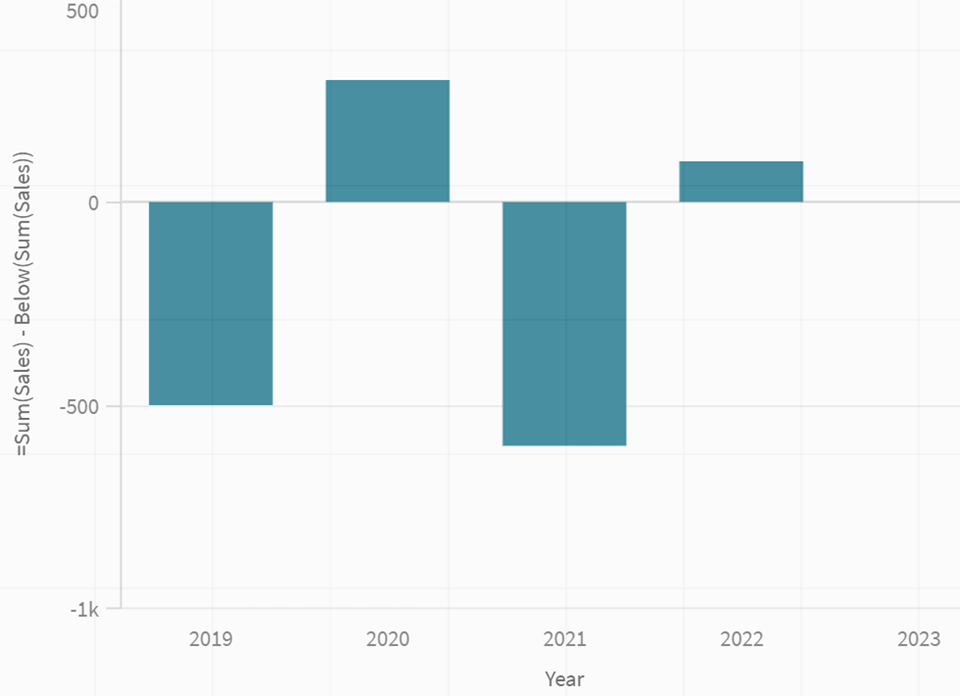
Using the `Below` function in a bar chart provides a visual comparison of the variance between the sales of the current period versus the next period.
## Example - Below scenario
[](https://help.qlik.com/en-US/cloud-services/Subsystems/Hub/Content/Sense_Hub/ChartFunctions/InterRecordFunctions/below.htm)
#### Chart expression
Overview
Open the Data load editor and add the load script below to a new section.
The load script contains:
* A dataset which is loaded into a data table called `Example`.
* The following fields in the data table:
* `SalesYear`
* `SalesAmount`
Load script
```
Example:
LOAD * INLINE [
SalesYear, SalesAmount
2019, 500
2020, 800
2021, 400
2022, 700
2023, 600
];
```
Results
Load the data and open a sheet. Create a new table and add this field as a dimension:
* `SalesYear`
Create the following measures:
* `=Sum(SalesAmount)`, to aggregate the sales.
* `=RangeSum(Below(SalesAmount, 0, NoOfRows() - RowNo()))`, to calculate a rundown total of the `SalesAmount` values.
Results table
| SalesYear | Sum(SalesAmount) | RangeSum(Below(SalesAmount, 0, NoOfRows() - RowNo())) |
| --- | --- | --- |
| Totals | 3000 | 0 |
| 2019 | 500 | 2400 |
| 2020 | 800 | 1900 |
| 2021 | 400 | 1100 |
| 2022 | 700 | 700 |
| 2023 | 600 | 0 |
The results show how you can use the combination of the `RangeSum` function and the `Below` function to create a cumulative rundown total.
Tip noteThis function can also be used in charts other than tables, for example bar charts.
Do the following:
Create a bar chart, and then add this field as a dimension:
* `SalesYear`
Create the following measure:
* `=RangeSum(Below(SalesAmount, 0, NoOfRows() - RowNo()))`, to return the cumulative rundown sales value.
Bar chart showing the cumulative rundown sales value by year
Bar chart showing the cumulative rundown sales value by year
Bar chart showing the cumulative rundown sales value by year 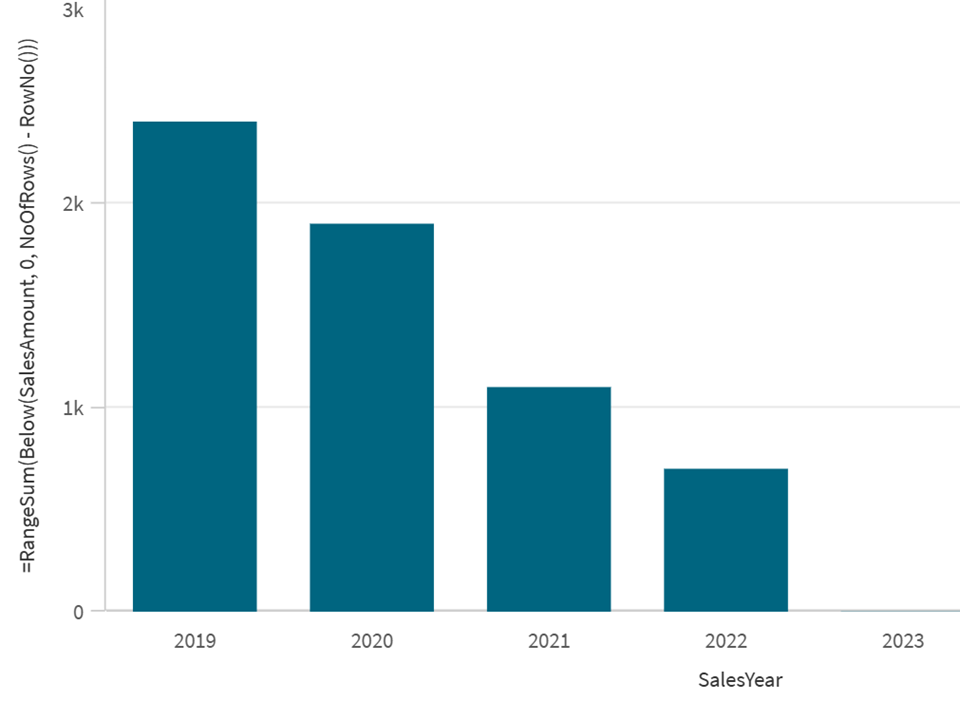
Using the `Below` function in combination with the `RangeSum` in a bar chart provides a visual display of the cumulative rundown sales values.
## Example - Chart expression using Below
[](https://help.qlik.com/en-US/cloud-services/Subsystems/Hub/Content/Sense_Hub/ChartFunctions/InterRecordFunctions/below.htm)
#### Chart expression
Overview
Open the Data load editor and add the load script below to a new section.
The load script contains:
* Two data tables called `Monthnames` and `Sales2013`.
Load script
```
Monthnames:
LOAD *, Dual(MonthText,MonthNumber) as Month INLINE [
MonthText, MonthNumber
Jan, 1
Feb, 2
Mar, 3
Apr, 4
May, 5
Jun, 6
Jul, 7
Aug, 8
Sep, 9
Oct, 10
Nov, 11
Dec, 12
];
Sales2013:
Crosstable (MonthText, Sales) LOAD * inline [
Customer|Jan|Feb|Mar|Apr|May|Jun|Jul|Aug|Sep|Oct|Nov|Dec
Astrida|46|60|70|13|78|20|45|65|78|12|78|22
Betacab|65|56|22|79|12|56|45|24|32|78|55|15
Canutility|77|68|34|91|24|68|57|36|44|90|67|27
Divadip|57|36|44|90|67|27|57|68|47|90|80|94
] (delimiter is '|');
```
Results
Load the data and open a sheet. Create a new table and add this field as a dimension:
* `Customer`
Create the following measures:
* `=Sum(Sales)`, to calculate the sum of sales.
* `=Below(Sum(Sales))`, to show the sum of sales in the previous row.
* `=Sum(Sales)+Below(Sum(Sales))`, to sum the sum of sales value with the sum of sales for the customer row below the current row.
* `=Sum(Sales)+Below(Sum(Sales), 3)`, to sum the `Sum(Sales)` value for the current `Customer` to the value for the `Customer` that is three rows below.
* `=If(Sum(Sales)>Below(Sum(Sales)), 'Higher')`, to add the label "`Higher`" to customers whose `Sum(Sales)` results are greater than the `Sum(Sales)` of the customer in the row below.
Results table
| Customer | Sum(Sales) | Below(Sum(Sales)) | Sum(Sales)+Below(Sum(Sales)) | Sum(Sales)+Below(Sum(Sales), 3) | If(Sum(Sales)>Below(Sum(Sales)), 'Higher') |
| --- | --- | --- | --- | --- | --- |
| Totals | 2566 | - | - | - | - |
| Astrida | 587 | 539 | 1126 | 1334 | Higher |
| Betacab | 539 | 683 | 1222 | - | - |
| Canutility | 683 | 757 | 1440 | - | - |
| Divadip | 757 | - | - | - | - |
For charts with more than one dimension, the results of expressions containing the `Above`, `Below`, `Top`, and `Bottom` functions depend on the order in which the column dimensions are sorted by Qlik Sense. Qlik Sense evaluates the functions based on the column segments that result from the dimension that is sorted last. The column sort order is controlled in the properties panel under Sorting and is not necessarily the order in which the columns appear in a table. For an example that demonstrates using sort order, see [Example - Above scenario based on sort order](https://help.qlik.com/en-US/cloud-services/Subsystems/Hub/Content/Sense_Hub/ChartFunctions/InterRecordFunctions/above.htm#Example).
The measure `Below(Sum(Sales))` returns NULL for the customer `Divadip`, because there is no row below it. The result for the row `Canutility` shows the value of `Sum(Sales)` for `Divadip`. The result for `Betacab` shows the value for `Sum(Sales)` for `Canutility`, and so on.
For the measure `Sum(Sales)+Below(Sum(Sales))`, the row for `Astrida` returns the result of adding the `Sum(Sales)` values for the rows `Betacab` + `Astrida` (`539+587`). The result for the row `Betacab` shows the result of the addition of `Sum(Sales)` values for `Canutility` + `Betacab` (`539+683`).
The measure `Sum(Sales)+Below(Sum(Sales), 3)` has the argument `offset`, set to `3`, and has the effect of taking the value in the row three rows below the current row. It adds the `Sum(Sales)` value for the current `Customer` to the value from the `Customer` three rows below. The values for the lowest three `Customer` rows are null.
The measure `IF(Sum(Sales)>Below(Sum(Sales)), 'Higher')` returns the value `Higher` for the customer `Astrida` because their sales results are greater than the sum of sales of the customer in the row below, `Betacab`.
Tip noteThis function can also be used in charts other than tables, for example bar charts.
Tip noteFor other chart types, convert the chart to the straight table equivalent so you can easily interpret which row the function relates to.
## Example - Using the Below function with RangeAvg
[](https://help.qlik.com/en-US/cloud-services/Subsystems/Hub/Content/Sense_Hub/ChartFunctions/InterRecordFunctions/below.htm)
#### Chart expression
Overview
The Below function can be used as input to the range functions. This example uses the function in a RangeAvg.
Open the Data load editor and add the load script below to a new section.
The load script contains:
* Two data tables called Monthnames, Sales2013.
Load script
```
Monthnames:
LOAD *, Dual(MonthText,MonthNumber) as Month INLINE [
MonthText, MonthNumber
Jan, 1
Feb, 2
Mar, 3
Apr, 4
May, 5
Jun, 6
Jul, 7
Aug, 8
Sep, 9
Oct, 10
Nov, 11
Dec, 12
];
Sales2013:
Crosstable (MonthText, Sales) LOAD * inline [
Customer|Jan|Feb|Mar|Apr|May|Jun|Jul|Aug|Sep|Oct|Nov|Dec
Astrida|46|60|70|13|78|20|45|65|78|12|78|22
Betacab|65|56|22|79|12|56|45|24|32|78|55|15
Canutility|77|68|34|91|24|68|57|36|44|90|67|27
Divadip|57|36|44|90|67|27|57|68|47|90|80|94
] (delimiter is '|');
```
Results
Load the data and open a sheet. Create a new table and add this field as a dimension:
* Customer
Create the following measure:
* =RangeAvg (Below(Sum(Sales),1,3))
Results table
| Customer | RangeAvg (Below(Sum(Sales),1,3)) |
| --- | --- |
| Totals | - |
| Astrida | 660 |
| Betacab | 720 |
| Canutility | 757 |
| Divadip | - |
In the arguments for the Below function, offset is set to 1 and count is set to 3. The function finds the results of the expression Sum(Sales) on the three rows immediately below the current row in the column segment (where there is a row). These three values are used as input to the RangeAvg function, which finds the average of the values in the supplied range of numbers.
## Learn more
* [Above - chart function](https://help.qlik.com/en-US/cloud-services/Subsystems/Hub/Content/Sense_Hub/ChartFunctions/InterRecordFunctions/above.htm)
* [Bottom - chart function](https://help.qlik.com/en-US/cloud-services/Subsystems/Hub/Content/Sense_Hub/ChartFunctions/InterRecordFunctions/bottom.htm)
* [Top - chart function](https://help.qlik.com/en-US/cloud-services/Subsystems/Hub/Content/Sense_Hub/ChartFunctions/InterRecordFunctions/top.htm)
* [RangeAvg Script and chart function](https://help.qlik.com/en-US/cloud-services/Subsystems/Hub/Content/Sense_Hub/ChartFunctions/RangeFunctions/rangeavg.htm)