-
Count of selected included values.
-
Count of possible values.
-
Count of alternative values.
-
Count of excluded values, not including alternative and selected excluded values.
-
Count of selected excluded values.
|
| [GetSelectedCount - chart function](https://help.qlik.com/en-US/cloud-services/Subsystems/Hub/Content/Sense_Hub/ChartFunctions/FieldFunctions/getselectedcount.htm) | Returns the count of selected included values. |
| [GetAlternativeCount - chart function](https://help.qlik.com/en-US/cloud-services/Subsystems/Hub/Content/Sense_Hub/ChartFunctions/FieldFunctions/getalternativecount.htm) | Returns the count of alternative values. |
| [GetPossibleCount - chart function](https://help.qlik.com/en-US/cloud-services/Subsystems/Hub/Content/Sense_Hub/ChartFunctions/FieldFunctions/getpossiblecount.htm#) | Returns the count of excluded values, not including alternative and selected excluded values. |
Example: Chart expressions
| Example | Result |
| --- | --- |
| `GetPossibleCount( Initials )` | If no selections are made then it returns the total number of unique values in the field `Initials`. If one value in this field is selected then it returns 1. If a selection is made on another field then the value returned is the number of unique values in the `Initials` field that relate to the values selected in the second field. |
## Example - GetPossibleCount fundamentals
[](https://help.qlik.com/en-US/cloud-services/Subsystems/Hub/Content/Sense_Hub/ChartFunctions/FieldFunctions/getpossiblecount.htm)
#### Chart expression
Overview
Open the Data load editor and add the load script below to a new section.
The load script contains:
* A dataset which is loaded into a data table called `Example`.
* The following fields in the data table:
* `FirstName`
* `LastName`
* `Initials`
* `HasCellphone`
Load script
```
Example:
LOAD * inline [
FirstName|LastName|Initials|HasCellphone
John|Anderson|JA|Yes
Sue|Brown|SB|Yes
Mark|Carr|MC|No
Peter|Devonshire|PD|No
Jane|Elliot|JE|Yes
Peter|Franc|PF|Yes ] (delimiter is '|');
```
Results
1. Load the data and open a sheet. Create a new filter pane and add these fields as dimensions:
* `FirstName`
* `Initials`
2. Create two KPI objects, one for each of the following measure expressions:
* KPI 1: `=GetPossibleCount(FirstName)` to return the number of possible unique values in the `FirstName` field.
* KPI 2: `=GetPossibleCount(Initials)`, to return the number of possible unique values in the `Initials` field.
Each KPI returns the number of possible unique values. With no selections in the filter, KPI 1 returns the value `5` and KPI 2 returns the value `6`.
Tip noteIn this example the styling of the KPI has been adjusted to use a responsive layout behavior to make it easier to view the output. For more information about changing the chart layout behavior, see [Styling the KPI](https://help.qlik.com/en-US/cloud-services/Subsystems/Hub/Content/Sense_Hub/Visualizations/KPI/create-kpis.htm#Styling)
3. Click Edit sheet to switch to analysis mode and select `John` in the `FirstName` filter.
Both KPIs return the value `1` because there is one value selected in the `FirstName` field and `JA` is the only associated value in the `Initials` field.
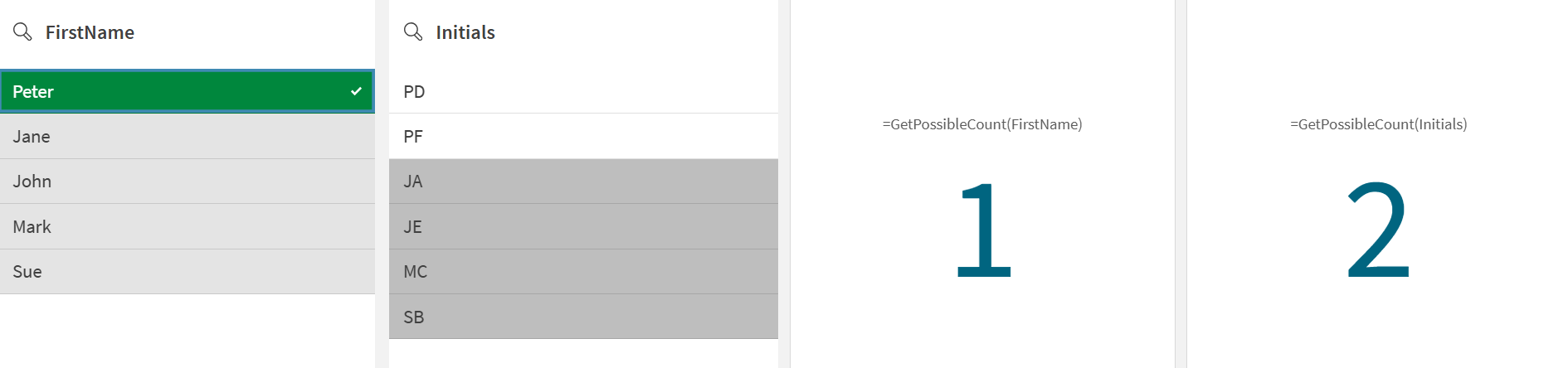
4. Clear the `FirstName` filter selection, and then select `Peter`.
KPI 1 returns the value `1` because there is one possible unique value available in the `FirstName` field. KPI 2 returns `2` because there are two possible unique values available in the `Initials` field.
## Example - GetPossibleCount scenario
[](https://help.qlik.com/en-US/cloud-services/Subsystems/Hub/Content/Sense_Hub/ChartFunctions/FieldFunctions/getpossiblecount.htm)
#### Chart expression
Overview
A manager wants to filter employee data to determine which employees have experience in different skill areas.
Open the Data load editor and add the load script below to a new section.
The load script contains:
* A dataset which is loaded into a data table called `Example`.
* The following fields in the data table:
* `Project`
* `Employee`
* `Skill`
Load script
```
Example:
LOAD * INLINE [
Project, Employee, Skill
Project X, John, Java
Project X, Mary, SQL
Project Y, James, Python
Project Y, Linda, Java
Project Z, Robert, SQL
];
```
Results
1. Load the data and open a sheet. Create a new filter pane and add this field as a dimension:
* `Skill`
2. Create a KPI object, and add the following measure:
* `=GetPossibleCount(Employee)` to determine the number of employees.
With no selections in the filter pane, the KPI returns the value `5` because there are five employees.
Tip noteIn this example the styling of the KPI has been adjusted to use a responsive layout behavior to make it easier to view the output. For more information about changing the chart layout behavior, see [Styling the KPI](https://help.qlik.com/en-US/cloud-services/Subsystems/Hub/Content/Sense_Hub/Visualizations/KPI/create-kpis.htm#Styling)
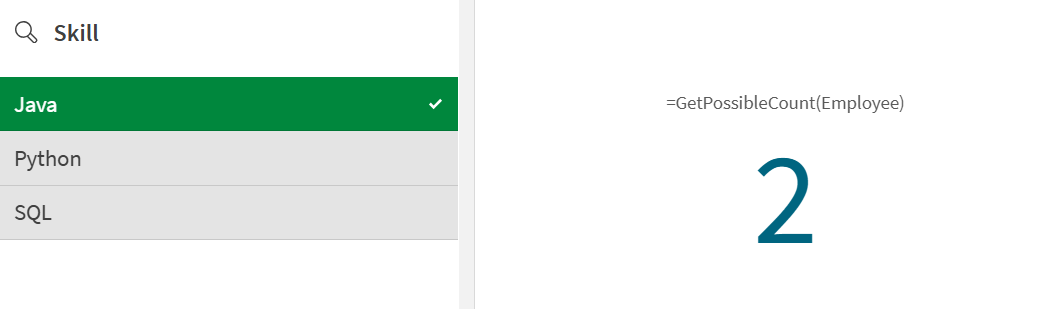
3. Click Edit sheet to switch to analysis mode and select `Java` in the `Skill` filter.
The KPI returns the value `2` because there are two employees who have the skill `Java`.