# GetCurrentSelections - chart function
GetCurrentSelections() returns a list of the current selections in the application. If the selections are instead made using a search string in a search box, GetCurrentSelections() returns the search string.
If options are used, you will need to specify record\_sep. To specify a new line, set record\_sep to chr(13)&chr(10).
If all but two, or all but one, values are selected, the format 'NOT x,y' or 'NOT y' will be used respectively. If you select all values and the count of all values is greater than max\_values, the text ALL will be returned.
Syntax:
GetCurrentSelections ([record\_sep [, tag\_sep [, value\_sep [, max\_values [, state\_name]]]]])
Return data type: string
Arguments
| Arguments | Description |
| --- | --- |
| record\_sep | Separator to be put between field records. The default is <CR><LF> meaning a new line. |
| tag\_sep | Separator to be put between the field name tag and the field values. The default is
'` : `'. |
| value\_sep | The separator to be put between field values. The default is ', '. |
| max\_values | The maximum number of field values to be individually listed. When a larger number of values is selected, the format 'x of y values' will be used instead. The default is 6. |
| state\_name | The name of an alternate state that has been chosen for the specific visualization. If the state\_name argument is used, only the selections associated with the specified state name are taken into account.
For more information, see [Using alternate states for comparative analysis](https://help.qlik.com/en-US/cloud-services/Subsystems/Hub/Content/Sense_Hub/Visualizations/alternate-states-comparative-analysis.htm). |
Example: Chart expressions
| Example | Result |
| --- | --- |
| `GetCurrentSelections ()` | Returns (`-`) if no selection has been made on any of the fields. If selections have been made, then the value returned is the field name and the value, for example `First Name : John`. |
## Example - GetCurrentSelections fundamentals
[](https://help.qlik.com/en-US/cloud-services/Subsystems/Hub/Content/Sense_Hub/ChartFunctions/FieldFunctions/getcurrentselections.htm)
#### Chart expression
Overview
This example shows you how the values returned by the `GetCurrentSelections` function change according to the selections you make.
Open the Data load editor and add the load script below to a new section.
The load script contains:
* A dataset which is loaded into a data table called `Example`.
* The following fields in the data table:
* `FirstName`
* `LastName`
* `Initials`
* `HasCellphone`
Load script
```
Example:
LOAD * inline [
FirstName|LastName|Initials|HasCellphone
John|Anderson|JA|Yes
Sue|Brown|SB|Yes
Mark|Carr|MC|No
Peter|Devonshire|PD|No
Jane|Elliot|JE|Yes
Peter|Franc|PF|Yes ] (delimiter is '|');
```
Results
1. Load the data and open a sheet. Create a new filter pane and add these fields as dimensions:
* `FirstName`
* `Initials`
2. Add a KPI object, and then create the following measure:
* `=GetCurrentSelections ()`, to find the current selections.
The KPI returns (`-`) because no values are selected.
Tip noteIn this example the styling of the KPI has been adjusted to use a responsive layout behavior to make it easier to view the output. For more information about changing the chart layout behavior, see [Styling the KPI](https://help.qlik.com/en-US/cloud-services/Subsystems/Hub/Content/Sense_Hub/Visualizations/KPI/create-kpis.htm#Styling).
3. Click Edit sheet to switch to analysis mode, and then in the `FirstName` field, select `John`. The KPI returns the following: `FirstName: John`.
* Now select `Peter` so that `John` and `Peter` are both selected. The KPI returns the following: `FirstName: John, Peter`.
* Add to the selection by selecting `JA` from the `Initials` field. The KPI returns the following: `First name: John, Peter Initials: JA`.

4. Clear the selection and do the following:
* Select `John` from the `FirstName` field and `JA` from the `Initials` field.
* Edit the KPI expression to the following: `=GetCurrentSelections ( chr(13)&chr(10) , ' = ' )`, to change the tag separator to an equal (`=`) sign.
Information noteKPI does not support line breaks and adds a space as the record separator.
5. Clear the selection and do the following:
* Select all names except `Sue` in the `FirstName` field.
* Edit the KPI expression to the following: `=GetCurrentSelections (chr(13)&chr(10), '=', ',' ,3)`, to add a tag separator (`=`), a value separator (`,`), and the maximum number of values to list (`3`).
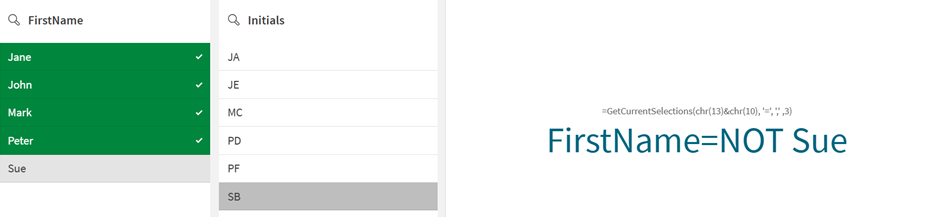
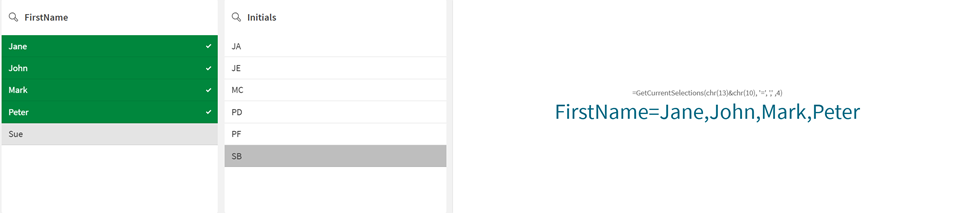
The KPI returns the value : `FirstName=NOT Sue` because four names were selected but the `max_values` argument will only list three. If you change the `max_values` argument to `4`, all four values will be listed separately with the same selection.
## Example - Customize a chart title to show selections
[](https://help.qlik.com/en-US/cloud-services/Subsystems/Hub/Content/Sense_Hub/ChartFunctions/FieldFunctions/getcurrentselections.htm)
#### Chart expression
Overview
This example shows you how to use the `GetCurrentSelections` function to make dynamic chart titles based on the user selection.
Open the Data load editor and add the load script below to a new section.
The load script contains:
* A dataset which is loaded into a data table called `Example`.
* The following fields in the data table:
* `SalesID`
* `Product`
* `Year`
* `Region`
* `SalesAmount`
Load script
```
Example:
LOAD * INLINE [
SalesID, Product, Year, Region, SalesAmount
1, WidgetA, 2021, North, 500
2, WidgetB, 2021, South, 600
3, WidgetC, 2021, East, 450
4, WidgetA, 2021, West, 700
5, WidgetB, 2022, North, 550
6, WidgetC, 2022, South, 425
7, WidgetB, 2022, East, 650
8, WidgetC, 2022, West, 250
9, WidgetB, 2023, North, 650
10, WidgetC, 2023, South, 325
11, WidgetB, 2023, East, 550
12, WidgetC, 2023, West, 450
13, WidgetB, 2024, North, 550
14, WidgetC, 2024, South, 525
15, WidgetB, 2024, East, 350
16, WidgetC, 2024, West, 650
];
```
Results
1. Load the data and open a sheet. Create a new filter pane and add these fields as dimensions:
* `Region`
* `Year`
2. Create a line chart and add the following dimensions:
* `Year`
* `Region`
3. Create the following measure:
* `=Sum(SalesAmount)`, to display the total sales.
4. In the measure properties panel, under Appearance > General > Title, enter the following expression: `='Sales Analysis for: ' & GetCurrentSelections()`.
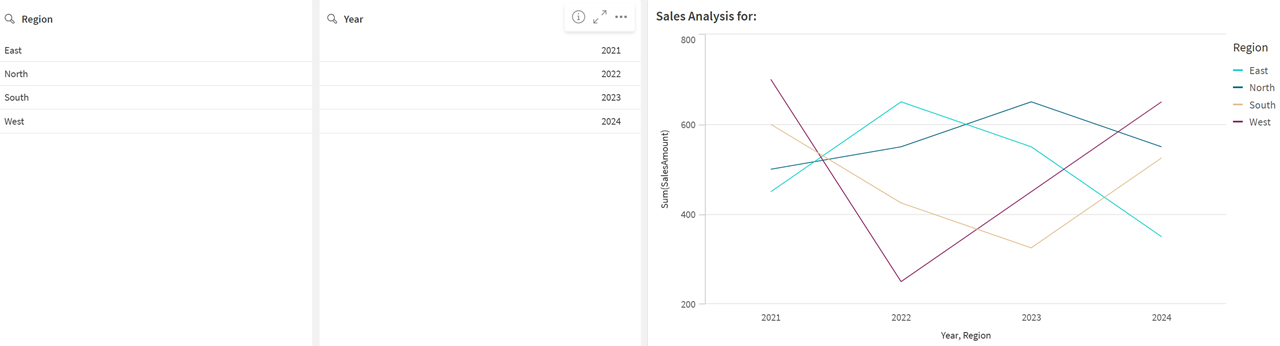
The results show the sum of sales for all regions and years. The chart title appears as `Sales Analysis for:`.
5. Click Edit sheet to switch to analysis mode, and then make the following selections:
* In the Region field select `East` and `North`.
* In the Year field, select `2022` and `2023`.
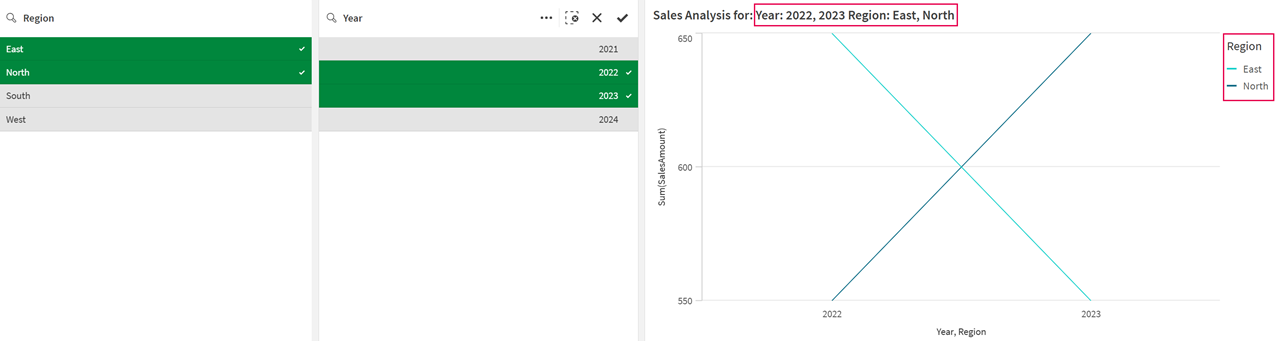
The chart title changes to show the filter selections for `Region` and `Year`.